Azure Event Hubs
Azure Event Hubs: Big data streaming platform to ingest and process events.
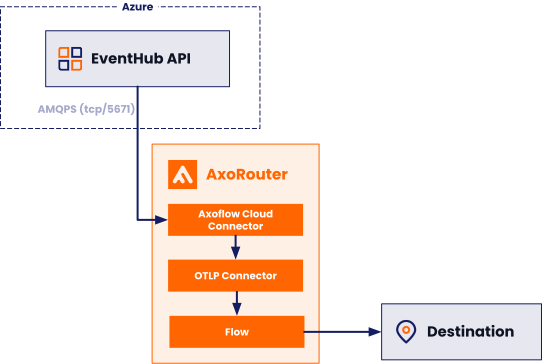
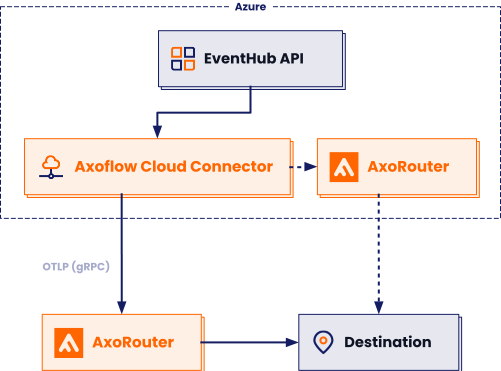
Axoflow can collect data from your Azure Event Hubs using an Axoflow Cloud Connector. At a high level, the process looks like this:
- Deploy an Axoflow Cloud Connector that will collect the data from your Event Hub. Axoflow Cloud Connector is a simple container that you can deploy into Azure, another cloud provider, or on-prem.
- The connector forwards the collected data to the OpenTelemetry connector of an AxoRouter instance. This AxoRouter can be deployed within Azure, another cloud provider, or on-prem. You can deploy Axoflow Cloud Connector on the same host as AxoRouter.
- Configure a Flow on AxoConsole that processes and routes the collected data to your destination (for example, Splunk or another SIEM).
Prerequisites
- An Azure account with an active subscription.
- A virtual machine or Kubernetes node to deploy Axoflow Cloud Connector on. This can be the same host that’ll run AxoRouter.
- An AxoRouter instance that can receive data from the connector. Verify that it has an OpenTelemetry Connector (it’s enabled by default). This can be the same host that’ll run Axoflow Cloud Connector.
-
You know the IP address the AxoRouter. To find it:
- Open the AxoConsole.
- Select the Routers or the Topology page.
- Select on AxoRouter instance that is going to receive the logs.
- Check the Networks > Address field.
- The Axoflow Cloud Connector must be able to access the AxoRouter on the port the OpenTelemetry Connector is listening on (by default, port 4317). Depending on where the Axoflow Cloud Connector and AxoRouter are deployed, you might need to adjust firewall and ingress/egress rules in your environment.
- An Event Hubs connection string.
Axoflow Cloud Connector and AxoRouter on the same host
To collect data from Azure Event Hubs when Axoflow Cloud Connector and AxoRouter are running on the same host, complete the following steps. This scenario assumes that the host isn’t running in Azure. Alternatively, you can use separate hosts.
-
Deploy AxoRouter on a Linux virtual machine: select Provisioning > AxoRouter > Linux, then run the one-liner provisioning command on the host.
-
Download the Axoflow Cloud Connector image. The host must be able to access
ghcr.ioon TCP port 443 for this step.sudo podman pull ghcr.io/axoflow/axocloudconnectors:latest -
Ensure that Axoflow Cloud Connector can access the Azure Event Hubs APIs over the AMQP protocol on TCP port 5671.
-
Install the Axoflow Cloud Connector.
-
Create the
/etc/axorouter/cloudconnectors-azure.envfile with the following content:AXOCLOUDCONNECTORS_UID=0 AXOCLOUDCONNECTORS_GID=0 AXOCLOUDCONNECTORS_CAPS=CAP_NET_BIND_SERVICE CAP_NET_BROADCAST CAP_NET_RAW CAP_SYSLOG CAP_BPF AXOCLOUDCONNECTORS_IMAGE=ghcr.io/axoflow/axocloudconnectors:latest AXOCLOUDCONNECTORS_PODMAN_ARGS=--log-level=warn STORAGE_DIRECTORY=/var/lib/axocloudconnectors-azure AXOROUTER_ENDPOINT=127.0.0.1:4317 http_proxy= https_proxy= no_proxy= AXOCLOUDCONNECTOR_DEVICE_ID=8f6c3653 AXOROUTER_TLS_INSECURE=true AZURE_EVENT_HUBS_CONNECTION_STRING=<your-event-hubs-connection-string>Replace
<your-event-hubs-connection-string>with your actual Event Hubs connection string. -
Create the
/etc/containers/systemd/axorouter-cloudconnectors-azure.containerfile with the following content:[Unit] Description=CloudConnectors Azure Container Wants=network-online.target After=network.target network-online.target StartLimitIntervalSec=0 StartLimitBurst=0 [Install] WantedBy=multi-user.target default.target [Container] User=${AXOCLOUDCONNECTORS_UID} Group=${AXOCLOUDCONNECTORS_GID} # Passing envvars into the container EnvironmentFile=/etc/axorouter/cloudconnectors-azure.env Environment=AXO_SYSTEMD_UNIT_NAME=%n ContainerName=axorouter-cloudconnectors-azure AddCapability=${AXOCLOUDCONNECTORS_CAPS} Image=${AXOCLOUDCONNECTORS_IMAGE} Volume=${STORAGE_DIRECTORY}:${STORAGE_DIRECTORY}:z PodmanArgs=${AXOCLOUDCONNECTORS_PODMAN_ARGS} Exec= LogDriver=journald Network=host SecurityLabelDisable=true [Service] # for `podman run` (e.g. AXOCLOUDCONNECTORS_IMAGE) EnvironmentFile=/etc/axorouter/cloudconnectors-azure.env RestartSec=2 Restart=always -
Run the following commands to load and start the service and create the required data directory (for persistent position pointer and data buffer):
sudo mkdir -p /var/lib/axocloudconnectors-azure sudo systemctl daemon-reload sudo systemctl start axorouter-cloudconnectors-azure -
Check the logs of the newly created service to verify it’s running and there are no errors:
sudo journalctl -f -u axorouter-cloudconnectors-azureThe Axoflow Cloud Connector starts forwarding logs to the AxoRouter instance.
-
-
Add the appliance to AxoConsole.
-
Open the AxoConsole and select Topology.
-
Select Add Item > Source.
-
If the Axoflow Cloud Connector is already sending logs to an AxoRouter instance that is registered in the AxoConsole, select Detected, then select the source.
Otherwise, select Azure Event Hubs, and follow the on-screen instructions.
-
Enter the IP address and the FQDN of the Axoflow Cloud Connector instance.
-
Select Add.
-
-
Create a Flow to route the data from the AxoRouter instance to a destination. You can use the Labels of this source to select messages from this source.
Axoflow Cloud Connector and AxoRouter on a separate host
To collect data from Azure Event Hubs when Axoflow Cloud Connector and AxoRouter are running on separate hosts, complete the following steps. This scenario assumes that Axoflow Cloud Connector will be deployed in Azure. Alternatively, you can deploy both components on the same host.
-
Deploy an Axoflow Cloud Connector into Azure.
-
Access the Kubernetes node or virtual machine.
-
Set the following environment variable to the IP address of the AxoRouter where you want to forward the data from Event Hubs. This IP address must be accessible from the connector. You can find the IP address of AxoRouter on the Routers > AxoRouter > Overview page.
export AXOROUTER_ENDPOINT=<AxoRouter-IP-address> -
(Optional) By default, the connector stores positional and other persistence-related data in the
/etc/axoflow-otel-collector/storagedirectory. In case you want to use a different directory, set theSTORAGE_DIRECTORYenvironment variable. -
Run the following command to generate a UUID for the connector. AxoConsole will use this ID to identify the connector.
UUID_FULL=$(uuidgen 2>/dev/null || cat /proc/sys/kernel/random/uuid 2>/dev/null || python3 -c "import uuid; print(uuid.uuid4())") export AXOCLOUDCONNECTOR_DEVICE_ID=$(echo "$UUID_FULL" | cut -d'-' -f1) -
Set TLS encryption to secure the communication between Axoflow Cloud Connector and AxoRouter.
Configure the TLS-related settings of Axoflow Cloud Connector using the following environment variables.
Variable Required Default Description AXOROUTER_TLS_INSECURENo falseDisables TLS encryption if set to trueAXOROUTER_TLS_INCLUDE_SYSTEM_CA_CERTS_POOLNo falseSet to trueto use the system CA certificatesAXOROUTER_TLS_CA_FILENo - Path to the CA certificate file used to validate the certificate of AxoRouter AXOROUTER_TLS_CA_PEMNo - PEM-encoded CA certificate AXOROUTER_TLS_INSECURE_SKIP_VERIFYNo falseSet to trueto disable TLS certificate verification of AxoRouterAXOROUTER_TLS_CERT_FILENo - Path to the certificate file of Axoflow Cloud Connector AXOROUTER_TLS_CERT_PEMNo - PEM-encoded client certificate AXOROUTER_TLS_KEY_FILENo - Path to the client private key file of Axoflow Cloud Connector AXOROUTER_TLS_KEY_PEMNo - PEM-encoded client private key AXOROUTER_TLS_MIN_VERSIONNo 1.2Minimum TLS version to use AXOROUTER_TLS_MAX_VERSIONNo - Maximum TLS version to use Note You’ll have to include the TLS-related environment variables you set in the docker command used to deploy Axoflow Cloud Connector. -
Set the
AZURE_EVENT_HUBS_CONNECTION_STRINGenvironment variable.export AZURE_EVENT_HUBS_CONNECTION_STRING="Endpoint=sb://<NamespaceName>.servicebus.windows.net/;SharedAccessKeyName=<KeyName>;SharedAccessKey=<KeyValue>;EntityPath=<EventHubName>" -
Deploy the Axoflow Cloud Connector by running the following command. Also, pass the TLS-related settings that you set earlier.
docker run --rm \
-v "${STORAGE_DIRECTORY}":"${STORAGE_DIRECTORY}" \
-e AZURE_EVENT_HUBS_CONNECTION_STRING="${AZURE_EVENT_HUBS_CONNECTION_STRING}" \
-e AXOROUTER_ENDPOINT="${AXOROUTER_ENDPOINT}" \
-e STORAGE_DIRECTORY="${STORAGE_DIRECTORY}" \
-e <TlS-related-environment-variable>="${<TLS-related-environment-variable>}" \
-e AXOCLOUDCONNECTOR_DEVICE_ID="${AXOCLOUDCONNECTOR_DEVICE_ID}" \
ghcr.io/axoflow/axocloudconnectors:latest
The Axoflow Cloud Connector starts forwarding logs to the AxoRouter instance.
-
-
Add the appliance to AxoConsole.
-
Open the AxoConsole and select Topology.
-
Select Add Item > Source.
-
If the Axoflow Cloud Connector is already sending logs to an AxoRouter instance that is registered in the AxoConsole, select Detected, then select the source.
Otherwise, select Azure Event Hubs, and follow the on-screen instructions.
-
Enter the IP address and the FQDN of the Axoflow Cloud Connector instance.
-
Select Add.
-
-
Create a Flow to route the data from the AxoRouter instance to a destination. You can use the Labels of this source to select messages from this source.
Labels
Axoflow automatically adds the following labels to data collected from this source:
| Analytics label | Message field | Value |
|---|---|---|
vendor |
meta.vendor |
microsoft |
product |
meta.product |
azure-event-hubs |
service |
meta.service.name |
signin |
You can use the labels as:
- Filter labels on the Analytics page,
- in the Filter By Label field during log tapping.
You can use the message fields
- in Flow Processing steps, for example, in the Query field of Select Messages steps,
- in AQL expressions in the search bars.
Event Hubs Audit logs labels
| Analytics label | Message field | Value |
|---|---|---|
vendor |
meta.vendor |
microsoft |
product |
meta.product |
azure-event-hubs-audit |
Event Hubs Provisioning logs labels
| Analytics label | Message field | Value |
|---|---|---|
vendor |
meta.vendor |
microsoft |
product |
meta.product |
azure-event-hubs-provisioning |
Event Hubs Signin logs labels
| Analytics label | Message field | Value |
|---|---|---|
vendor |
meta.vendor |
microsoft |
product |
meta.product |
azure-event-hubs-signin |
Sending data to Splunk
When sending the data collected from this source to Splunk, Axoflow uses the following sourcetype and index settings:
| sourcetype | index |
|---|---|
mscs:azure:eventhub:log |
azure-activity |
If the Axoflow classification doesn’t set the source field for the message automatically, and you haven’t set it in a flow processing step manually (by setting the meta.destination.splunk.source field), AxoRouter automatically sets the source to the name of the AxoRouter connector that received the message (for example, axorouter-syslog-tcp-514).
Sending data to Google SecOps
When sending the data collected from this source to a dynamic Google SecOps destination, Axoflow sets the following log type: AZURE_EVENTHUB.
Sending data to Microsoft Sentinel
When sending the data collected from this source to a Microsoft Sentinel destination, Axoflow normalizes the data and sends it to the following table: Syslog.