AxoRouter connector rules
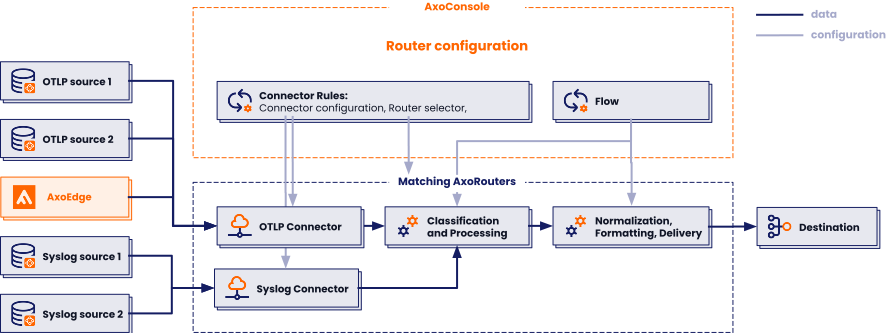
Connectors define the methods and entry points where AxoRouter receives data from the sources. To collect data from edge hosts, see Edge collection rules.
In addition to providing a simple protocol specific listener, Connectors implement critical processing steps - for example classification and parsing - right at the ingestion point to enrich data before it gets processed by Flows.
On top of this, Connector rules are high-level policies that determine what kind of Connectors should be available on a set of AxoRouter instances based on dynamic host labels.
To see every connector rule configured in AxoConsole, select Routers > Connector Rules from the main menu.
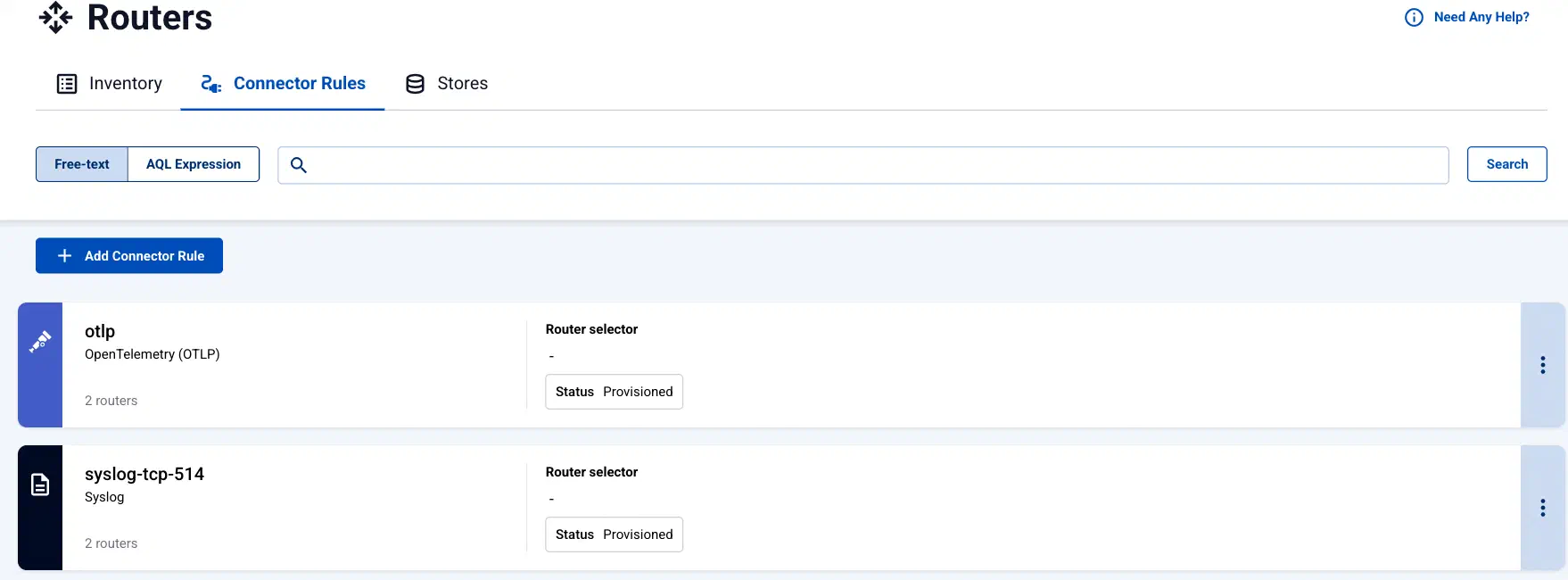
Connector rules have the following main elements:
-
the way they accept data (for example, via syslog, using the OpenTelemetry protocol), and other protocol-specific parameters (for example, port number)
-
the router selector, which determines the list of AxoRouter instances that will create a connector based on that rule.
You can use any labels and metadata of the AxoRouter hosts in the Router selectors, for example, the hostname of the AxoRouter, or any custom labels .
- If you leave the router selector empty, it matches every AxoRouter instance.
- To select only a specific AxoRouter instance, set the
namefield to the name of the instance as selector. For example,name = my-axorouter. - If you set multiple fields in the selector, the selector will match only AxoRouter instances that match all elements of the selector. (There in an AND relationship between the fields.)
label.wec = enabledselector on a Windows Event Collector (WEC) rule will create a WEC connector on AxoRouter hosts that have theweclabel set toenabled.
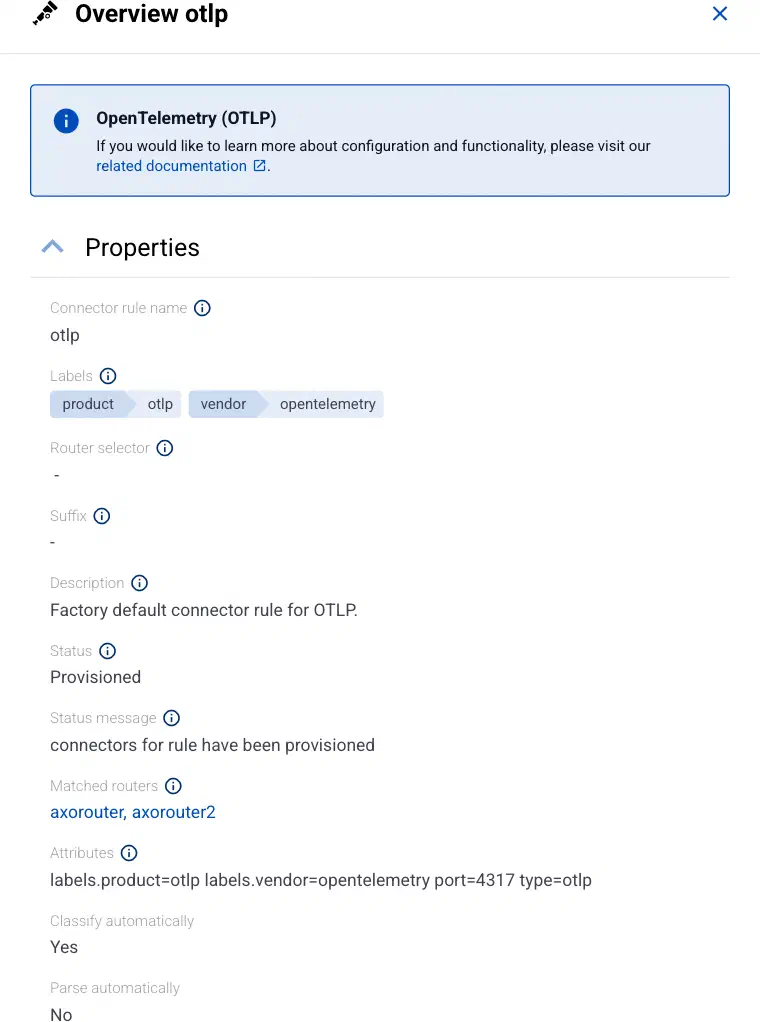
To show the details of a connector rule, select > Details on its card. The details include:
-
The list of Matched routers: the AxoRouter deployments that will have a connector based on that connector rule. If you select the name of a matched router, the Connectors page of the AxoRouter host opens, showing you the connectors configured for that host.
-
Classify automatically and Parse automatically: whether the Classify and Parse preprocessing steps of the rule are turned on.
-
- Idle: The rule doesn’t match any hosts currently.
- Provisioned: Connectors based on this rule were successfully provisioned for every matching host.
- Error: Some error(s) occurred while provisioning connectors based on this rule. See the Status message field for details.
- Unknown: The rule is in an unknown state.
-
Attributes: Various significant attributes of connectors provisioned based on this rule.
Create connector rule
To create a new connector rule, complete the following steps.
-
Select Routers > Connector Rules > Add Connector Rule. (Alternatively, you can select Add Connector > Add a connector rule on the Connectors page of an AxoRouter host.)
-
Select the type of connector you want to create. For example, OpenTelemetry. The following connector types are available:
- AWS CloudTrail
- AWS VPC Flow Logs
- Azure Event Hubs
- Elasticsearch Bulk API
- Falcon Platform (CrowdStrike)
- Generic HTTP
- Idira (Palo Alto Networks)
- OpenTelemetry (OTLP)
- Splunk HEC Server
- Syslog
- Vulnerability Management (Tenable)
- Webhook
- Windows Events (Windows Event Collector)
-
Configure the connector rule.
-
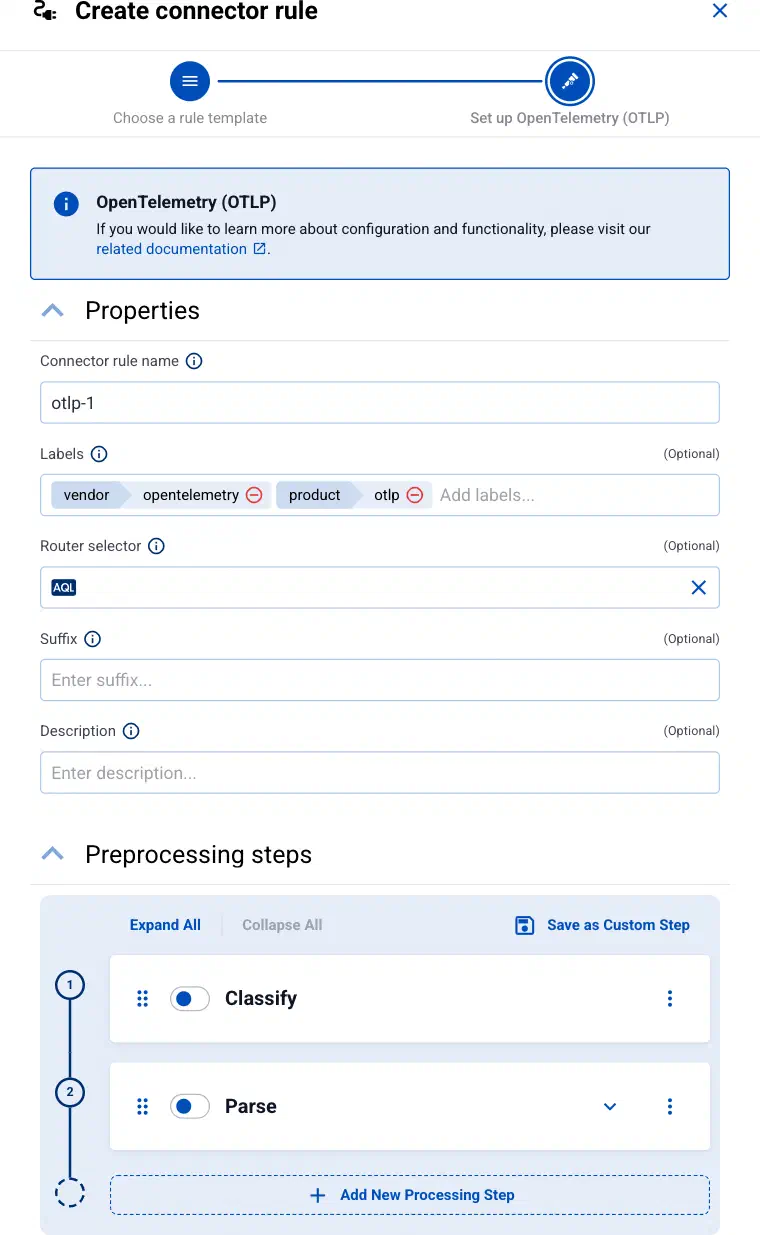
Enter a name for the connector rule into the Connector rule name field.
-
(Optional) Add labels to the connector rule. You will be able to use these labels in Flow Processing steps , for example, in the Query field of Select Messages steps. For details about the message schema and the related connector-specific fields, see the
meta.connectorobject . -
Set the Router selector for the connector rule. The selector determines which AxoRouter instances will have a connector based on this connector rule.
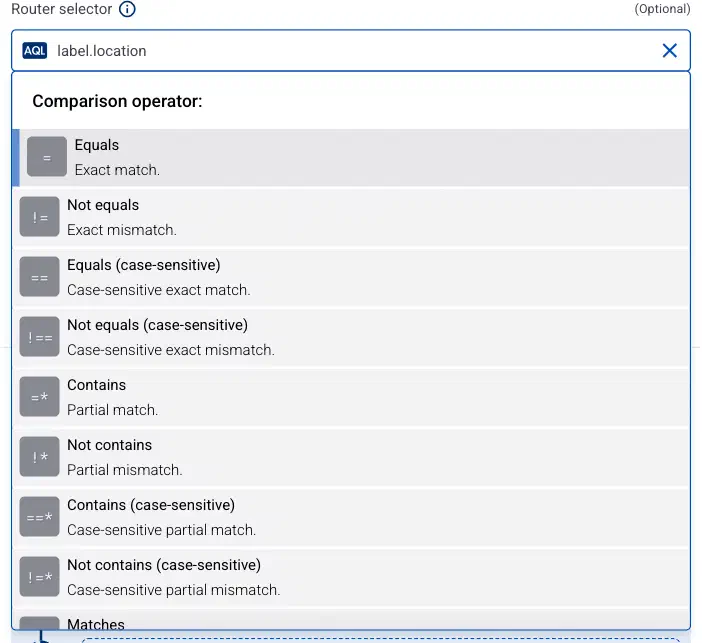
You can use any labels and metadata of the AxoRouter hosts in the Router selectors, for example, the hostname of the AxoRouter, or any custom labels .
- If you leave the router selector empty, it matches every AxoRouter instance.
- To select only a specific AxoRouter instance, set the
namefield to the name of the instance as selector. For example,name = my-axorouter. - If you set multiple fields in the selector, the selector will match only AxoRouter instances that match all elements of the selector. (There in an AND relationship between the fields.)
-
(Optional) Enter a Suffix for the connector rule. AxoConsole uses the suffix in the name of the connector instances that it creates on the AxoRouter hosts. The name of the connector instance follows the
<name-of-AxoRouter>-<suffix>schema. For example, if the name of a matching AxoRouter instance isaxorouter-1, and the suffix of the rule iscustom, the name of the connector on that AxoRouter isaxorouter-1-custom.If the Suffix field is empty, AxoConsole uses the name of the connector rule instead. For example, if the name of the connector rule is
otlp-1, the name of the connector isaxorouter-1-otlp-1. -
(Optional) Enter a description for the rule.
-
If needed, turn on the Classify and Parse steps in the Preprocessing steps section (they’re off by default), so AxoRouter automatically identifies and parses messages sent by supported data sources . If your source is not listed, contact us .
Enabling these options processes all data received by the connectors created based on this connector rule. If you want to apply classification and parsing more selectively, you can use the Classify and Parse processing steps in your Flows .
Note that the Parse processing step requires Classify to be enabled. Parsing automatically parses the data from the content of the message, and replaces the message content (the
log.bodyfield in the internal message schema) with the structured information. -
(Optional) If needed, you can add other preprocessing steps to the connector rule. You can use the same processing steps as in flows . These can be useful if you use a dedicated connector rule to fix or annotate data coming from some specific sources. To reuse the preprocessing steps in other connector rules or flows, select Save as Custom Step.
-
-
Configure the protocol-specific settings. For details, see the specific pages:
- AWS CloudTrail
- AWS VPC Flow Logs
- Azure Event Hubs
- Elasticsearch Bulk API
- Falcon Platform (CrowdStrike)
- Generic HTTP
- Idira (Palo Alto Networks)
- OpenTelemetry (OTLP)
- Splunk HEC Server
- Syslog
- Vulnerability Management (Tenable)
- Webhook
- Windows Events (Windows Event Collector)
CAUTION:
TCP and UDP port range 29500–29519 is reserved for AxoRouter’s internal listeners and cannot be used in connector rules.
-
Select Add.
Axoflow automatically creates connectors on the AxoRouter hosts that match the Router selector.
Make sure to enable the ports you’ve configured in the connector on the firewall of the AxoRouter host, and on other firewalls between the AxoRouter host and your data sources.
Modify connector rule
To modify an existing connector rule, complete the following steps.
- You cannot directly modify the connector of an AxoRouter host, only via modifying a connector rule.
- Modifying a connector rule affects every AxoRouter that matches the Router selector of the rule.
- To apply an existing connector rule to a new AxoRouter instance, you can:
- Add a label to the AxoRouter host so the Router selector of the connector rule matches the new host, and/or
- Change the Router selector of the connector rule to match the new host.
-
Find the connector rule you want to modify:
- Select Routers > Connector Rules from the main menu, then select > Edit on the card of the connector rule you want to modify.
- Alternatively, find the AxoRouter instance whose connector you want to modify on the Topology page, then select Connectors. Find the connector you want to modify, then select > Edit connector rule.
-
Modify the configuration of the connector rule as needed.
CAUTION:
The changes are applied immediately after you click Update. Double-check your changes to avoid losing data.
-
Select Update.
Add AxoRouter to existing connector rule
To add an AxoRouter to an existing connector rule, you have two options, depending on the Router selector of the connector rule:
- Modify the Router selector field of the connector rule to include the new AxoRouter host.
- Modify the labels of the AxoRouter host so it matches the router selector of the connector rule.