Data forwarding from edge hosts
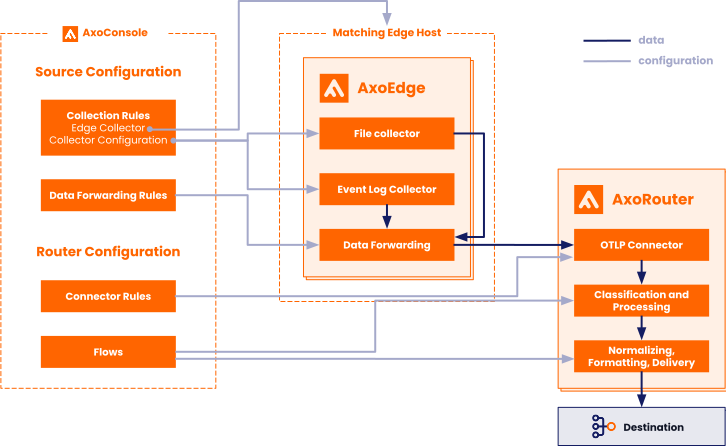
To send data from an edge host to an AxoRouter, create a data forwarding rule.
- Sources are hosts that are sending data to a data aggregator, like AxoRouter.
- Edges are source hosts that are running a collector agent managed by AxoConsole, or have an Axolet agent reporting metrics from the host.
Data forwarding rules are high-level policies that determine how data should be forwarded from a set of edge hosts to an AxoRouter’s OpenTelemetry connector. You can use dynamic host labels to specify the edge hosts that the forwarding rule applies to.
To see every data forwarding rule configured in AxoConsole, select Sources > Forwarding Rules from the main menu.
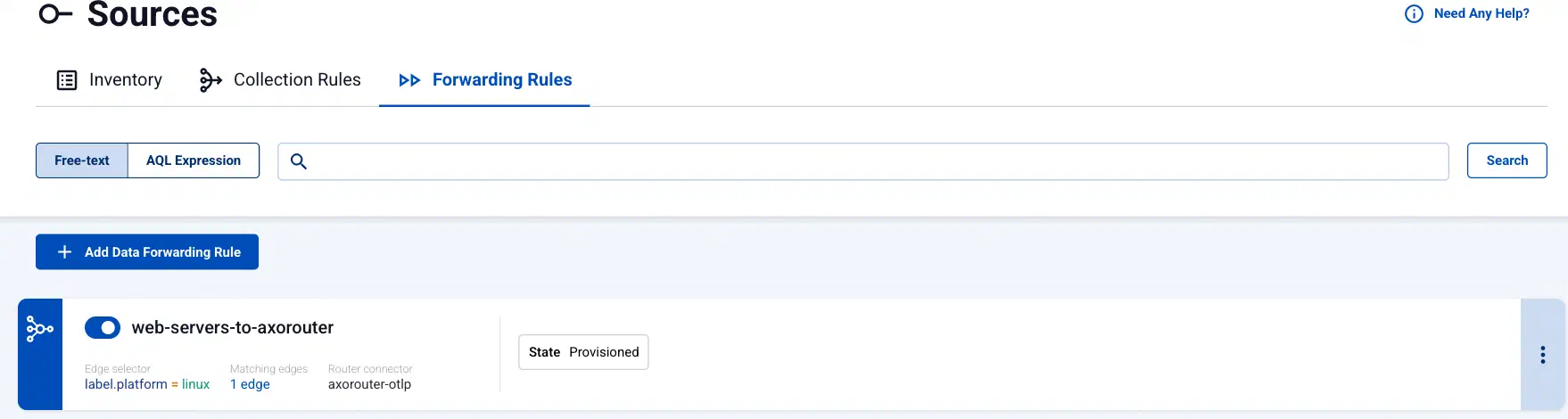
Data forwarding rules have the following main elements:
-
the edge selector, which determines the list of edge hosts that will create a data forwarding rule based on that rule.
You can use any labels and metadata of the edge hosts in the edge selectors, for example, the hostname, or any custom labels. For example, using the
label.product = windowsselector will create a data forwarding rule only on Windows hosts. -
the Router connector to send the data to. This must be an OpenTelemetry connector of an AxoRouter.
Selecting the name of a data forwarding rule opens its Overview page, which shows the details of the rule, including the list of Matching Edges. To turn a rule off or on, use the toggle next to its name.
Create data forwarding rule
To create a new data forwarding rule, complete the following steps.
-
If the primary IP address (the first IP address shown in the Network addresses section on the Routers page for each AxoRouter) is not accessible from your edge hosts, set a Network address override (IP address or an FQDN) that’s accessible. Otherwise, data forwarding from edge hosts will fail.
-
Select Sources > Forwarding Rules > Add Data Forwarding Rule.
-
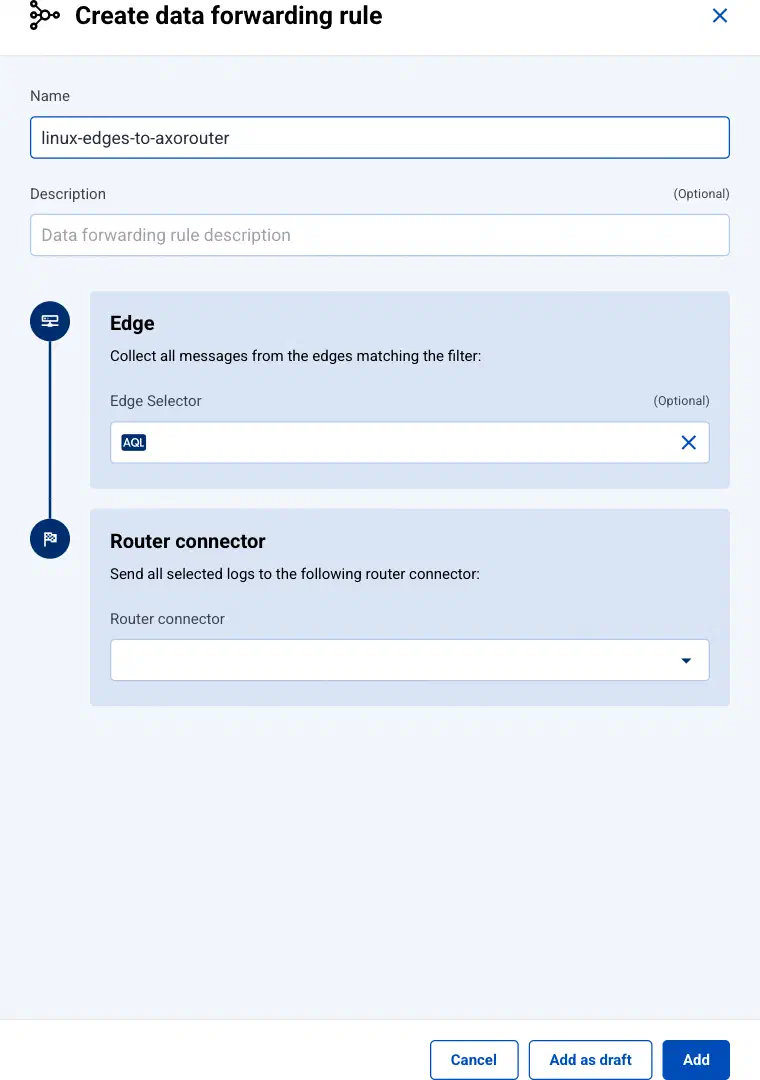
Enter a name for the data forwarding rule into the Name field.
-
(Optional) Enter a description for the rule.
-
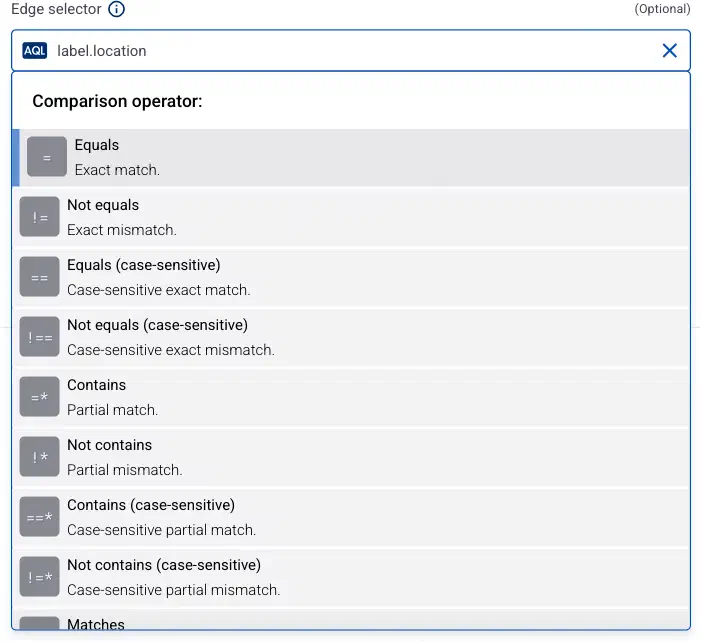
- Only edge hosts will match the rule.
- If you leave the edge selector empty, the rule matches every edge host.
- To select only a specific host, set the
namefield to the name of the host as selector. - If you set multiple fields in the selector, the collection rule will apply only to edge hosts that match all elements of the selector. (There in an AND relationship between the fields.) For example,
label.location = us-east-1 AND label.product = windows
-
In the Router connector field, select the OpenTelemetry connector of an AxoRouter where you want to send the data.
-
Select Add to create and immediately apply the data forwarding rule to the matching edge hosts. Alternatively, select Add as draft to create the rule in a disabled state. You can enable the rule later on the Sources > Forwarding Rules page, with the toggle next to the name of the rule.
Modify forwarding rule
To modify an existing data forwarding rule, complete the following steps.
- You cannot directly modify the data forwarding settings of an edge host, only via modifying a data forwarding rule.
- Modifying a rule affects every edge host that matches the Edge Selector of the rule.
- To apply an existing rule to a new edge host, you can:
- Add a label to the edge host so the Edge Selector of the rule matches the new host, and/or
- Change the Edge Selector of the rule to match the new host.
-
Select Sources > Forwarding Rules from the main menu, then select the name of the rule you want to modify.
-
Select Process, then modify the Edge Selector or the Router connector of the rule as needed. (To change the description of the rule, select Edit instead.)
CAUTION:
The changes are applied immediately after you select Save. Double-check your changes to avoid losing data.
-
Select Save.
Add edge host to existing forwarding rule
To add an edge host to an existing data forwarding rule, you have two options, depending on the Edge Selector of the data forwarding rule:
- Modify the Edge Selector field of the rule to include the new edge host.
- Modify the labels of the edge host so it matches the edge selector of the rule.
Troubleshooting
If the data doesn’t arrive at the destination, see An edge host doesn’t send data. For other problems, see Troubleshooting Axoflow.