Tenable One Vulnerability Management
Tenable One Vulnerability Management: Cloud-based vulnerability management platform whose audit log API records user and configuration activity.
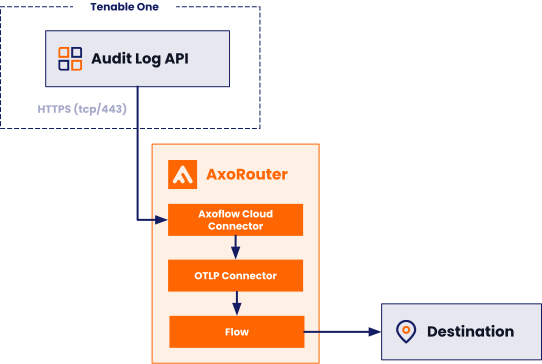
Axoflow can collect the audit log of your Tenable One Vulnerability Management deployment with an Axoflow Cloud Connector. At a high level, the process looks like this:
- Create a Connector Rule on the AxoRouter that deploys an Axoflow Cloud Connector and collects the data from the Tenable audit log API. Axoflow Cloud Connector is a simple container that runs on an AxoRouter instance.
- Configure a Flow on AxoConsole that processes and routes the collected data to your destination (for example, Splunk or another SIEM).
Prerequisites
-
An AxoRouter instance that:
- Was provisioned with Enable Cloudconnectors turned on.
- Can reach the Tenable Vulnerability Management API (by default, cloud.tenable.com) on TCP port 443. Adjust your firewall rules and the access rules of the data source as needed.
-
You know the IP address the AxoRouter. To find it:
- Open the AxoConsole.
- Select the Routers or the Topology page.
- Select on AxoRouter instance that is going to receive the logs.
- Check the Networks > Address field.
- A Tenable Vulnerability Management account with an active subscription.
- An API key pair (an access key and a secret key) generated for a user who can read the audit log of your container.
Configure Axoflow Cloud Connector on AxoRouter
To collect data from Tenable One Vulnerability Management, complete the following steps.
-
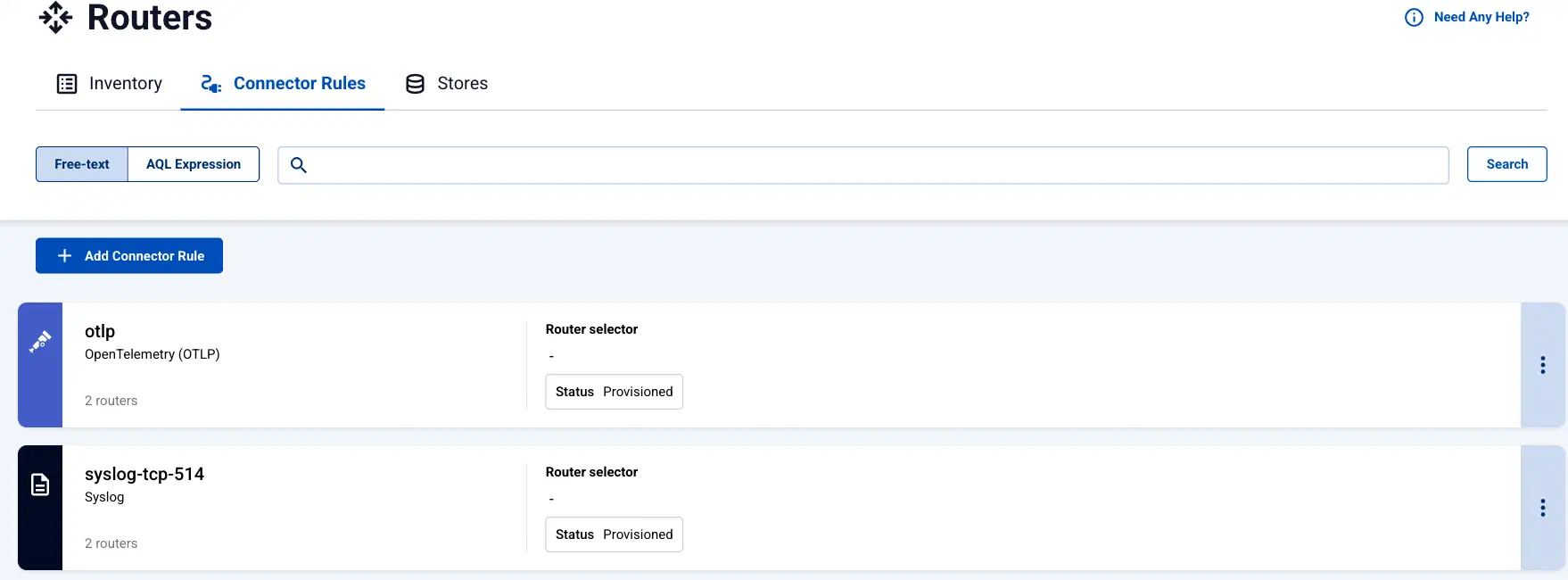
Select Routers > Connector Rules > Add Connector Rule. (Alternatively, you can select Add Connector > Add a connector rule on the Connectors page of an AxoRouter host.)
-
Select Vulnerability Management (Tenable).
-
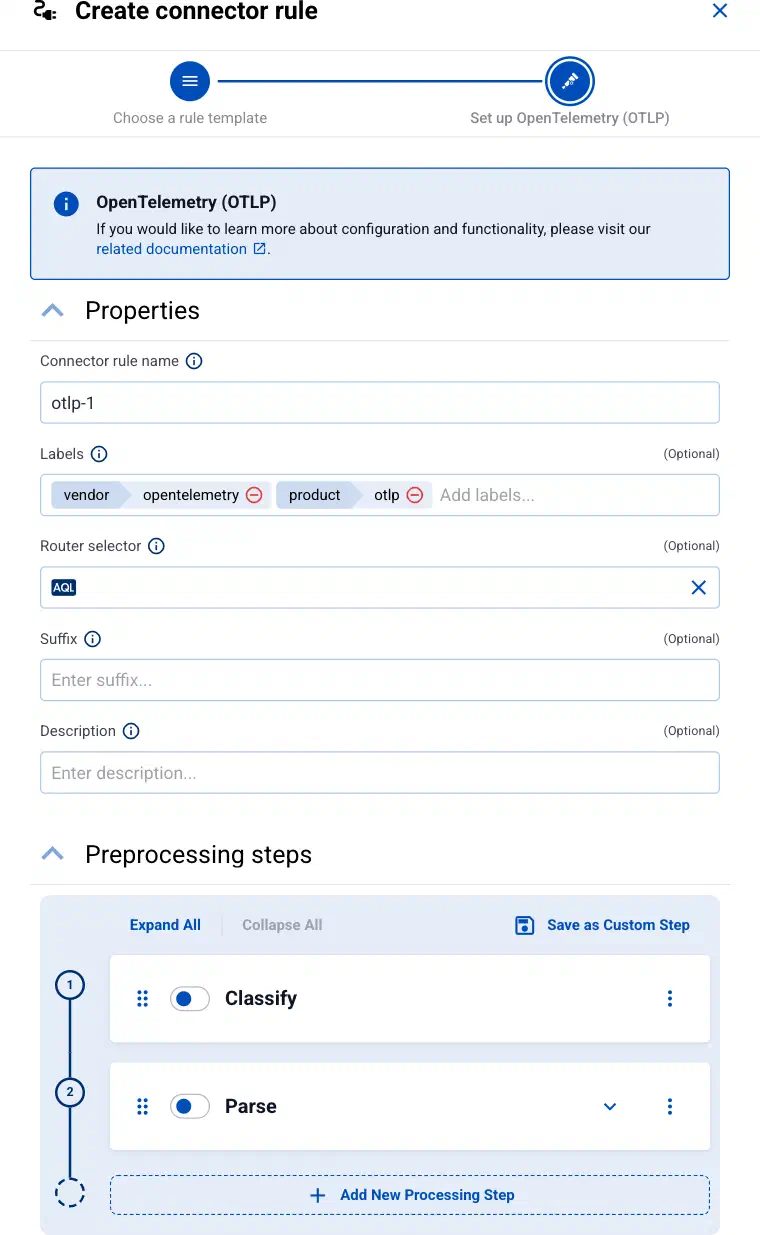
Enter a name for the connector rule into the Connector rule name field.
-
(Optional) Add labels to the connector rule. You will be able to use these labels in Flow Processing steps, for example, in the Query field of Select Messages steps. For details about the message schema and the related connector-specific fields, see the
meta.connectorobject. -
Set the Router selector for the connector rule. The selector determines which AxoRouter instances get a connector from this connector rule.
CAUTION:
Each connector rule for Tenable One Vulnerability Management must match exactly one AxoRouter. Use the
nameorguidAQL selector to make sure it matches only one AxoRouter. Otherwise several Axoflow Cloud Connector instances collect the same data, and Axoflow receives every message multiple times.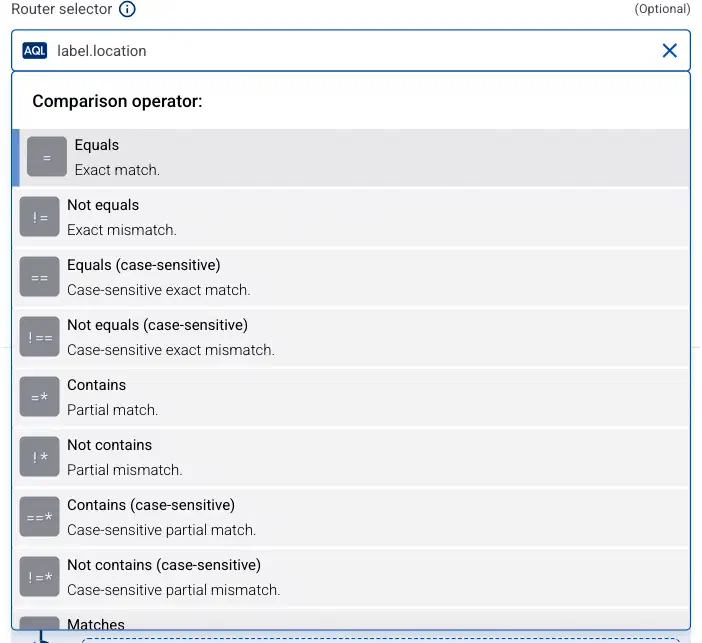
You can use any labels and metadata of the AxoRouter hosts in the Router selectors, for example, the hostname of the AxoRouter, or any custom labels.
- If you leave the router selector empty, it matches every AxoRouter instance.
- To select only a specific AxoRouter instance, set the
namefield to the name of the instance as selector. For example,name = my-axorouter. - If you set multiple fields in the selector, the selector will match only AxoRouter instances that match all elements of the selector. (There in an AND relationship between the fields.)
-
(Optional) Enter a Suffix for the connector rule. AxoConsole uses the suffix in the name of the connector instances that it creates on the AxoRouter hosts. The name of the connector instance follows the
<name-of-AxoRouter>-<suffix>schema. For example, if the name of a matching AxoRouter instance isaxorouter-1, and the suffix of the rule iscustom, the name of the connector on that AxoRouter isaxorouter-1-custom.If the Suffix field is empty, AxoConsole uses the name of the connector rule instead. For example, if the name of the connector rule is
otlp-1, the name of the connector isaxorouter-1-otlp-1. -
(Optional) Enter a description for the rule.
-
Configure how Axoflow Cloud Connector reaches the Tenable audit log API.
- Access key and Secret key: The Tenable API key pair that Axoflow Cloud Connector uses to authenticate.
- Endpoint: (Optional) The base URL of the Tenable Vulnerability Management API. Default value:
https://cloud.tenable.com
-
(Optional) Select More options to change the advanced options of the connector, for example, how often it polls the API.
-
Select Add. The Axoflow Cloud Connector starts polling the Tenable audit log API and forwarding the collected events to the AxoRouter instance.
-
Verify that the Axoflow Cloud Connector is running.
- Select Routers, then select the AxoRouter you added the Axoflow Cloud Connector to.
- Select Services and check that axoflow-cloudconnector.service is running without errors.
-
Create a Flow to route the data from the AxoRouter instance to a destination. You can use the Labels of this source to select its messages.
Advanced options
Select More options on the connector rule to set the following options.
-
Poll interval: How often Axoflow Cloud Connector queries the audit log API. Default value:
5m -
Page size: The number of events that Axoflow Cloud Connector requests per API call. Minimum value:
1. Maximum value:5000. Default value:1000 -
Max records per poll: Caps the number of events that a single poll collects. Axoflow Cloud Connector collects the remaining events during the following polls. Minimum value:
1. Default value:5000 -
Initial lookback: How far back Axoflow Cloud Connector collects events when no checkpoint is stored yet. Set it to
0to collect only the events that arrive after the connector starts. Default value:24hAxoflow Cloud Connector checkpoints the position of the poll cursor, so after a restart it resumes the collection where the last poll stopped. The Initial lookback option applies only when there is no stored checkpoint. Since the Tenable audit log retains 30 days of events, setting a longer period doesn’t collect more data.
Labels
Axoflow automatically adds the following labels to data collected from this source:
| Analytics label | Message field | Value |
|---|---|---|
vendor |
meta.vendor |
tenable |
product |
meta.product |
vulnerability-management |
service |
meta.service.name |
audit |
You can use the labels as:
- labels in Customize Graph on the Analytics page,
- in the Filter labels field during log tapping.
You can use the message fields
- in Flow Processing steps, for example, in the Query field of Select Messages steps,
- in AQL expressions in the search bars.