Elasticsearch Bulk API
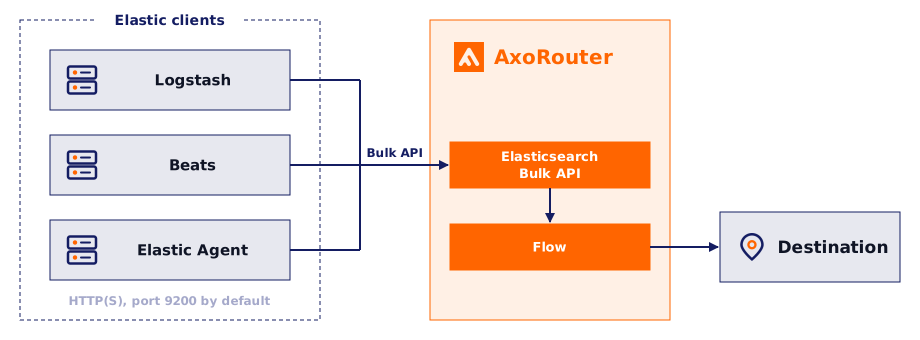
Elasticsearch Bulk API connectors of AxoRouter can receive log events from Beats, Logstash, Elastic Agent, and any other client that posts to the Elasticsearch Bulk API. Point such a client at AxoRouter instead of your Elasticsearch cluster, and Axoflow ingests the documents it sends.
_search API.
Prerequisites
To receive data over HTTPS, you’ll need a key and a certificate that the connector shows to the clients.
If you want to enable TLS encryption for this connector to encrypt the communication with the sources, you’ll need to set appropriate keys and certificates.
CAUTION:
Copy the keys and certificates to AxoRouter before starting to configure the connector. Otherwise, you won’t be able to make configuration changes that require reloading the AxoRouter service, including starting log tapping or flow tapping.
Note the following points:
- Keys and certificates must be in PEM format.
- If the file contains a certificate chain, the file must begin with the certificate of the host, followed by the CA certificate that signed the certificate of the host, and any other signing CAs in order.
- If you manually copy these files to their place on the AxoRouter host, make the files readable by the
axorouterservice.- The recommended path for certificates is under
/etc/axorouter/user-config/(for example,/etc/axorouter/user-config/tls-key.pem). (If you need to use a different path, you have to append an option like-v /your/path:/your/pathto theAXOROUTER_PODMAN_ARGSvariable of/etc/axorouter/container.env.) - When referring to the key or certificate when configuring the connector, use absolute paths (for example,
/etc/axorouter/user-config/tls-key.pem).
- The recommended path for certificates is under
Add new Elasticsearch Bulk API connector
To add a new connector to an AxoRouter host, complete the following steps:
-
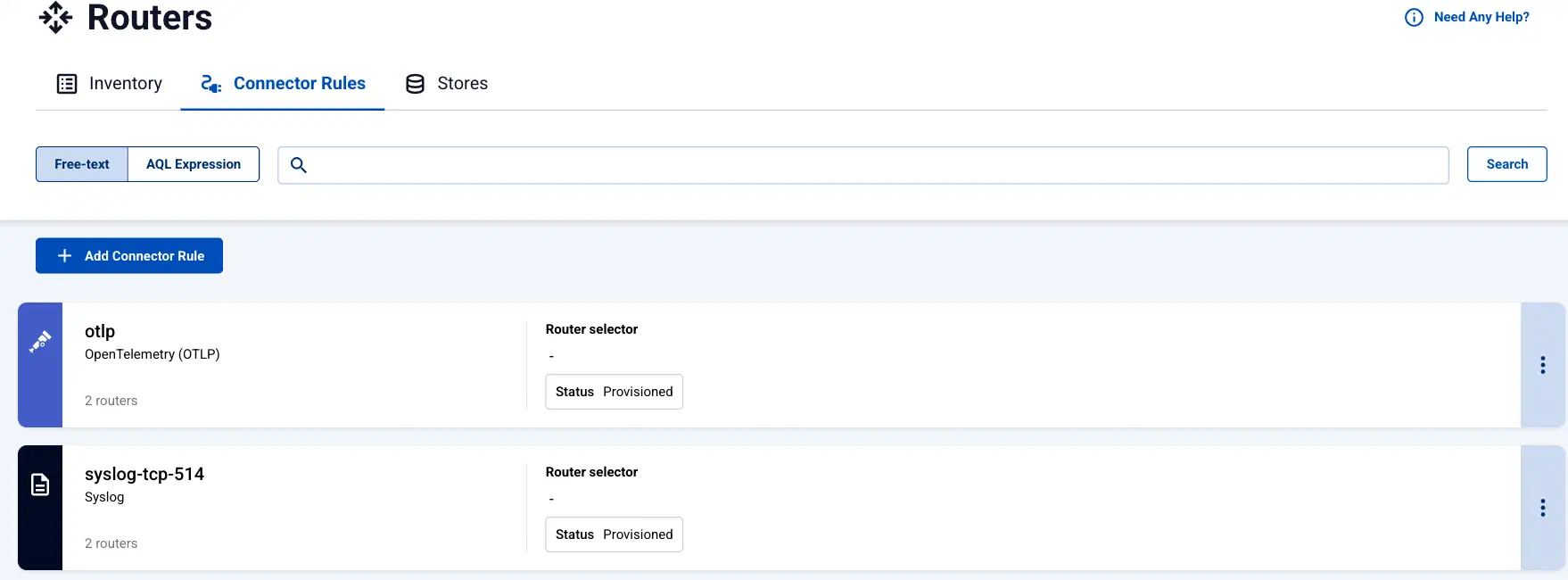
Select Routers > Connector Rules > Add Connector Rule. (Alternatively, you can select Add Connector > Add a connector rule on the Connectors page of an AxoRouter host.)
-
Select Elasticsearch Bulk API.
-
Configure the connector rule.
-
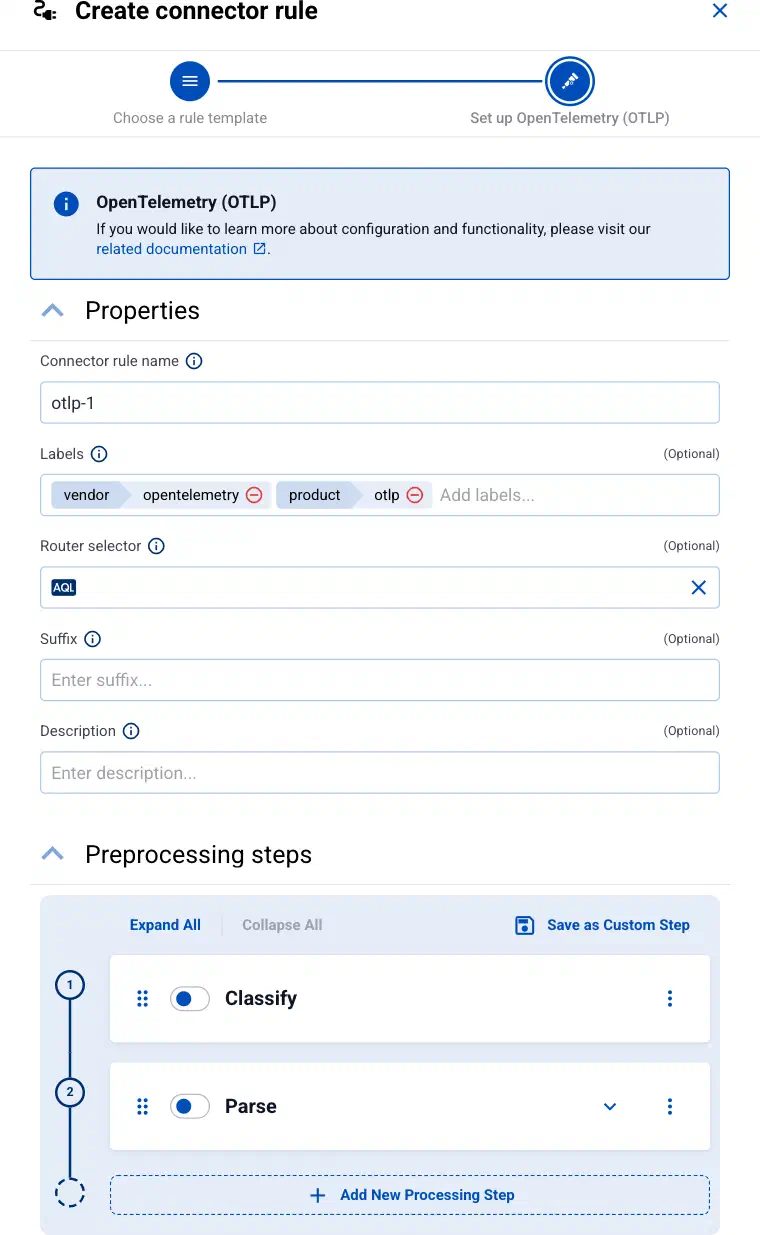
Enter a name for the connector rule into the Connector rule name field.
-
(Optional) Add labels to the connector rule. You will be able to use these labels in Flow Processing steps, for example, in the Query field of Select Messages steps. For details about the message schema and the related connector-specific fields, see the
meta.connectorobject. -
Set the Router selector for the connector rule. The selector determines which AxoRouter instances will have a connector based on this connector rule.
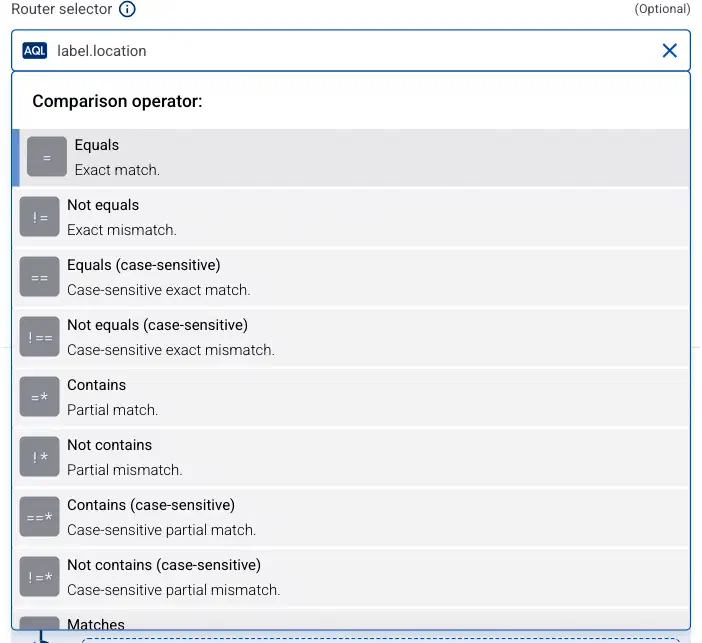
You can use any labels and metadata of the AxoRouter hosts in the Router selectors, for example, the hostname of the AxoRouter, or any custom labels.
- If you leave the router selector empty, it matches every AxoRouter instance.
- To select only a specific AxoRouter instance, set the
namefield to the name of the instance as selector. For example,name = my-axorouter. - If you set multiple fields in the selector, the selector will match only AxoRouter instances that match all elements of the selector. (There in an AND relationship between the fields.)
-
(Optional) Enter a Suffix for the connector rule. AxoConsole uses the suffix in the name of the connector instances that it creates on the AxoRouter hosts. The name of the connector instance follows the
<name-of-AxoRouter>-<suffix>schema. For example, if the name of a matching AxoRouter instance isaxorouter-1, and the suffix of the rule iscustom, the name of the connector on that AxoRouter isaxorouter-1-custom.If the Suffix field is empty, AxoConsole uses the name of the connector rule instead. For example, if the name of the connector rule is
otlp-1, the name of the connector isaxorouter-1-otlp-1. -
(Optional) Enter a description for the rule.
-
If needed, turn on the Classify and Parse steps in the Preprocessing steps section (they’re off by default), so AxoRouter automatically identifies and parses messages sent by supported data sources. If your source is not listed, contact us.
Enabling these options processes all data received by the connectors created based on this connector rule. If you want to apply classification and parsing more selectively, you can use the Classify and Parse processing steps in your Flows.
Note that the Parse processing step requires Classify to be enabled. Parsing automatically parses the data from the content of the message, and replaces the message content (the
log.bodyfield in the internal message schema) with the structured information. -
(Optional) If needed, you can add other preprocessing steps to the connector rule. You can use the same processing steps as in flows. These can be useful if you use a dedicated connector rule to fix or annotate data coming from some specific sources. To reuse the preprocessing steps in other connector rules or flows, select Save as Custom Step.
-
-
(Optional) Enter an API key. If you set it, the clients must authenticate with this Elasticsearch API key, and AxoRouter refuses the requests that don’t carry it. Enter the key in its
id:api_keyform, the same form that theapi_keyoption of Beats and Logstash uses, not the base64-encoded value. AxoRouter expects the clients to send it asAuthorization: ApiKey <base64-encoded id:api_key>.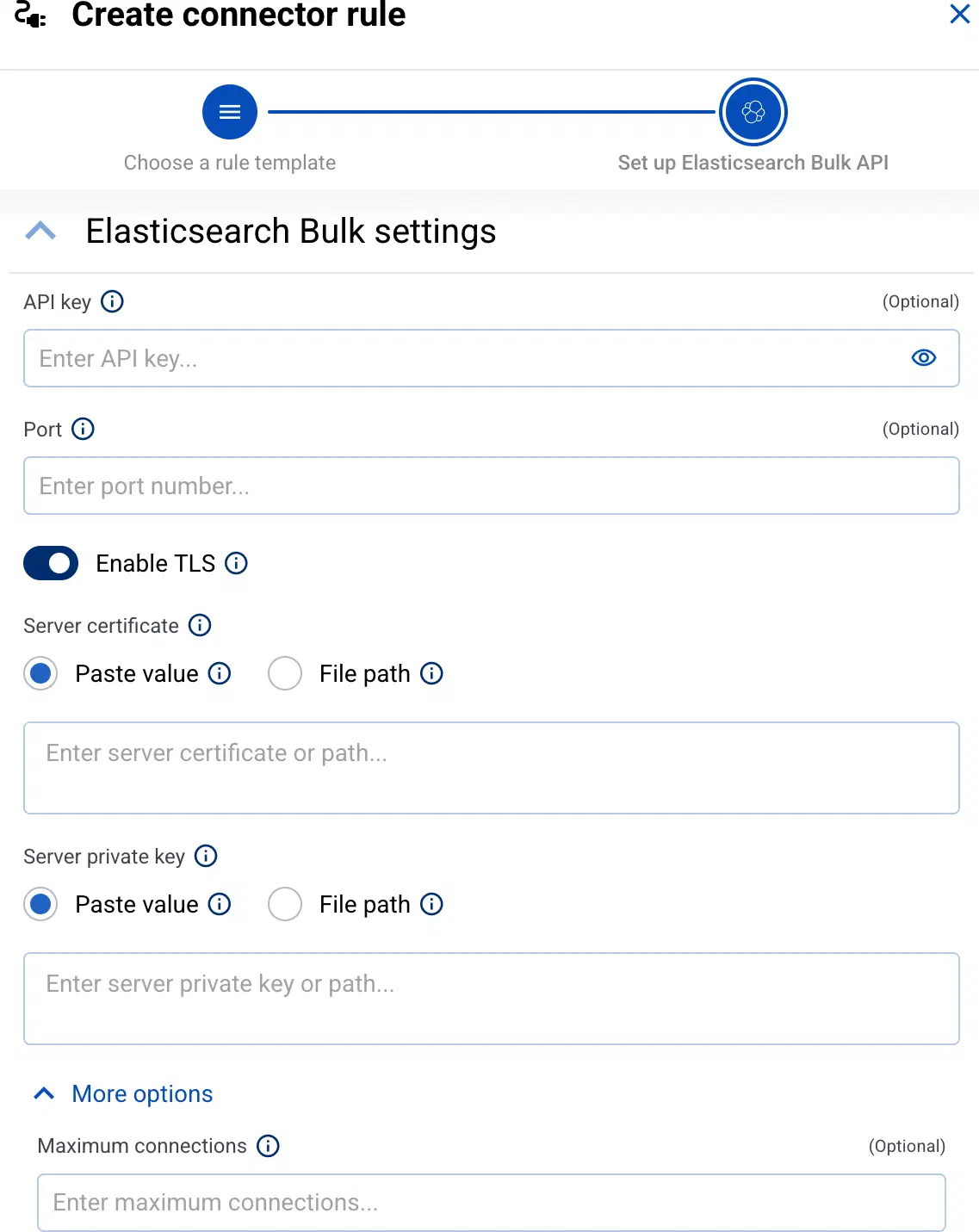
-
(Optional) Set the Port number where the connector receives the requests. If you leave it empty, the connector listens on port
9200by default.CAUTION:
TCP and UDP port range 29500–29519 is reserved for AxoRouter’s internal listeners and cannot be used in connector rules.
-
(Optional) To receive data over HTTPS, select Enable TLS, then set the certificate and the private key that AxoRouter shows to the clients.
Note These settings apply to every AxoRouter that matches the Router selector of the connector rule. If you paste values for the server certificate and server private key, every matching AxoRouter uses the same shared certificate, which is not recommended. Instead, use a separate certificate for each AxoRouter by setting the file path option, or create a separate connector rule for each AxoRouter.-
Server certificate: The certificate that AxoRouter shows to the clients.
- To provide the server certificate from the AxoConsole, select Paste value and paste the server certificate. AxoConsole will automatically deploy the server certificate to the related AxoRouters.
- To provide the server certificate from a file, select File path and enter the path where the certificate file is located (for example,
/etc/axorouter/user-config/server-certificate.pem). The path must be mounted into the container,/etc/axorouteris mounted by default. You must manually copy that file to its place on every affected AxoRouter, or you can use the configuration management system of your choice.
-
Server private key: The private key of the server certificate.
- To provide the server private key from the AxoConsole, select Paste value and paste the server private key. AxoConsole will automatically deploy the server private key to the related AxoRouters.
- To provide the server private key from a file, select File path and enter the path where the private key file is located (for example,
/etc/axorouter/user-config/server-private-key.pem). The path must be mounted into the container,/etc/axorouteris mounted by default. You must manually copy that file to its place on every affected AxoRouter, or you can use the configuration management system of your choice.
-
-
(Optional) Select More options to change the advanced options of the connector.
-
Select Add.
Axoflow automatically creates connectors on the AxoRouter hosts that match the Router selector.
Make sure to enable the ports you’ve configured in the connector on the firewall of the AxoRouter host, and on other firewalls between the AxoRouter host and your data sources.
-
Send a test request to the connector.
-
Open the Overview tab of the AxoRouter host where you’ve created the connector and check the IP address or FQDN of the host.
-
Open a terminal on your computer and send a bulk request to the port you’ve configured in the connector. A bulk request is newline-delimited JSON, where an action line precedes every document, and the body ends with a newline.
Terminal window curl -X POST -H "Authorization: ApiKey $(printf '%s' '<id>:<api-key>' | base64 -w0)" -H 'Content-Type: application/x-ndjson' --data-binary $'{"index":{"_index":"logs"}}\n{"@timestamp":"2026-09-21T10:00:00.000Z","message":"sample bulk message"}\n' http://<router-IP-address>:<connector-port-number>/_bulk
-
-
Configure your clients to send their data to AxoRouter. For example, in Beats or Logstash, set the Elasticsearch output to the address and the port of the connector.
Advanced options
Select More options on the connector rule to set the following options.
- Maximum connections: The maximum number of connections that the connector accepts at the same time.
- Maximum request size: The maximum accepted size of a request body, in bytes. AxoRouter refuses the requests that are larger than this.
You can also adjust the flow-control related options.
-
Log window size: The size (number of messages) of the initial window used in flow control. For details, see the AxoSyslog documentation.
If you change the value of Log window size, the change will affect only new connections, the Log window size of already established connections will not change. To apply the new Log window size value to every connection, restart the
axorouter.serviceservice on the Services page of the matching AxoRouters. A simple configuration reload is NOT sufficient.If the connector rule is receiving data using the UDP protocol, always restart the
axorouter.serviceservice on the Services page of the matching AxoRouters.
- Log fetch limit: The maximum number of messages fetched from a source during a single poll loop. For details, see the AxoSyslog documentation.
Metadata fields
AxoRouter doesn’t send the documents to an Elasticsearch cluster: it turns every document of the bulk request into a separate message, and adds the following fields to the meta variable:
| Analytics label | Message field | Value |
|---|---|---|
connector.type |
meta.connector.type |
elasticsearch |
connector.name |
meta.connector.name |
The Name of the connector |
connector.port |
meta.connector.port |
The port number where the connector receives data |
connector.labels.product |
meta.connector.labels.product |
Default value: elasticsearch-bulk |
connector.labels.vendor |
meta.connector.labels.vendor |
Default value: elastic |
envelope.elasticsearch.operation |
meta.envelope.elasticsearch.operation |
The operation of the Bulk API action line that accompanies the document, for example, index or create |
envelope.elasticsearch.params |
meta.envelope.elasticsearch.params |
The parameters of the action line, for example, _index and _id |
Depending on the content of the document, AxoRouter sets the following fields as well:
-
If the document has an
@timestampfield, AxoRouter uses its value aslog.time_unix_nano, the timestamp of the message. Both the ISO 8601 format and epoch milliseconds are accepted. -
If the document has an
agent.typefield (Beats and Elastic Agent set it on every document), AxoRouter also reads the following fields:host.namebecomesmeta.host.name.event.dataset, oragent.typeif the document has no dataset, becomesmeta.service.name.- If the document has a
messagefield, its value becomeslog.body, and the rest of the document becomeslog.attributes.
-
In every other case the document is added to the
log.bodyfield as a string. You can add further parsing to the body using processing steps in Flows, for example, using FilterX or Regex processing steps.
You can use the labels as:
- labels in Customize Graph on the Analytics page,
- in the Filter labels field during log tapping.
You can use the message fields
- in Flow Processing steps, for example, in the Query field of Select Messages steps,
- in AQL expressions in the search bars.