Create Logstore
- AxoStore stores logs locally on the AxoRouter that processed the messages.
- External stores use a separately deployed AxoLake or an existing compatible ClickHouse cluster.
- Logstore is a new store for local and external data storage based on Apache Parquet and Apache Avro. Logstore is now in early-access.
Logstore tiers
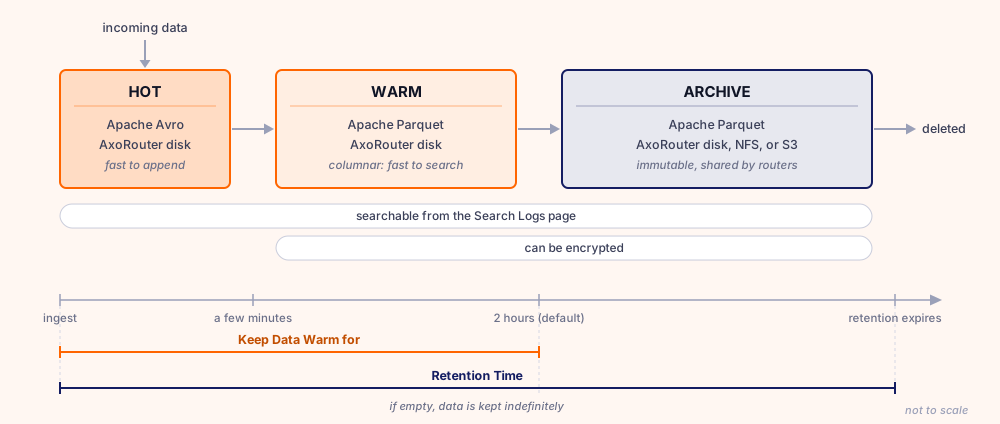
A Logstore keeps your data in three tiers. Data enters the hot tier, then moves through the warm tier into the archive. You can search every tier from the Search Logs page, no matter which tier currently holds the data you’re looking for.
- Hot tier: Receives the data as it arrives, stores it in Apache Avro format, on the local disk of the AxoRouter. Avro is a row-oriented format that’s cheap to append to, which is what a tier taking live data needs. Data spends only a few minutes here before it moves to the warm tier.
- Warm tier: Holds recent data in Apache Parquet format, also on the local disk of the AxoRouter. Parquet is column-oriented, so a search reads only the fields it needs. Data stays warm for 2 hours by default, then moves to the archive.
- Archive tier: Holds the data for the long term, also in Parquet format. Depending on the type of the archive, the files are stored on the local disk of the AxoRouter, on an NFS mount, or on Amazon S3 (or another S3-compatible service). Archive files are immutable, and several AxoRouters can write to the same remote archive. The Logstore deletes archived data when its retention time expires, or keeps it indefinitely if you don’t set one.
You can encrypt the warm and archive tiers. The hot tier isn’t encrypted by default, because data passes through it in a few minutes.
When querying data from a Logstore, the log.attributes.log.source label shows which tier the data is in.
Prerequisites
-
AxoRouter prerequisites:
-
The AxoRouters you want to store data on must have been provisioned with the Enable Logstore option enabled. (If there is a service called
axorouter-logstorein the Router > your-AxoRouter > Overview > Services list (even if it’s grayed out), that AxoRouter has Logstore enabled.)To enable using Logstore on an already deployed AxoRouter, re-deploy the AxoRouter with the Enable Logstore option enabled.
-
AxoRouter must have sufficient hardware resources to handle Logstore, especially disk space for the hot and warm tiers. To place the Logstore tiers on separate disks, set the Logstore directories when you deploy the AxoRouter. For sizing recommendations, contact our support team.
-
-
If you want to encrypt the store, you’ll need a 256-bit AES key (as 64 hexadecimal characters). For example, you can generate it with the OpenSSL command-line tool:
openssl rand -hex 32 -
For using S3 archiving:
An existing S3 bucket configured for programmatic access, and the related
ACCESS_KEYandSECRET_KEYof a user that can access it. Logstore writes, reads, and deletes the archived objects, so the user needs the following permissions:s3:ListBuckets3:GetObjects3:PutObjects3:DeleteObjects3:AbortMultipartUpload
If the default encryption of the bucket is SSE-KMS (
aws:kms), the AWS role or user also needs thekms:GenerateDataKeyandkms:Decryptpermissions on the KMS key. (For details on whykms:Decryptis mandatory, check this AWS Knowledge Center entry.)See a sample IAM policy
{
    "Version": "2012-10-17",
    "Statement": [
      {
        "Sid": "ListLogstorePrefix",
        "Effect": "Allow",
        "Action": "s3:ListBucket",
        "Resource": "arn:aws:s3:::<BUCKET>",
        "Condition": {
          "StringLike": { "s3:prefix": "<PREFIX>/*" }
        }
      },
      {
        "Sid": "ReadWriteLogstoreObjects",
        "Effect": "Allow",
        "Action": [
          "s3:GetObject",
          "s3:PutObject",
          "s3:DeleteObject",
          "s3:AbortMultipartUpload"
        ],
        "Resource": "arn:aws:s3:::<BUCKET>/<PREFIX>/*"
      },
      {
        "Sid": "UseBucketKmsKey",
        "Effect": "Allow",
        "Action": ["kms:GenerateDataKey", "kms:Decrypt"],
        "Resource": "arn:aws:kms:<REGION>:<ACCOUNT_ID>:key/<KEY_ID>"
      }
    ]
  }
Create Logstore
To create a new Logstore, complete the following steps.
-
Navigate to Routers > Stores > Add Store.
-
Enter a Name for the store. This name will appear in the list of destinations (with the
-storesuffix) when setting the destination of a Flow. You cannot modify the name of the store later.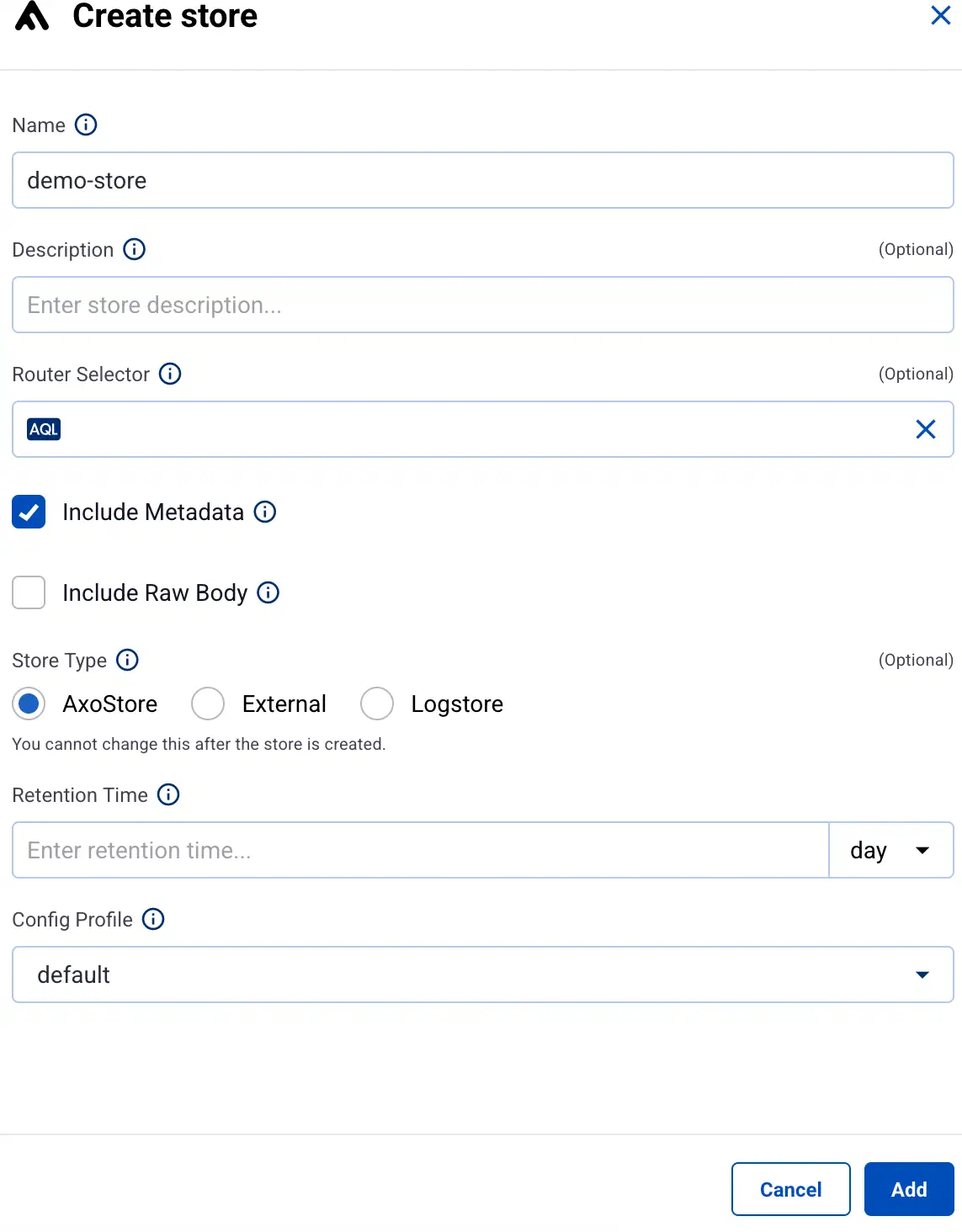
-
(Optional) Enter a description for the store.
-
Set Store Type to Logstore.
-
Set the Router Selector so it matches the AxoRouter instances where you want to create this store.
You can use any labels and metadata of the AxoRouter hosts in the Router selectors, for example, the hostname of the AxoRouter, or any custom labels.
- If you leave the router selector empty, it matches every AxoRouter instance.
- To select only a specific AxoRouter instance, set the
namefield to the name of the instance as selector. For example,name = my-axorouter. - If you set multiple fields in the selector, the selector will match only AxoRouter instances that match all elements of the selector. (There in an AND relationship between the fields.)
-
(Optional) Select additional options about which message parts to store:
-
Include Metadata: If enabled, the metadata of the events is stored as a separate object. Otherwise, only the metadata that has dedicated fields in the Storage schema will be recorded.
-
Include Raw Body: Store also the original, unparsed (raw) message as a separate field.
CAUTION:
Enabling this option approximately doubles the storage size of the message.
-
-
Set how much time data spends in the different storage tiers.
-
Retention Time (in hours or days) configures how long the data is kept in the Logstore, measured from the timestamp when the data was generated. After this period the data is automatically deleted from the store. If Retention Time is empty, the data is kept indefinitely.
Note The timestamp when the data is generated and when AxoRouter receives it are usually close to each other. In some cases the difference can be important, for example, if the retention time is low and the incoming data is older (for example, data is received after a long network outage), or when you’re rehydrating old data into a logstore that has low retention time. -
Keep Data Warm for (in hours or days) configures how long the data is kept in the warm tier, measured from the timestamp when the data was generated. After this period the data is moved to the archive. Default value: 2 hours. The value of Keep Data Warm for can’t be longer than the Retention Time.
Note The timestamp when the data is generated and when AxoRouter receives it are usually close to each other. In some cases the difference can be important, for example, if the keep data warm value is low and the incoming data is older (for example, data is received after a long network outage), or when you’re rehydrating old data into a logstore that has keep data warm value.
-
-
(Optional) To encrypt the store, enter a 256-bit AES key (as 64 hexadecimal characters) into the Encryption Key field. Keep a copy of the key, without it the data cannot be read.
CAUTION:
You cannot change encryption settings later. Encryption applies to the warm and archive tiers of the data storage. The hot tier (which is temporal and the data usually spends only about five minutes) isn’t encrypted by default.
-
Select the Type of the archive.
CAUTION:
You cannot change the type of the archive later.
-
Local: Store archived data locally on AxoRouter. The location of the archive files is
/var/lib/logstore/archive/<store-name>by default (can be set when AxoRouter is deployed). If needed, you can override it using the Archive Path field. -
NFS: Store archived data on the NFS mount configured when AxoRouter was deployed. If needed, you can override the location of the archive directory using the Archive Path field.
Note Archiving data to an NFS mount is supported only for on-premises and air-gapped AxoConsole deployments. -
S3: Archive the data to Amazon S3, or to another S3-compatible service. Configure access to the S3 service:
- Bucket name: The name of the bucket you want to use.
- Prefix: The prefix path within the S3 bucket.
- Select the Region of the bucket, or enter a custom endpoint URL into the Endpoint field.
- Enter the Access key and the Secret key for the account you want to use.
-
-
Select Add.
-
The new store will be created on the AxoRouters matching the Router Selector. You can check the stores available on an AxoRouter by selecting Routers > your-AxoRouter > Overview > Stores.
-
(Optional) By default, only users with the log-searcher role can search in the stores. To grant access to a specific store, see Store access roles.