Install AxoRouter on Kubernetes
To install AxoRouter on a Kubernetes cluster, complete the following steps. For other platforms, see AxoRouter.
Note
Note that AxoRouter and Axoflow agent collects detailed, real-time metrics about the data-flows – giving you observability over the health of the security data pipeline and its components. Your security data remains in your self-managed cloud or in your on-prem instance where your sources, destinations, Axoflow agents, and AxoRouters are running, only metrics are forwarded to AxoConsole.
Prerequisites
Kubernetes version 1.29 and newer
Minimal resource requirements
- CPU: at least
100m - Memory:
256MB - Storage:
8Gi
Network access
The hosts must be able to access the following domains related to the AxoConsole:
-
When using AxoConsole SaaS:
<your-tenant-id>.cloud.axoflow.io: HTTPS traffic on TCP port 443, needed to download the binaries for Axoflow software (like Axolet and AxoRouter).kcp.<your-tenant-id>.cloud.axoflow.io: HTTPS (mutual TLS) traffic on TCP port 443 for management traffic.telemetry.<your-tenant-id>.cloud.axoflow.io: HTTPS (mutual TLS) traffic on TCP port 443, where Axolet sends the metrics of the host.us-docker.pkg.dev: HTTPS traffic on TCP port 443, for pulling container images (AxoRouter only).
-
When using an on-premise AxoConsole:
-
The following domains should point to AxoConsole IP address to access Axoflow from your desktop and AxoRouter hosts:
your-host.your-domain: The main domain of your AxoConsole deployment.authenticate.your-host.your-domain: A subdomain used for authentication.idp.your-host.your-domain: A subdomain for the identity provider.
-
The AxoConsole host must have the following Open Ports:
- Port 80 (HTTP)
- Port 443 (HTTPS)
-
-
When installing Axoflow agent for Windows or Linux:
github.com: HTTPS traffic on TCP port 443, for downloading installer packages.
Install AxoRouter
-
Open the AxoConsole.
-
Select Provisioning.
-
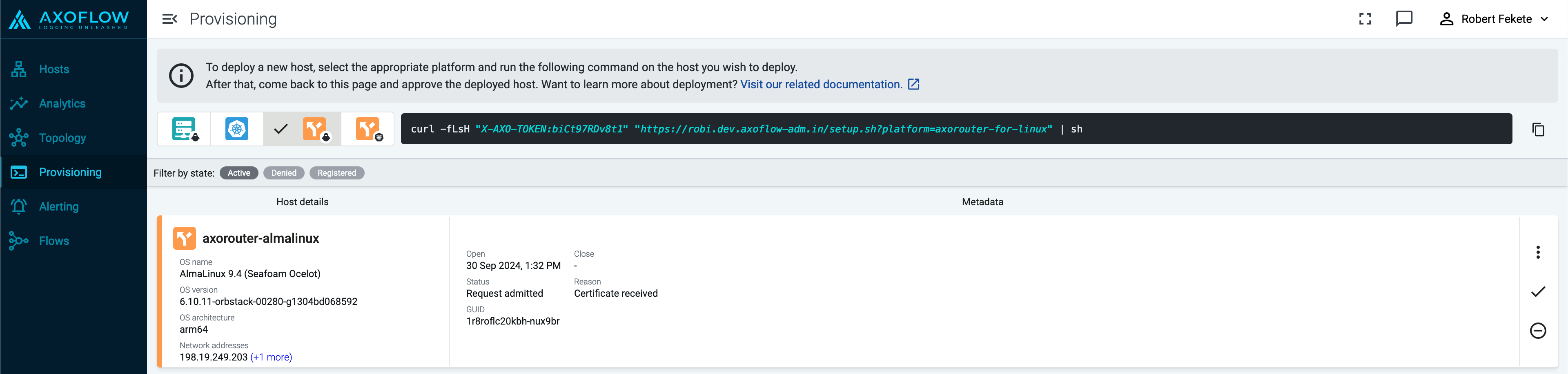
Select the Host type > AxoRouter > Kubernetes. The one-liner installation command is displayed.
-
Open a terminal and set your Kubernetes context to the cluster where you want to install AxoRouter.
-
Run the one-liner, and follow the on-screen instructions.
Current kubernetes context: minikube Server Version: v1.28.3 Installing to new namespace: axorouter Do you want to install AxoRouter now? [Y] -
Register the host.
-
Reload the Provisioning page. There should be a registration request for the new AxoRouter deployment. Select ✓.
-
Select Register to register the host. You can add a description and labels (in
label:valueformat) to the host. -
If the primary IP address (the first IP address shown in the Network addresses section on the Routers page for each AxoRouter) is not accessible from your edge hosts, set a Network address override (IP address or an FQDN) that’s accessible. Otherwise, data forwarding from edge hosts will fail.
-
Select the Topology page. The new AxoRouter instance is displayed.
-
Create a flow
- If you haven’t already done so, create a new destination.
-
Create a flow to connect the new AxoRouter to the destination.
-
Select Flows.
-
Select Add Flow.
-
Enter a name for the flow, for example,
my-test-flow.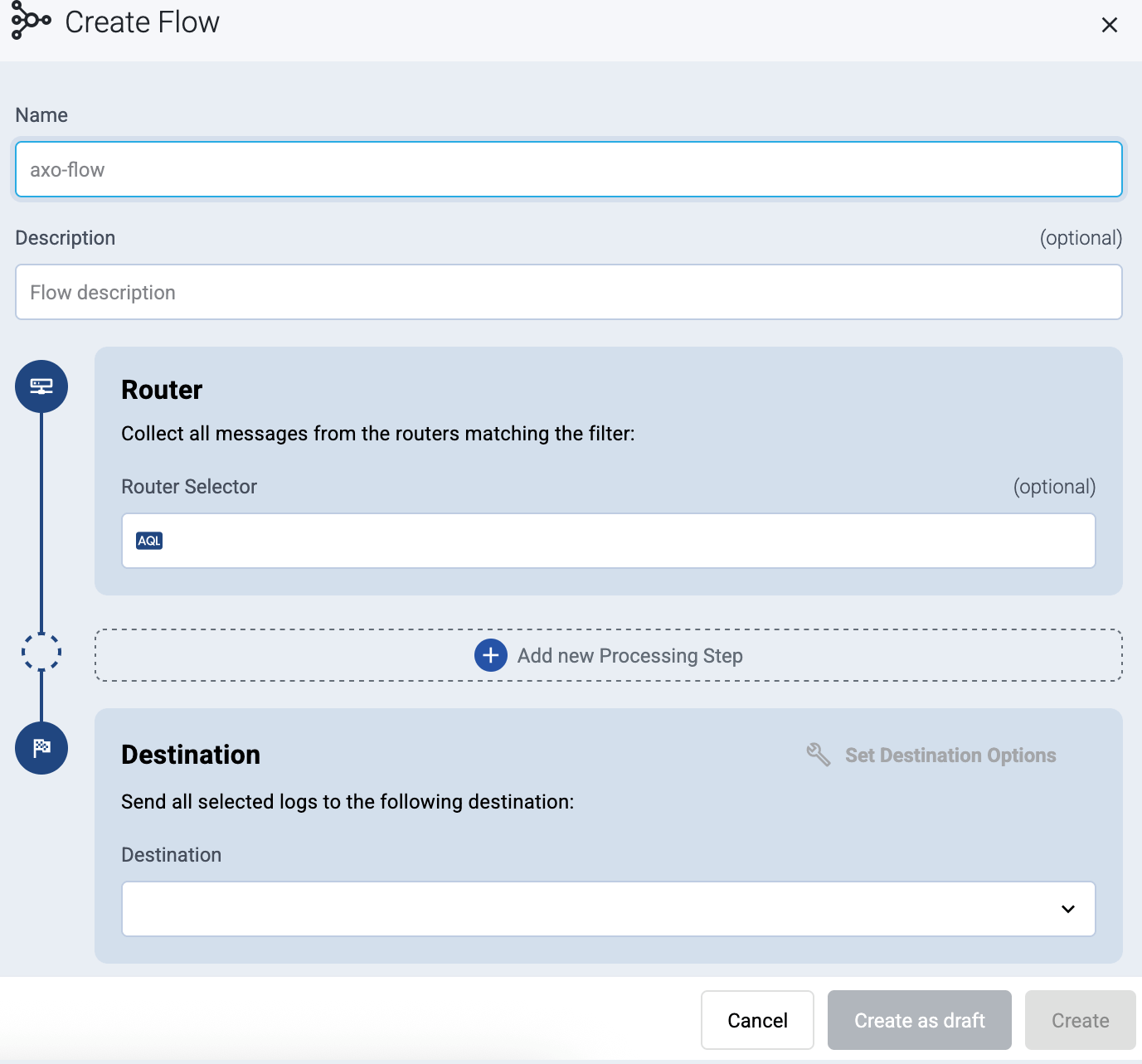
-
In the Router Selector field, enter an expression that matches the router(s) you want to apply the flow. To select a specific router, use a name selector, for example,
name = my-axorouter-hostname.You can use any labels and metadata of the AxoRouter hosts in the Router selectors, for example, the hostname of the AxoRouter, or any custom labels.
- If you leave the Router Selector field empty, the selector will match every AxoRouter instance.
- To select only a specific AxoRouter instance, set the
namefield to the name of the instance as selector. For example,name = my-axorouter. - If you set multiple fields in the selector, the selector will match only AxoRouter instances that match all elements of the selector. (There in an AND relationship between the fields.)
-
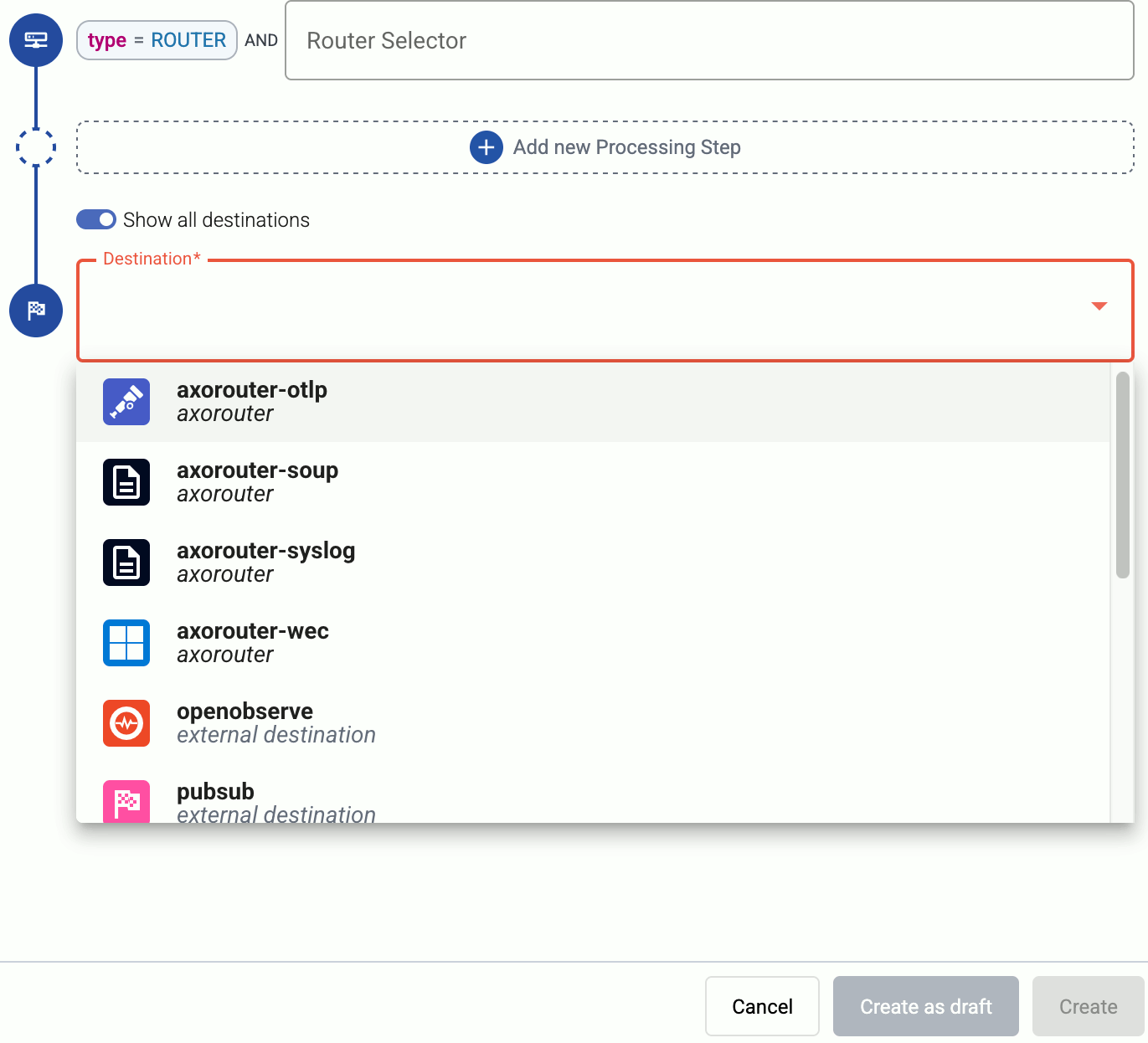
Select the Destination where you want to send your data. If you don’t have any destination configured, you can select + Add in the destination section to create a new destination now. For details on the different destinations, see Destinations.
- If you don’t have any destination configured, see Destinations.
- If you’ve already created a store, it automatically available as a destination. Note that the Router Selector of the flow must match only AxoRouters that have the selected store available, otherwise you’ll get an error message.
- If you want to send data to another AxoRouter, enable the Show all destinations option, and select the connector of the AxoRouter where you want to send the data.
-
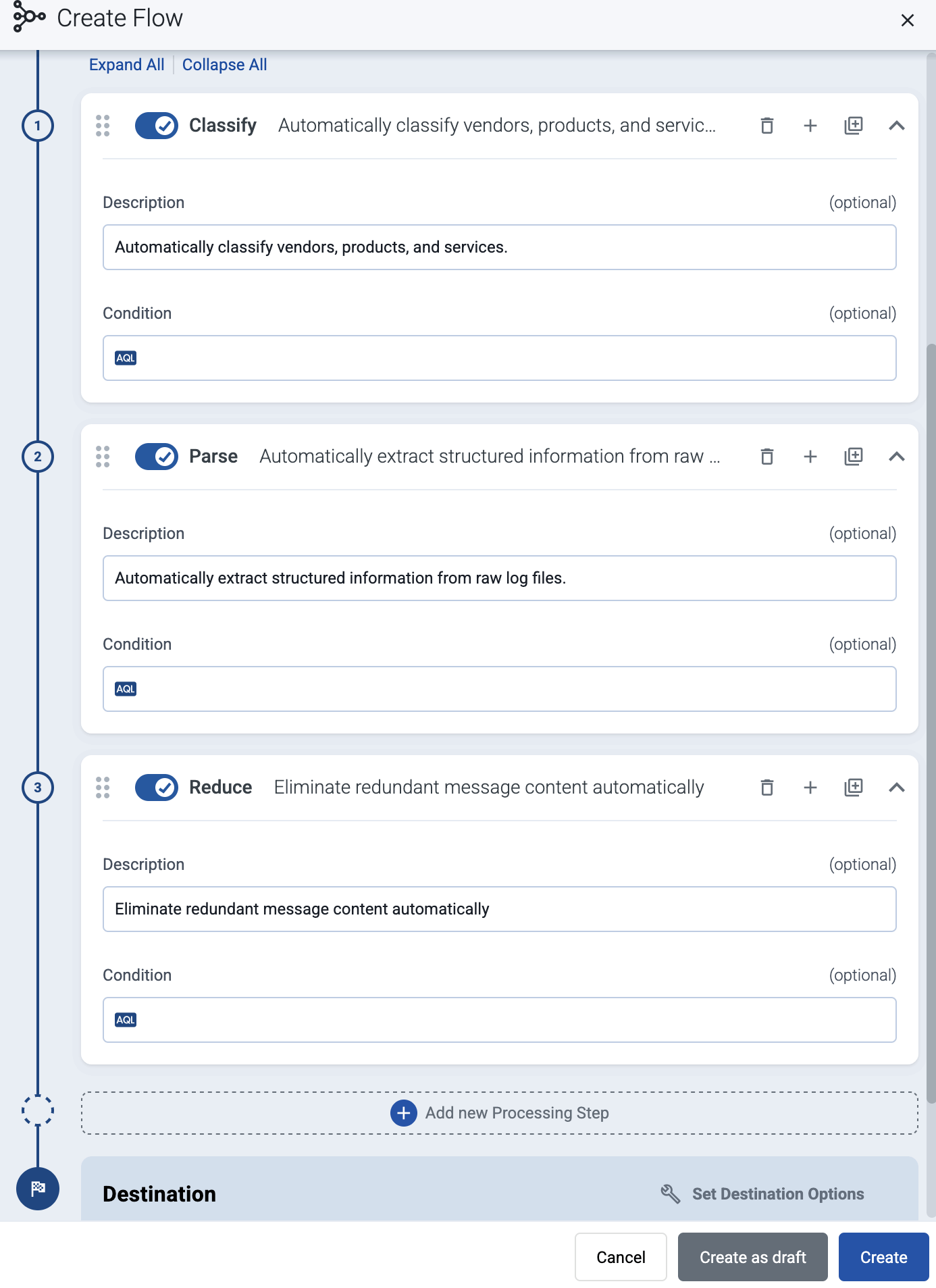
(Optional) To process the data transferred in the flow, select Add New Processing Step. For details, see Processing steps. For example:
- Add a Classify, a Parse, and a Reduce step, in that order, to automatically remove redundant and empty fields from your data.
- To select which messages are processed by the flow, add a Select Messages step, and enter a filter into the AQL Expression field. For example, to select only the messages received from Fortinet FortiGate firewalls, use the
meta.vendor = fortinet AND meta.product = fortigatequery. - Save the processing steps.
-
Select Add.
-
The new flow appears in the Flows list.

-
Send logs to AxoRouter
By default, AxoRouter accepts data on the following ports (unless you’ve modified the default connector rules):
- 514 UDP and TCP for RFC3164 (BSD-syslog) and RFC5424 (IETF-syslog) formatted traffic. AxoRouter automatically recognizes and handles both formats.
- 601 TCP for RFC5424 (IETF-syslog) and RFC3164 (BSD-syslog) formatted traffic. AxoRouter automatically recognizes and handles both formats.
- 6514 TCP for TLS-encrypted syslog traffic.
- 4317 TCP for OpenTelemetry log data.
To receive data on other ports or other protocols, configure other connector rules for the AxoRouter host.
For TLS-encrypted syslog connections, create a new connector rule or edit an existing one, and configure the keys and certificates needed to encrypt the connections. For details, see Syslog.
Note
Make sure to enable the ports you’re using on the firewall of your host.
Upgrade AxoRouter
AxoConsole raises an alert for the host when a new AxoRouter version is available. To upgrade to the new version, re-run the one-liner installation command you used to install AxoRouter, or select Provisioning > Select type and platform to create a new one.