Alerts
Axoflow raises alerts for a number of events in your security data pipeline, for example:
- a destination becomes unavailable or isn’t accepting messages,
- a host is dropping packets or messages,
- a host becomes unavailable,
- the disk queues of a host are filling up,
- abandoned (orphaned) disk buffer files are on the host,
- the configuration of a managed host failed to synchronize or reload,
- traffic of a flow has unexpectedly dropped,
- a new AxoRouter or Axolet version is available.
For the details of specific alerts, see Alerts reference.
Alerts are indicated at a number of places:
-
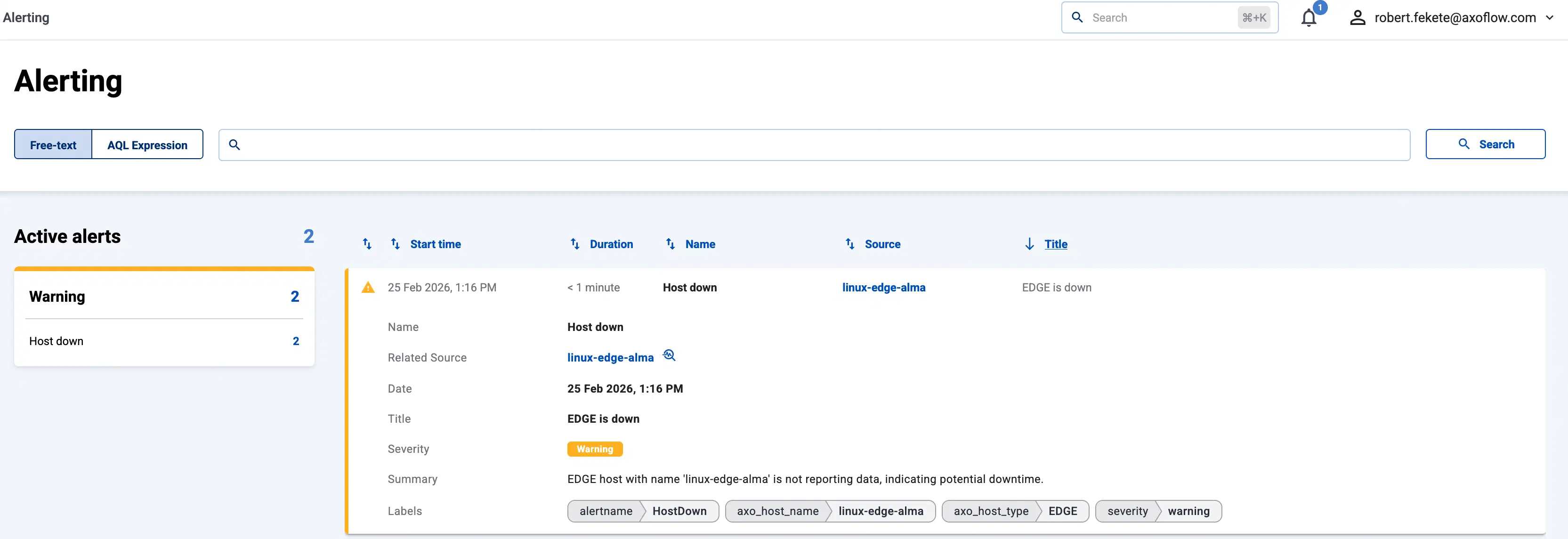
On the Alerting page. Select an alert to display its details.
-
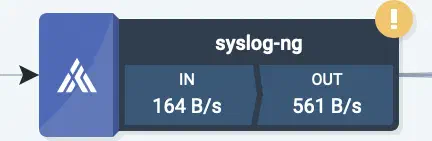
On the Topology page:
-
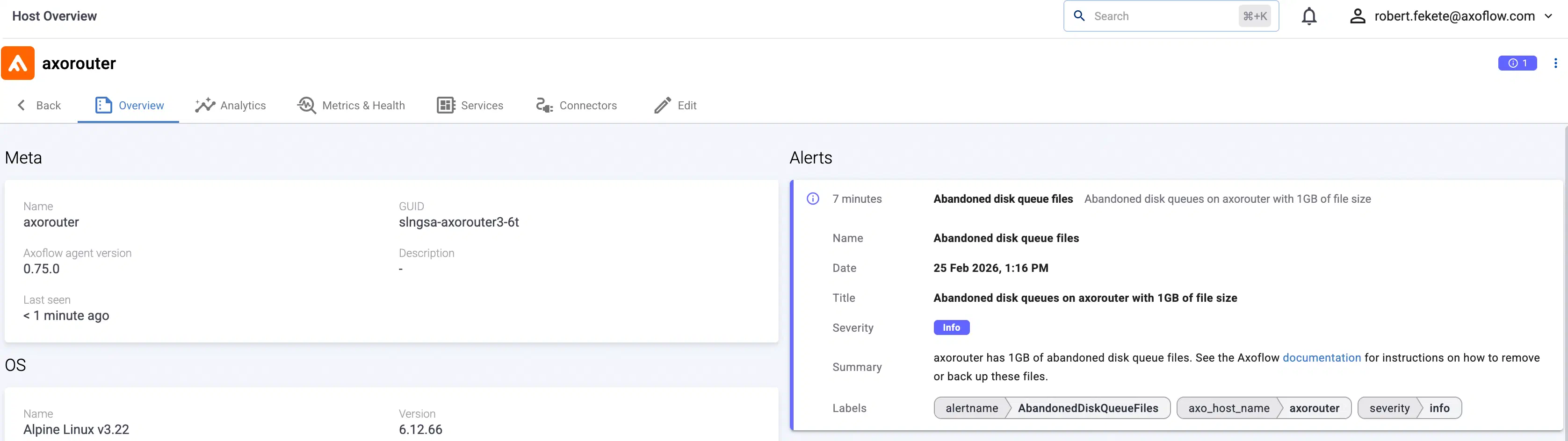
On the Overview page of the host:
-
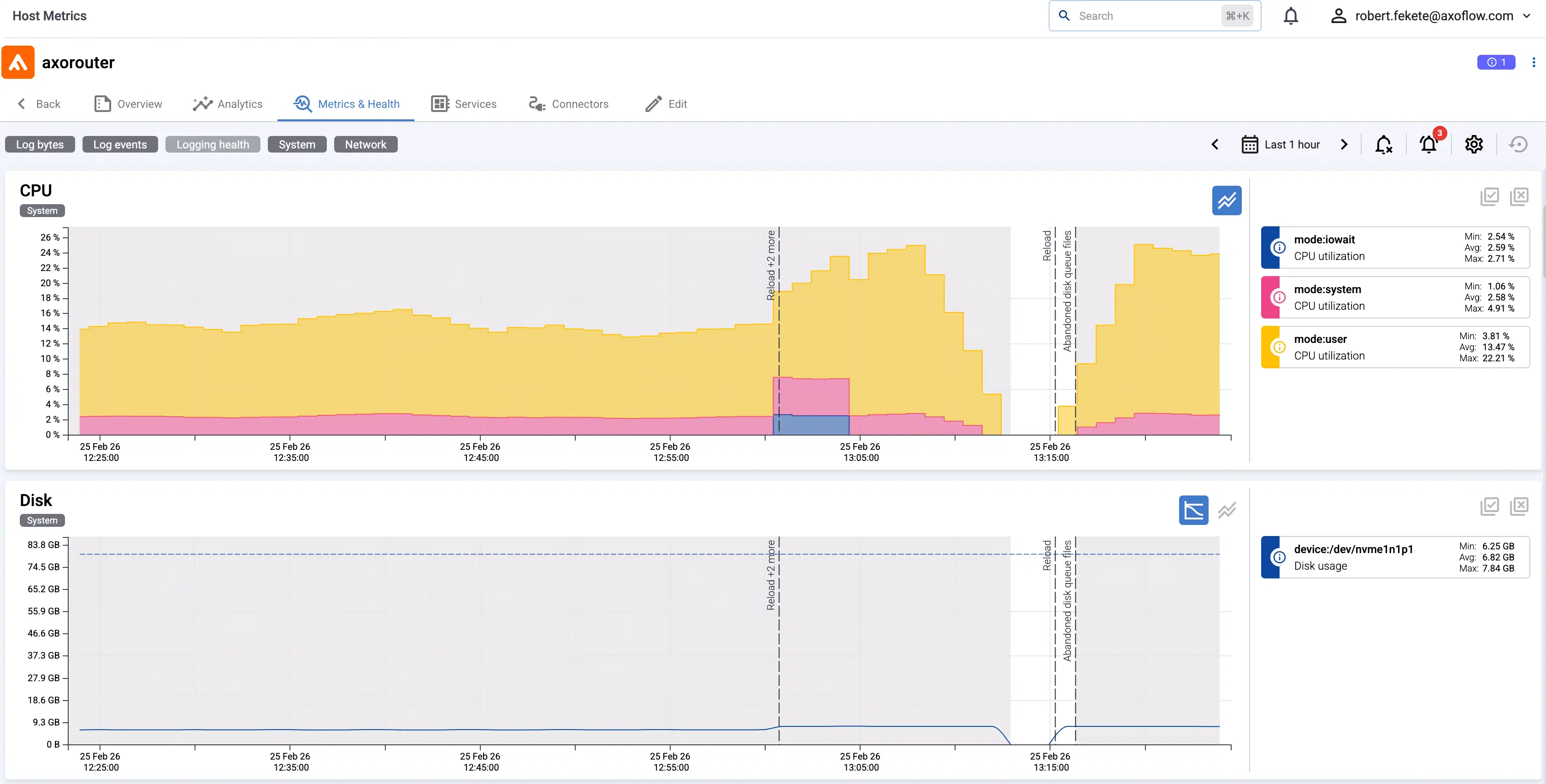
On the Metrics & Health page of the host the alerts are shown as an overlay to the metrics:
Filter alerts
You can use the Filter Bar on the Alerts page to search and filter for specific alerts.
The settings of the filter bar change the URL parameters of the page, so you can bookmark it, or share a specific view by sharing the URL.
-
Free-text mode searches in the following fields of the alerts: Id, Name, Title, Summary, Labels.
Basic Search is case insensitive. Adding multiple keywords searches for matches in any of the previous fields. This is equivalent to the
@ANY =* keyword1 AND @ANY =* keyword2AQL query. -
AQL Expression mode allows you to search in specific fields of the activity logs.
It also makes more complex filtering possible, using the Equals, Contains (partial match), and Match (regular expression match) operators. Note that:
- To execute the search, click Search, or hit ESC then ENTER.
- AxoConsole autocompletes the built-in and custom labels and field names, as well as their most frequent values, but doesn’t autocomplete labels and variables created by data parsing and processing steps.
- You can use the AND and OR operators to combine expressions, and also parenthesis if needed. For details on AQL, see AQL operator reference.
- The precedence of the operators is the following: parentheses, AND, OR, comparison operators.
- Use the usual keyboard shortcuts to undo (⌘/Ctrl + Z) or redo (⌘/Ctrl + Shift + Z) your edits.
Alerts have the following fields:
- Name: The name of the alert, for example,
Target down. - Related Source: The host where the alert event occurred.
- Date: The time when the alert triggered.
- Title: The title of the alert, for example,
<host> is down. - Severity: The severity level of the alert:
Info,Warning, orCritical. - Summary: A detailed description of the alert.
- Duration: How long the alert lasted.
- Labels: Labels related to the alert.