This is the multi-page printable view of this section. Click here to print.

Return to the regular view of this page.

Edge collection rules

Collection rules define how edge hosts collect their local data. To collect data from non-edge sources, see AxoRouter connector rules.

  • Sources are hosts that are sending data to a data aggregator, like AxoRouter.
  • Edges are source hosts that are running a collector agent managed by AxoConsole, or have an Axolet agent reporting metrics from the host.

Collection rules are high-level policies that determine how data should be collected on a set of edge hosts based on dynamic host labels.

To see every collection rule configured in AxoConsole, select Sources > Collection Rules from the main menu.
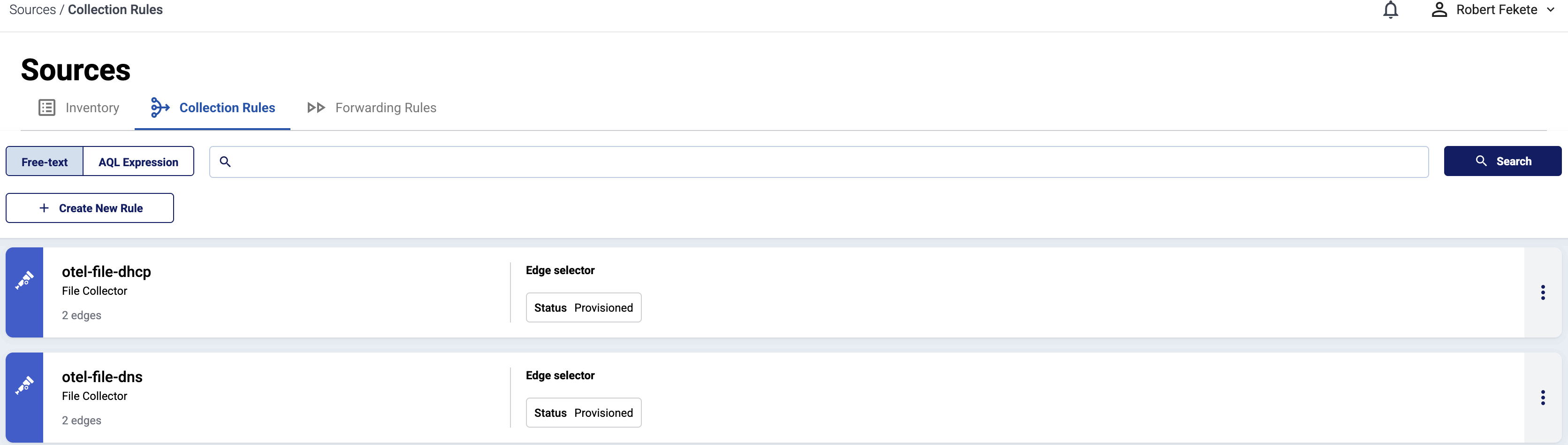
Collection rules list

Collection rules have the following main elements:

  • the way they collect data (for example, from files, or Windows Event Logs), and other specific parameters (for example, the path and filename)

  • the edge selector, which determines the list of edge hosts that will create an edge connector based on that rule.

    You can use any labels and metadata of the edge hosts in the edge selectors, for example, the hostname, or any custom labels. For example, using the label.product = windows selector will create an edge connector only on Windows hosts.

Selecting a collection rule shows the details of the rule, including:

  • The list of Matched hosts: the edge hosts that will have an edge connector based on that rule. If you click on the name of a matched host, the Collection Rules page of the AxoRouter host opens, showing you the edge connectors configured for that host.
  • The Status of the rule:

    • Idle: The rule doesn’t match any hosts currently.
    • Provisioned: Connectors based on this rule were successfully provisioned for every matching host.
    • Error: Some error(s) occurred while provisioning connectors based on this rule. See the Status message field for details.
    • Unknown: The rule is in an unknown state.
  • Attributes: Various significant attributes of connectors provisioned based on this rule.

Create collection rule

To create a new connector rule, complete the following steps.

  1. Select Routers > Connector Rules > Add Rule. (Alternatively, you can select Add Connector > Create a connector rule on the Connectors page of an AxoRouter host.)
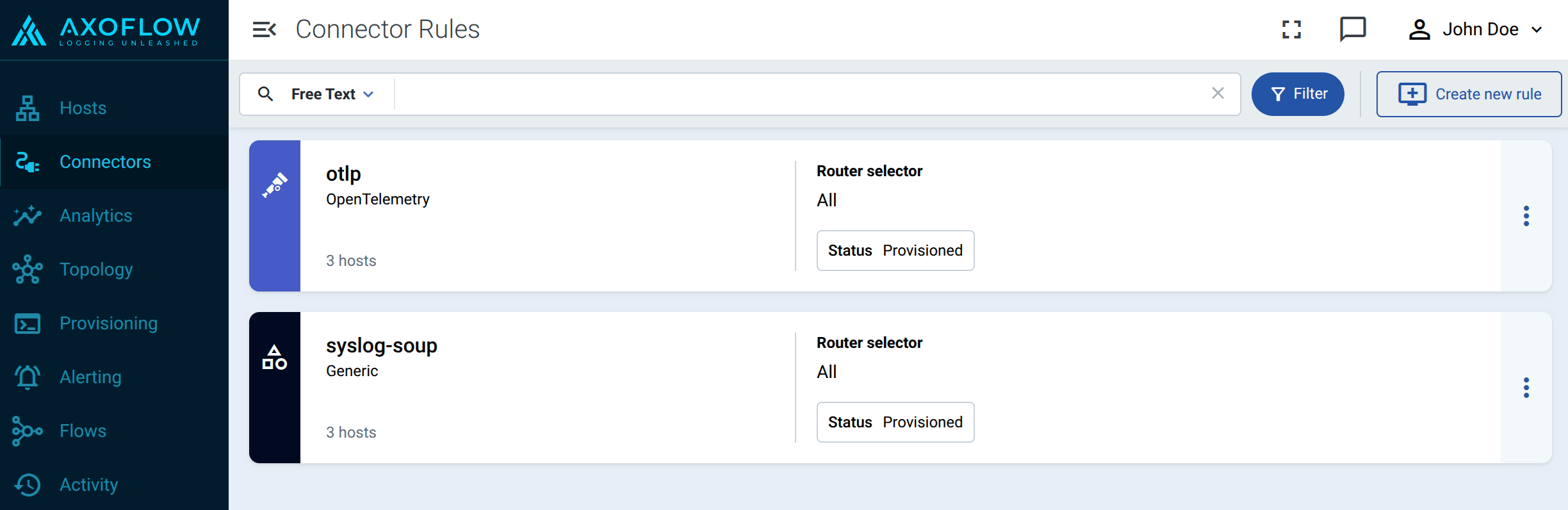
    Connector rules list

  2. Select the type of collector you want to create. For example, File Collector. The following collector types are available:

  3. Configure the collection rule.

    1. Enter a name for the collection rule into the Rule Name field.
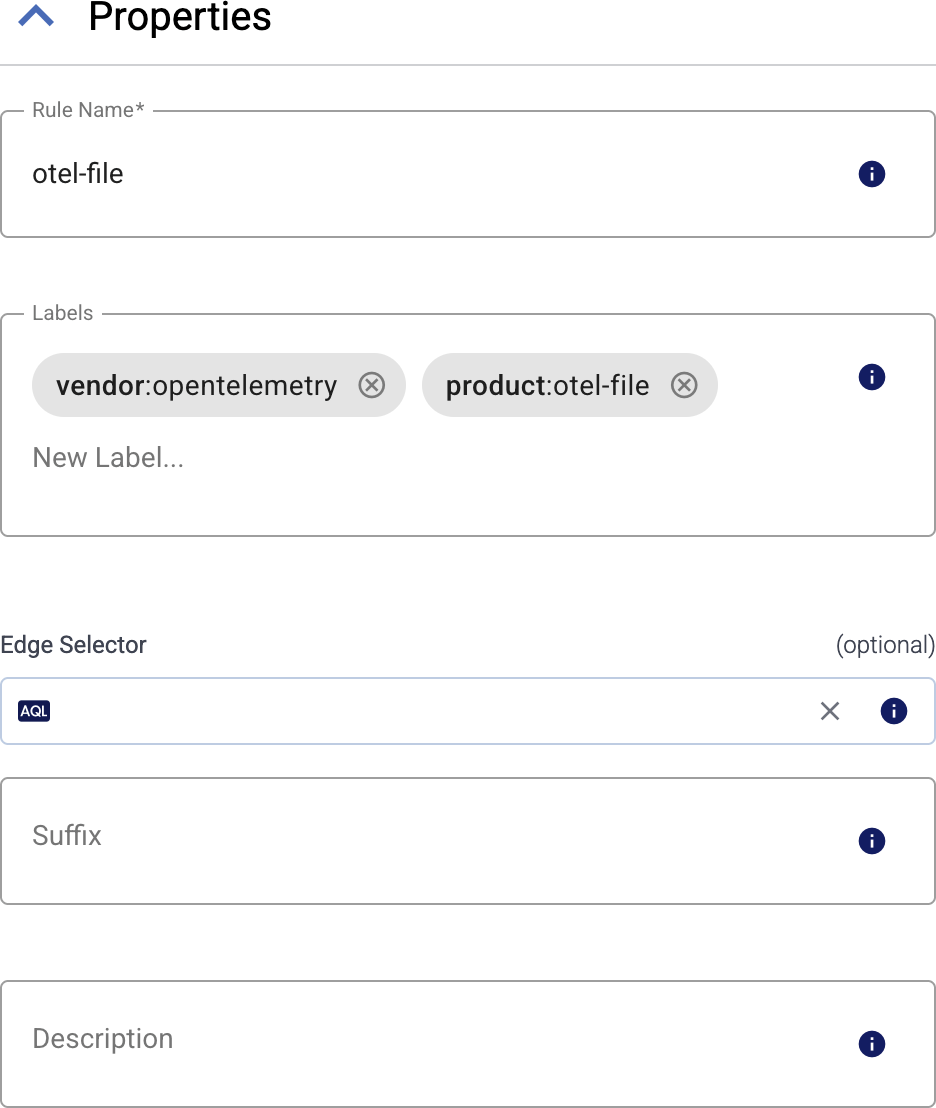
      Generic collection rule parameters

    2. (Optional) Add labels to the collection rule.

      You can use these metrics labels as:

    3. Set the Edge Selector for the collection rule. The selector determines which edge hosts will have an edge connector based on this collection rule.
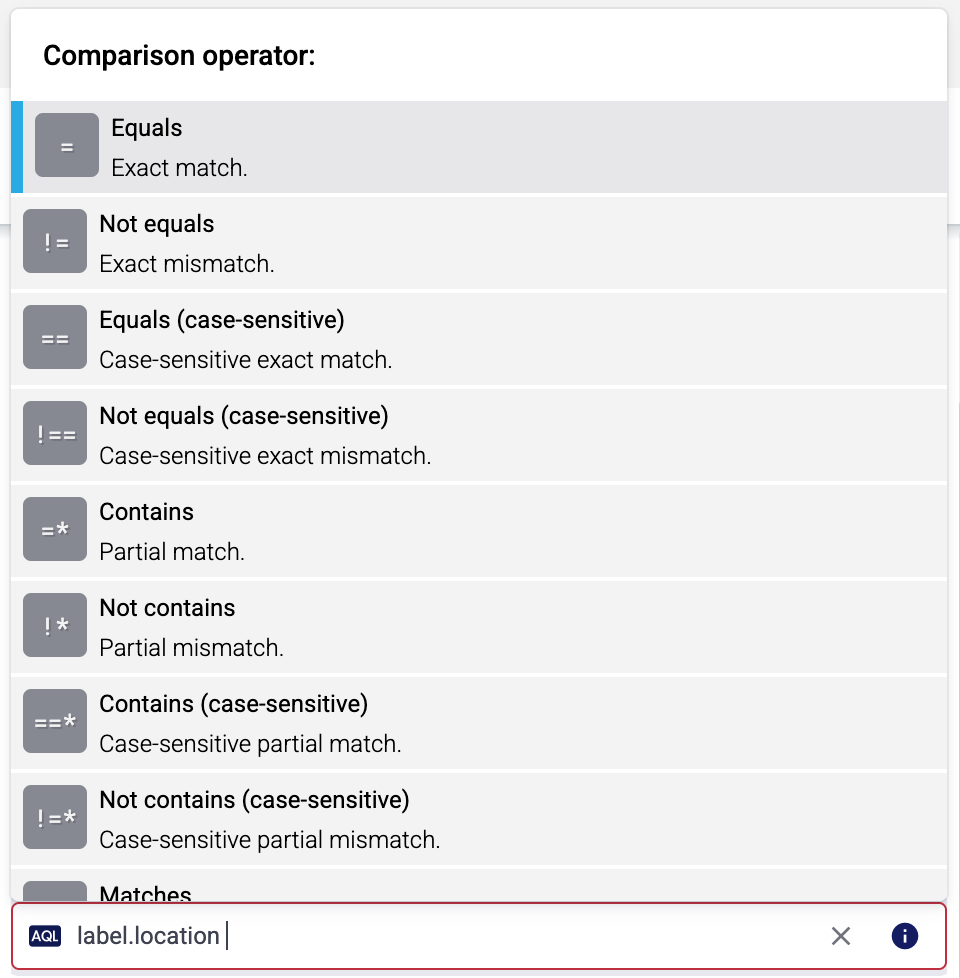
      Edge selectors

      • Only edge hosts will match the rule.
      • If you leave the Edge Selector field empty, the rule will match every edge host.
      • To select only a specific host, set the name field to the name of the host as selector.
      • If you set multiple fields in the selector, the collection rule will apply only to edge hosts that match all elements of the selector. (There in an AND relationship between the fields.) For example, label.location = us-east-1 AND label.product = windows
    4. (Optional) Enter a Suffix for the collection rule. This suffix will be used in the name of the edge connector instances created on the edge hosts. For example, if the name of a matching edge host is “my-edge”, and the suffix of the rule is “otel-file-collector”, the edge connector created for the edge will be named “my-edge-otel-file-collector”.

      If the Suffix field is empty, the name of the collection rule is used instead.

    5. (Optional) Enter a description for the rule.

  4. Configure the options specific to the collector type. For details, see the specific pages:

  5. Select Add. Based on the collection rule, Axoflow automatically creates edge connectors on the edge hosts that match the Edge Selector.

    CAUTION:

    Make sure to configure Data Forwarding Rules for your edge hosts to transfer the collected data to the OpenTelemetry connector of an AxoRouter.

Modify collection rule

To modify an existing collection rule, complete the following steps.

  1. Find the collection rule you want to modify:

    • Select Sources > Collection Rules from the main menu, then select the collection rule you want to modify.
    • Alternatively, find the edge host whose collector you want to modify on the Topology page, then select Collection Rules. Find the collection rule you want to modify, then select ⋮ > Edit collection rule.
  2. Modify the configuration of the collection rule as needed.

    CAUTION:

    The changes are applied immediately after you click Update. Double-check your changes to avoid losing data.
  3. Select Update.

Add edge host to existing collection rule

To add an edge host to an existing collector rule, you have two options, depending on the Edge Selector of the collection rule:

1 - File Collector

Collect logs from a local file that’s available on the edge host.

Prerequisites

This collector can be deployed to edge hosts running Axoflow agent for Linux and Axoflow agent for Windows.

Add new File Collector

To create a new Collection Rule that collects data from files on edge hosts, complete the following steps:

  1. Select Sources > Collection Rules > Add Rule. (Alternatively, you can select Add Collector > Create a collection rule on the Collectors page of an edge host.)

    Collection rules list

  2. Select File Collector.

  3. Configure the connector rule.

    1. Enter a name for the collection rule into the Rule Name field.

      Generic collection rule parameters

    2. (Optional) Add labels to the collection rule.

      You can use these metrics labels as:

    3. Set the Edge Selector for the collection rule. The selector determines which edge hosts will have an edge connector based on this collection rule.

      Edge selectors

      • Only edge hosts will match the rule.
      • If you leave the Edge Selector field empty, the rule will match every edge host.
      • To select only a specific host, set the name field to the name of the host as selector.
      • If you set multiple fields in the selector, the collection rule will apply only to edge hosts that match all elements of the selector. (There in an AND relationship between the fields.) For example, label.location = us-east-1 AND label.product = windows
    4. (Optional) Enter a Suffix for the collection rule. This suffix will be used in the name of the edge connector instances created on the edge hosts. For example, if the name of a matching edge host is “my-edge”, and the suffix of the rule is “otel-file-collector”, the edge connector created for the edge will be named “my-edge-otel-file-collector”.

      If the Suffix field is empty, the name of the collection rule is used instead.

    5. (Optional) Enter a description for the rule.

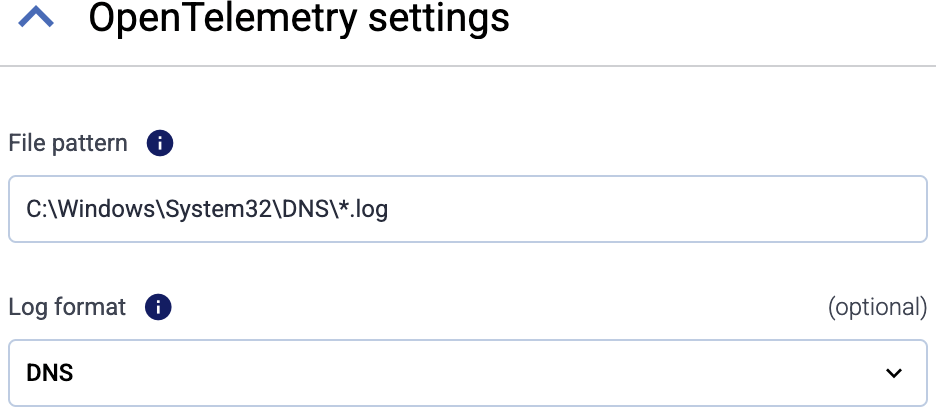
  4. Enter the path of the log file, or a pattern to match multiple files into the File pattern field, for example: C:\Windows\System32\DNS\dns.log or /path/to/**/*.log

    OpenTelemetry file collector settings

    CAUTION:

    On Linux hosts, the collector runs as the axoflow-otel-collector user, which is a member of the adm and systemd-journal groups. Make sure that the axoflow-otel-collector user has read access to the file you want to collect logs from. Usually, the adm group can read logs from the /var/log/ directory on Debian-based systems, but not on RHEL-based systems.

    You can use the following special characters:

    • *: Matches one or more characters that aren’t path separators.

    • /**/: Matches zero or more directories.

    • ?: Matches a single non-path-separator character.

    • [class]: Matches any single non-path-separator character from the specified class. The following classes are available:

      • [abc123]: Matches any single character of the specified characters.
      • [a-z0-9]: Matches any single alphanumeric character in the range of a-z or 0-9.
      • [^class] or [!class]: Negates the class, so it matches any single character which does not match the class.
  5. (Optional) If needed, set advanced options under More options.

  6. To apply a specific parser on the messages of the log file, select it from the Log format field. Currently Windows DNS and DHCP log files are supported.11

  7. Select Add. Based on the collection rule, Axoflow automatically creates edge connectors on the edge hosts that match the Edge Selector.

    CAUTION:

    Make sure to configure Data Forwarding Rules for your edge hosts to transfer the collected data to the OpenTelemetry connector of an AxoRouter.

You can use these metrics labels as:

label value
edge_connector_name The name of the edge connector that collected the message
edge_connector_type otelFile
edge_connector_label_ Labels set on the edge connector. By default: vendor:opentelemety, product:otel-file
edge_connector_rule_id The ID of the owner ConnectorRule resource in Axoflow that created the edge connector.
edge_flow_name The name of the edge forwarding rule that sent the message.

Advanced options

  • Exclude file pattern: Exclude some files that match the File pattern. You can use the same special characters as in the File pattern field.

  • Exclude older than: Exclude files whose modification time is older than the specified value, for example: 1h, 24h, 7d.

  • Multi-line start pattern: Regex pattern to identify the start of a multi-line log entry. Mutually exclusive with Multi-line end pattern.

  • Multi-line end pattern: Regex pattern to identify the end of a multi-line log entry. Mutually exclusive with Multi-line start pattern.

  • Multi-line omit pattern: If enabled, the lines matching the multiline pattern are omitted from the entry.

  • Force flush period: Always flush the current batch if the after the specified period. Example values: 1s, 5m, 1h. Default value: 500ms

  • Encoding: Specifies the encoding of the file being read. Default value: utf-8. The following values are supported:

    • nop: No encoding validation. Treats the file as a stream of raw bytes
    • utf-8: UTF-8 encoding
    • utf-8-raw: UTF-8 encoding without replacing invalid UTF-8 bytes
    • utf-16le: UTF-16 encoding with little-endian byte order
    • utf-16be: UTF-16 encoding with big-endian byte order
    • ascii: ASCII encoding
    • big5: The Big5 Chinese character encoding
  • Poll interval: The duration between filesystem polls, for example: 1s, 5m, 1h. Default value: 200ms

  • Retry on failure max elapsed time: Maximum time (including retries) to send a log batch to a downstream consumer before discarding it, for example: 1s, 5m, 1h. Retrying never stops if set to 0. Default value 0

  • Initial buffer size: The initial size (in KiB) of the buffer to read file headers and logs. The buffer will grow as needed; larger values may cause unnecessary memory allocation, while smaller values may require multiple copies during growth. Default value: 16KiB

  • Max log size: Maximum size of a log entry in megabytes. Larger log entries will be truncated. Default value: 1MiB

  • Max concurrent files: Maximal number of files to read from in parallel.

  • Max batches: Maximum number of batches to keep in memory; applicable only when more than 1024 files match the File pattern.

  • Compression: Specifies the compression format of the files being read. Possible values are the empty string, gzip, and auto. Use auto when your File pattern matches a mix of compressed and uncompressed files.

  • Start at: Specifies where to start reading logs on startup: beginning or end of the file. Default value: beginning

2 - Journald Collector

Collect logs from the journald system service of Linux-based edge hosts.

Prerequisites

This collector can be deployed to edge hosts running Axoflow agent for Linux.

Add new Journald Collector

To create a new Collection Rule that collects logs from journald, complete the following steps:

  1. Select Sources > Collection Rules > Add Rule. (Alternatively, you can select Add Collector > Create a collection rule on the Collectors page of an edge host.)

    Collection rules list

  2. Select Journald Collector.

  3. Configure the connector rule.

    1. Enter a name for the collection rule into the Rule Name field.

      Generic collection rule parameters

    2. (Optional) Add labels to the collection rule.

      You can use these metrics labels as:

    3. Set the Edge Selector for the collection rule. The selector determines which edge hosts will have an edge connector based on this collection rule.

      Edge selectors

      • Only edge hosts will match the rule.
      • If you leave the Edge Selector field empty, the rule will match every edge host.
      • To select only a specific host, set the name field to the name of the host as selector.
      • If you set multiple fields in the selector, the collection rule will apply only to edge hosts that match all elements of the selector. (There in an AND relationship between the fields.) For example, label.location = us-east-1 AND label.product = windows
    4. (Optional) Enter a Suffix for the collection rule. This suffix will be used in the name of the edge connector instances created on the edge hosts. For example, if the name of a matching edge host is “my-edge”, and the suffix of the rule is “otel-file-collector”, the edge connector created for the edge will be named “my-edge-otel-file-collector”.

      If the Suffix field is empty, the name of the collection rule is used instead.

    5. (Optional) Enter a description for the rule.

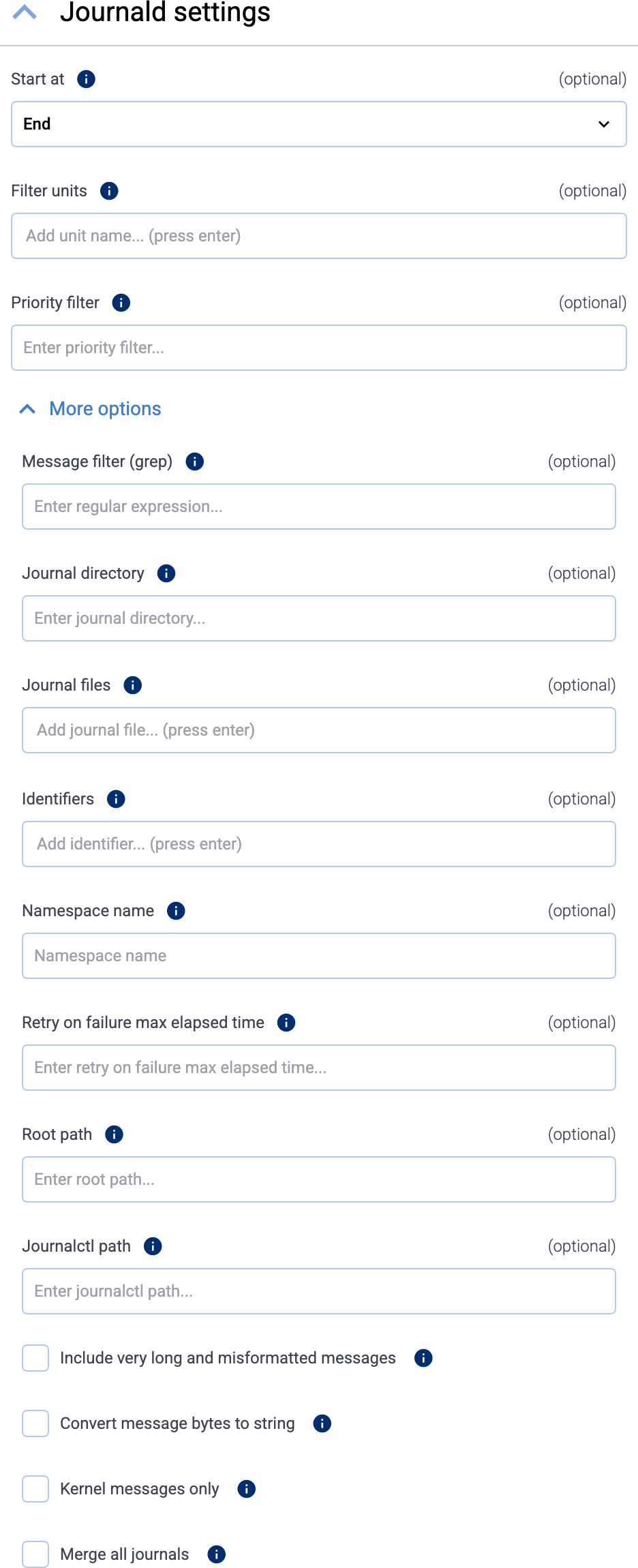
  4. (Optional) To read older entries from the journal files, set Start at to Beginning. Otherwise, Axoflow agent will only forward the journal entries that are created after the collector has been deployed.

    OpenTelemetry Journald collector settings

  5. (Optional) To read only the entries from specific journald units, list the units in the Filter units field (for example, nginx.service). By default, Axoflow agent reads the entries of every unit. To list the units available on a host, run the following command on the host: sudo systemctl list-units

  6. (Optional) To read only entries with the specified or higher priority, enter the priority value into the Priority filter field. Default value: info (so debug level entries are omitted). The possible values in decreasing order are: emerg, alert, crit, err, warning, notice, info, debug.

  7. (Optional) If needed, set advanced options under More options.

  8. Select Add. Based on the collection rule, Axoflow automatically creates edge connectors on the edge hosts that match the Edge Selector.

    CAUTION:

    Make sure to configure Data Forwarding Rules for your edge hosts to transfer the collected data to the OpenTelemetry connector of an AxoRouter.

You can use these metrics labels as:

label value
edge_connector_name The name of the edge connector that collected the message
edge_connector_type otelJournald
edge_connector_label_ Labels set on the edge connector. By default: vendor:opentelemety, product:otel-journald
edge_connector_rule_id The ID of the owner ConnectorRule resource in Axoflow that created the edge connector.
edge_flow_name The name of the edge forwarding rule that sent the message.

Advanced options

Note that if you set more than one filter-like fields (for example, Priority filter and Identifiers), Axoflow agent reads only entries that match all filters (there’s a logical AND operator between the fields). Within a field (for example, if you specify multiple Identifiers) the filters have an OR relation, so any matching entry is read (unless it gets excluded by another filter).

  • Message filter (grep): Read only entries where the MESSAGE field matches the specified regular expression.
  • Journal directory: Specifies the directory containing journal files to read entries from. Relative to the Root path. Default value: /run/log/journal or /run/journal, depending on the platform.
  • Journal files: Specifies the list of journal files to read entries from. Relative to the Root path. By default it’s empty, meaning that all files will be read.
  • Identifiers: Read only entries of the listed message identifiers (SYSTEMD_IDENTIFIER), for example, 2.
  • Namespace name: Query the given namespace. See man page systemd-journald.service(8) for details.
  • Retry on failure max elapsed time: Maximum amount of time (including retries) spent trying to send a logs batch to AxoRouter, for example, 5 minutes. When this value is reached, the data that wasn’t sent is discarded. Default value: 0 (keep retrying indefinitely)
  • Root path: The chroot to use when executing the journalctl command. By default, it’s empty (no chroot is used). To set a path, use an absolute path. Note that if you set a root path, other options of the collector must be set relative to the root path (for example, Journal directory), while others must be absolute (for example, Journalctl path).
  • Journalctl path: The journalctl command to execute. Relative to the Root path, unless the Root path is set, in which case Journalctl path must be absolute. Default value: journalctl
  • Include very long and misformatted entries: Read very long logs and logs with unprintable characters.
  • Convert message bytes to string: If the MESSAGE field of an entry incudes an array of bytes, convert the array to string.
  • Kernel messages only: Read only kernel messages (dmesg). This shows logs from the current boot and that match _TRANSPORT=kernel.
  • Merge all journals: Read from all available journals, including remote ones.

3 - Windows Event Log

Collect logs from the Event Log of the host.

Prerequisites

This collector can be deployed to edge hosts running Axoflow agent for Windows.

Add new Event Log Collector

To create a new Collection Rule that collects data from files on edge hosts, complete the following steps:

  1. Select Sources > Collection Rules > Add Rule. (Alternatively, you can select Add Collector > Create a collection rule on the Collectors page of an edge host.)

    Collection rules list

  2. Select Windows Event Log.

  3. Configure the connector rule.

    1. Enter a name for the collection rule into the Rule Name field.

      Generic collection rule parameters

    2. (Optional) Add labels to the collection rule.

      You can use these metrics labels as:

    3. Set the Edge Selector for the collection rule. The selector determines which edge hosts will have an edge connector based on this collection rule.

      Edge selectors

      • Only edge hosts will match the rule.
      • If you leave the Edge Selector field empty, the rule will match every edge host.
      • To select only a specific host, set the name field to the name of the host as selector.
      • If you set multiple fields in the selector, the collection rule will apply only to edge hosts that match all elements of the selector. (There in an AND relationship between the fields.) For example, label.location = us-east-1 AND label.product = windows
    4. (Optional) Enter a Suffix for the collection rule. This suffix will be used in the name of the edge connector instances created on the edge hosts. For example, if the name of a matching edge host is “my-edge”, and the suffix of the rule is “otel-file-collector”, the edge connector created for the edge will be named “my-edge-otel-file-collector”.

      If the Suffix field is empty, the name of the collection rule is used instead.

    5. (Optional) Enter a description for the rule.

  4. Set how to collect the event logs:

    • To collect data from the following channels, select Channels, then the channels you want to collect data from: Application, System, Security, Setup, ForwardedEvents.

    • Alternatively, select Query and set a custom XML query to collect the data, for example:

      <QueryList>
          <Query Id="0">
              <Select Path="Application">
                  *[System[(Level <= 3) and 
                  TimeCreated[timediff(@SystemTime) <= 86400000]]]
              </Select>
              <Suppress Path="Application">
                  *[System[(Level = 2)]]
              </Suppress>
              <Select Path="System">
                  *[System[(Level=1  or Level=2 or Level=3) and 
                  TimeCreated[timediff(@SystemTime) <= 86400000]]]
              </Select>
          </Query>
      </QueryList>
      
  5. (Optional) If needed, set advanced options under More options.

  6. Select Add. Based on the collection rule, Axoflow automatically creates edge connectors on the edge hosts that match the Edge Selector.

    CAUTION:

    Make sure to configure Data Forwarding Rules for your edge hosts to transfer the collected data to the OpenTelemetry connector of an AxoRouter.

You can use these metrics labels as:

label value
edge_connector_name The name of the edge connector that collected the message
edge_connector_type windowsEventLog
edge_connector_label_ Labels set on the edge connector. By default: vendor:microsoft, product:windows-event-log
edge_connector_rule_id The ID of the owner ConnectorRule resource in Axoflow that created the edge connector.
edge_flow_name The name of the edge forwarding rule that sent the message.

Advanced options

  • Max reads: The maximum number of records to read, before beginning a new batch.
  • Poll interval: The duration between filesystem polls, for example: 1s, 5m, 1h. Default value: 200ms
  • Retry on failure max elapsed time: Maximum time (including retries) to send a log batch to a downstream consumer before discarding it, for example: 1s, 5m, 1h. Retrying never stops if set to 0. Default value 0
  • Start at: Specifies where to start reading logs on startup: beginning or end of the file. Default value: beginning
  • Ignore channel errors: If enabled, the connector keeps working if it cannot open an event log channel.
  • Raw: If disabled, the body of the emitted log records will contain a structured representation of the event. If enabled, the body will be the original XML string.
  • Include log.record.original: If enabled, log.record.original is added to the attributes of the event. This stores the original XML string as configured in Suppress rendering info.
  • Suppress rendering info: If disabled, additional syscalls may be made to retrieve detailed information about the event. If enabled, some unresolved values may be present in the event.

4 - Windows Event Tracing

Collect logs from Event Tracing for Windows (ETW).

Prerequisites

This collector can be deployed to edge hosts running Axoflow agent for Windows.

Add new ETW Collector

To create a new Collection Rule that collects Event Tracing data from on edge hosts, complete the following steps:

  1. Select Sources > Collection Rules > Add Rule. (Alternatively, you can select Add Collector > Create a collection rule on the Collectors page of an edge host.)

    Collection rules list

  2. Select Windows Event Tracing.

  3. Configure the connector rule.

    1. Enter a name for the collection rule into the Rule Name field.

      Generic collection rule parameters

    2. (Optional) Add labels to the collection rule.

      You can use these metrics labels as:

    3. Set the Edge Selector for the collection rule. The selector determines which edge hosts will have an edge connector based on this collection rule.

      Edge selectors

      • Only edge hosts will match the rule.
      • If you leave the Edge Selector field empty, the rule will match every edge host.
      • To select only a specific host, set the name field to the name of the host as selector.
      • If you set multiple fields in the selector, the collection rule will apply only to edge hosts that match all elements of the selector. (There in an AND relationship between the fields.) For example, label.location = us-east-1 AND label.product = windows
    4. (Optional) Enter a Suffix for the collection rule. This suffix will be used in the name of the edge connector instances created on the edge hosts. For example, if the name of a matching edge host is “my-edge”, and the suffix of the rule is “otel-file-collector”, the edge connector created for the edge will be named “my-edge-otel-file-collector”.

      If the Suffix field is empty, the name of the collection rule is used instead.

    5. (Optional) Enter a description for the rule.

  4. Select the configuration profile to use. The following profiles are available:

    • DNS server (full trace): A pre-defined profile for collecting every available DNS server traces.
    • DNS server (queries only): A pre-defined profile for collecting only DNS queries.
    • Custom: Use a fully-customized configuration.
  5. (Optional) If needed, set advanced options under More options.

    Note that if you set an advanced option when using a pre-defined profile, your changes override the related default setting of the pre-defined profile.

  6. Select Add. Based on the collection rule, Axoflow automatically creates edge connectors on the edge hosts that match the Edge Selector.

    CAUTION:

    Make sure to configure Data Forwarding Rules for your edge hosts to transfer the collected data to the OpenTelemetry connector of an AxoRouter.

You can use these metrics labels as:

label value
edge_connector_name The name of the edge connector that collected the message
edge_connector_type windowsEventTracing
edge_connector_label_ Labels set on the edge connector. By default: vendor:microsoft, product:windows-event-tracing
edge_connector_rule_id The ID of the owner ConnectorRule resource in Axoflow that created the edge connector.
edge_flow_name The name of the edge forwarding rule that sent the message.

Advanced options

Note that if you set an advanced option when using a pre-defined profile, your changes override the related default setting of the pre-defined profile.

  • Provider: The provider to subscribe to, for example, Microsoft-Windows-DNSServer for DNS logs. For a complete list, open a command prompt on the edge host and run logman query providers.

    Note that provider name is case sensitive. Alternatively, you can use the GUID of the provider as well, in the following format: {9e814aad-3204-11d2-9a82-006008a86939}. If you’re manually setting the provider, consider enabling the Ignore missing provider option as well.

  • Level: Log level of trace events to be included. Specifying a log level means that all higher priority log levels will be collected as well. Possible values are (starting with the highest priority): critical, error, warning, information, verbose.

  • Ignore missing provider: Continue working if the specified provider is missing from the host.

    CAUTION:

    If this option is disabled and the provider is missing, the all other connectors of the agent can stop, not just the ETW connectors.
  • Match any keywords: Collect only traces that match at least one of the specified keywords of the provider. Note that these keywords are not literal strings, but bitmasks that correspond to the specific provider. To match on multiple keywords, you have to add the bitmasks of the corresponding keywords.

  • Match all keywords: Collect only traces that match all of the specified keywords of the provider. Note that these keywords are not literal strings, but bitmasks that correspond to the specific provider. To match on multiple keywords, you have to add the bitmasks of the corresponding keywords.

  • Buffer size: Buffer size allocated for each ETW trace session, in kilobytes. Minimum is 4, maximum is 16384.

  • Minimum buffers: Minimum number of buffers allocated for each ETW trace session. Note that the minimum and maximum buffers behave like hints to the ETW subsystem and aren’t guaranteed to be allocated as specified.

  • Maximum buffers: Maximum number of buffers allocated for each ETW trace session. Note that the minimum and maximum buffers behave like hints to the ETW subsystem and aren’t guaranteed to be allocated as specified.

  • Flush time: How often, in seconds, any non-empty trace buffers are flushed. 0 will enable a default timeout of 1 second.

  • Event buffer size: Number of ETW events the ETW receiver stores in memory for processing.

  • Number of workers: Number of workers that process ETW events.