This guide shows you how to get started with Axoflow, and use the built-in AxoStore for destination. You’re going to install AxoRouter, and configure or create a source to send data to AxoRouter. You’ll also configure AxoRouter to forward the received data to AxoStore, a temporary storage solution available on the AxoRouter host. The resulting topology will look something like this:

Why use Axoflow
Using the Axoflow security data pipeline automatically corrects and augments the security data you collect, resulting in high-quality, curated, SIEM-optimized data. It also removes redundant data to reduce storage and SIEM costs. In addition, it allows automates pipeline configuration and provides metrics and alerts for your telemetry data flows.
Prerequisites
You’ll need:
-
An Axoflow subscription, access to a free evaluation version, or an on-premise deployment.
-
A data source. This can be any host that you can configure to send syslog or OpenTelemetry data to your AxoRouter instance that you’ll install.
-
A host that you’ll install AxoRouter on. This can be a separate Linux host, or a virtual machine running on your local computer.
AxoRouter should work on most Red Hat and Debian compatible Linux distributions. For production environments, we recommend using Red Hat 9.
Network access
The hosts must be able to access the following domains related to the AxoConsole:
-
When using AxoConsole SaaS:
<your-tenant-id>.cloud.axoflow.io: HTTPS traffic on TCP port 443, needed to download the binaries for Axoflow software (like Axolet and AxoRouter).kcp.<your-tenant-id>.cloud.axoflow.io: HTTPS (mutual TLS) traffic on TCP port 443 for management traffic.telemetry.<your-tenant-id>.cloud.axoflow.io: HTTPS (mutual TLS) traffic on TCP port 443, where Axolet sends the metrics of the host.us-docker.pkg.dev: HTTPS traffic on TCP port 443, for pulling container images (AxoRouter only).
-
When using an on-premise AxoConsole:
-
The following domains should point to AxoConsole IP address to access Axoflow from your desktop and AxoRouter hosts:
your-host.your-domain: The main domain of your AxoConsole deployment.authenticate.your-host.your-domain: A subdomain used for authentication.idp.your-host.your-domain: A subdomain for the identity provider.
-
The AxoConsole host must have the following Open Ports:
- Port 80 (HTTP)
- Port 443 (HTTPS)
-
-
When installing Axoflow agent for Windows or Linux:
github.com: HTTPS traffic on TCP port 443, for downloading installer packages.
Log in to the AxoConsole
Verify that you have access to the AxoConsole.
- Open
https://<your-tenant-id>.axoflow.io/in your browser. - Log in using Google Authentication.
Deploy an AxoRouter instance
Deploy an AxoRouter instance that will route, curate, and enrich your log data.
Deploy AxoRouter on Linux. For other platforms, see AxoRouter.
-
Select Routers > Add Router.

-
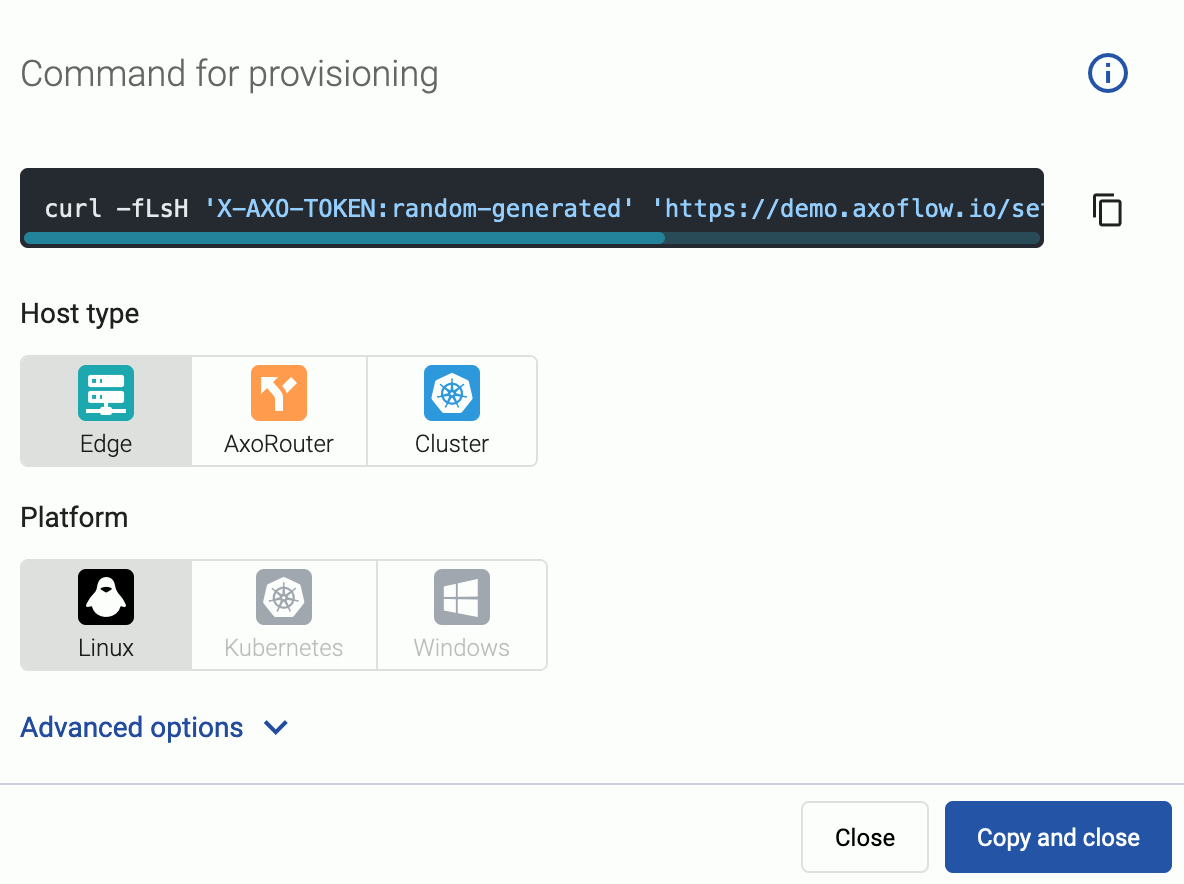
Select the platform (Linux). The one-liner installation command is displayed.
-
(Optional) If you don’t want to store any logs locally on AxoRouter, disable AxoStore, select Advanced options, scroll down, and deselect Enable AxoStore.
-
(Optional)
If needed, set the Advanced options (for example, proxy settings) to modify the installation parameters. Usually, you don’t have to use advanced options unless the Axoflow support team instructs you to do so.
-
Open a terminal on the host where you want to install AxoRouter.
-
Run the one-liner, then follow the on-screen instructions.
Note Running the provisioning command withsudowould mask environment variables of the calling shell. Either start the whole procedure from a root shell, or let the install script call sudo when it needs to. In other words: don’t add thesudocommand to the provisioning command.Example output:
Do you want to install AxoRouter now? [Y] % Total % Received % Xferd Average Speed Time Time Time Current Dload Upload Total Spent Left Speed 100 5480 100 5480 0 0 32076 0 --:--:-- --:--:-- --:--:-- 33414 Selecting previously unselected package axorouter. (Reading database ... 17697 files and directories currently installed.) Preparing to unpack axorouter.deb ... Unpacking axorouter (0.66.0) ... Setting up axorouter (0.66.0) ... Low maximum socket receive buffer size value detected: 7500000 bytes (7.2MB). Do you you want to permanently set the net.core.rmem_max sysctl value to 33554432 bytes (32MB) on this system? [Y] net.core.rmem_max = 33554432 Created symlink '/etc/systemd/system/multi-user.target.wants/axostore.path' → '/etc/systemd/system/axostore.path'. Created symlink '/etc/systemd/system/multi-user.target.wants/axorouter-wec.path' → '/etc/systemd/system/axorouter-wec.path'. % Total % Received % Xferd Average Speed Time Time Time Current Dload Upload Total Spent Left Speed 100 42.9M 100 42.9M 0 0 28.1M 0 0:00:01 0:00:01 --:--:-- 28.2M Selecting previously unselected package axolet. (Reading database ... 17707 files and directories currently installed.) Preparing to unpack axolet.deb ... Unpacking axolet (0.66.0) ... Setting up axolet (0.66.0) ... Created symlink '/etc/systemd/system/multi-user.target.wants/axolet.service' → '/usr/lib/systemd/system/axolet.service'. Now continue with onboarding the host on the Axoflow web UI. -
Register the host.
-
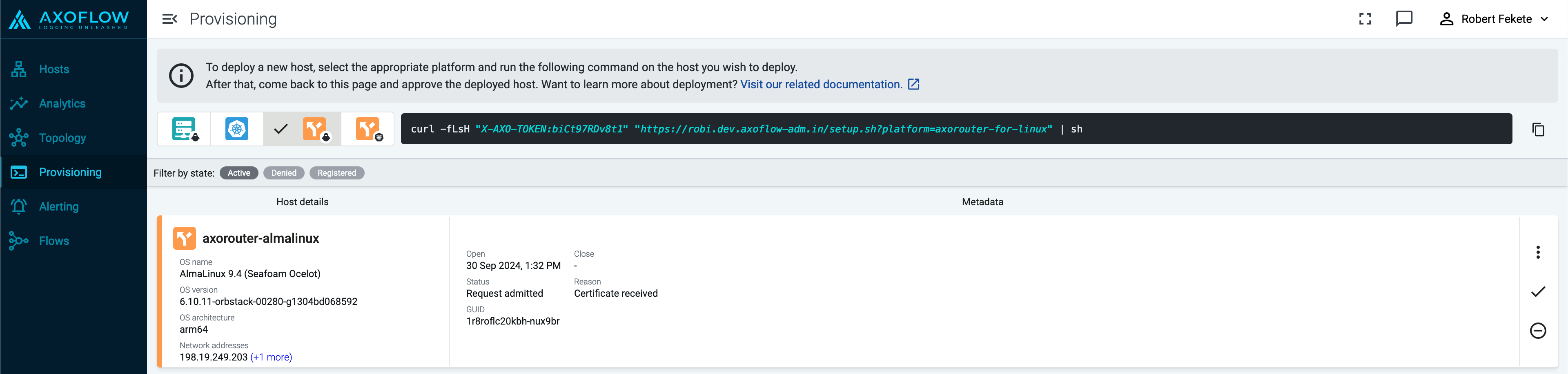
Reload the Provisioning page. There should be a registration request for the new AxoRouter deployment. Select ✓.
-
Select Register to register the host. You can add a description and labels (in
label:valueformat) to the host. -
If the primary IP address (the first IP address shown in the Network addresses section on the Routers page for each AxoRouter) is not accessible from your edge hosts, set a Network address override (IP address or an FQDN) that’s accessible. Otherwise, data forwarding from edge hosts will fail.
-
Select the Topology page. The new AxoRouter instance is displayed.
-
Add a source
Configure a host to send data to AxoRouter.
Configure a generic syslog host. For sources that are specifically supported by Axoflow, see Sources.
-
Log in to your device. You need administrator privileges to perform the configuration.
-
If needed, enable syslog forwarding on the device.
-
Set AxoRouter as the syslog server. Typically, you can configure the following parameters:
-
Name or IP Address of the syslog server: Set the address of your AxoRouter.
-
Protocol: If possible, set TCP or TLS.
Note If you’re sending data over TLS, make sure to configure a TLS-enabled connector rule in Axoflow. -
Syslog Format: If possible, set RFC5424 (or equivalent), otherwise leave the default.
-
Port: Set a port appropriate for the protocol and syslog format you have configured.
By default, AxoRouter accepts data on the following ports (unless you’ve modified the default connector rules):
- 514 UDP and TCP for RFC3164 (BSD-syslog) and RFC5424 (IETF-syslog) formatted traffic. AxoRouter automatically recognizes and handles both formats.
- 601 TCP for RFC5424 (IETF-syslog) and RFC3164 (BSD-syslog) formatted traffic. AxoRouter automatically recognizes and handles both formats.
- 6514 TCP for TLS-encrypted syslog traffic.
- 4317 TCP for OpenTelemetry log data.
To receive data on other ports or other protocols, configure other connector rules for the AxoRouter host.
For TLS-encrypted syslog connections, create a new connector rule or edit an existing one, and configure the keys and certificates needed to encrypt the connections. For details, see Syslog.
Note Make sure to enable the ports you’re using on the firewall of your host.
-
-
Add the source to AxoConsole.
-
Open the AxoConsole and select Topology.
-
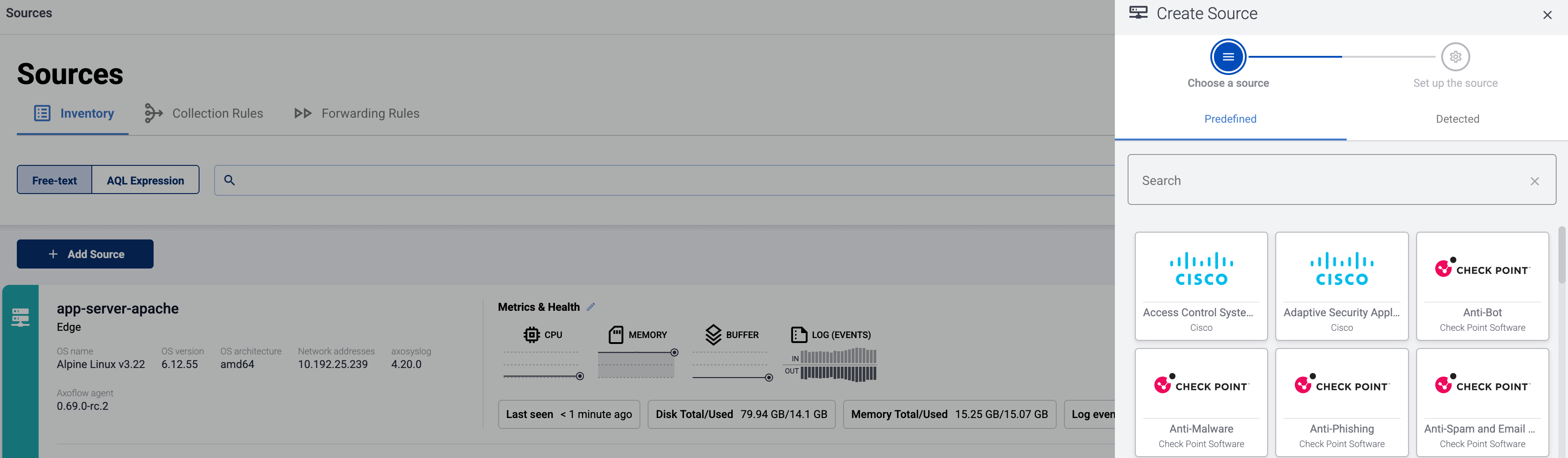
Select Add Item > Source.
-
If the source is actively sending data to an AxoRouter instance, select Detected, then select your source.
-
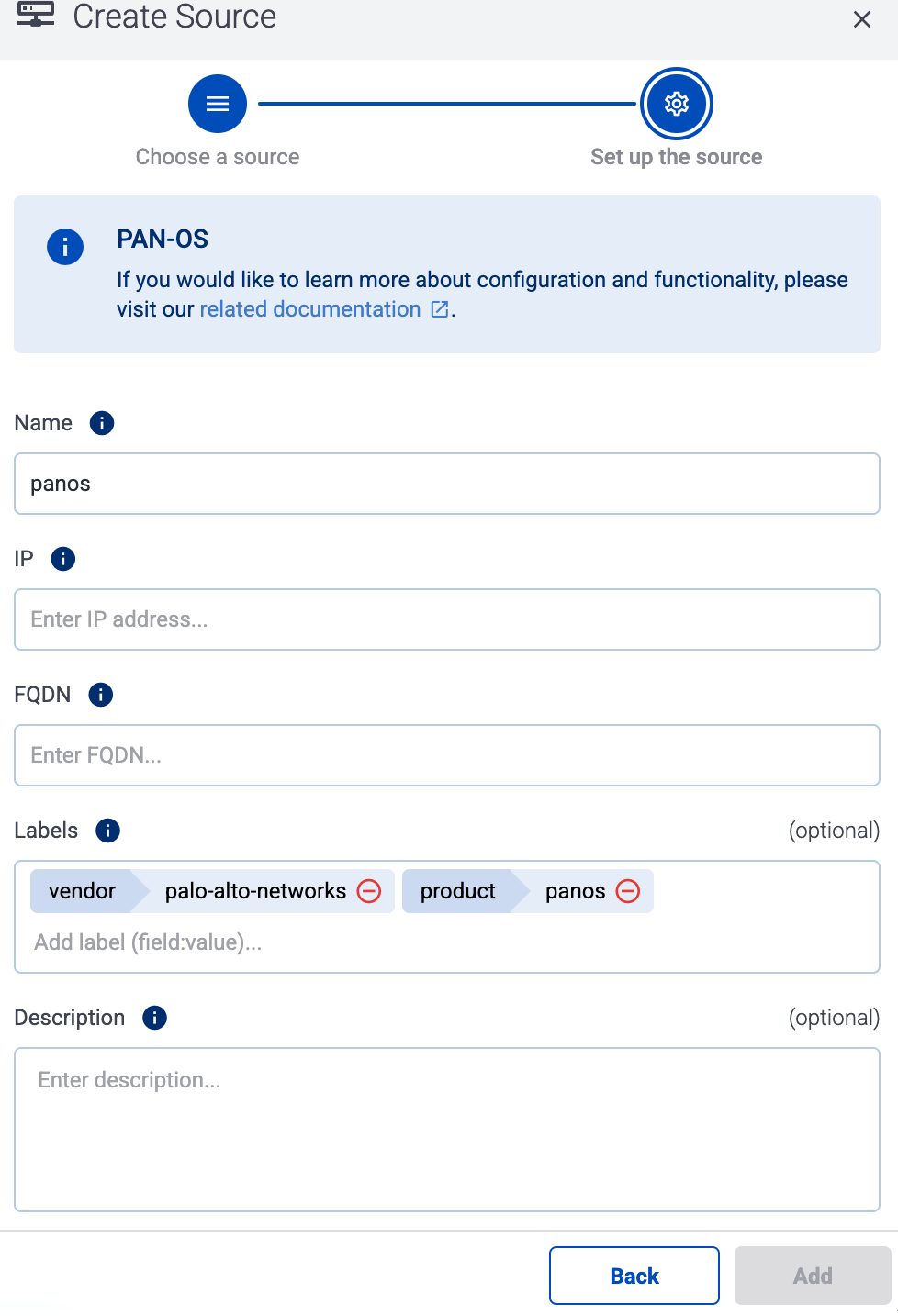
Otherwise, select the vendor and product corresponding to your source from the Predefined sources, then enter the parameters of the source, like IP address and FQDN.
Note During log tapping, you can add hosts that are actively sending data to an AxoRouter instance by clicking Register source. -
-
(Optional) Add custom labels as needed.
-
Select Add.
-
Add a path
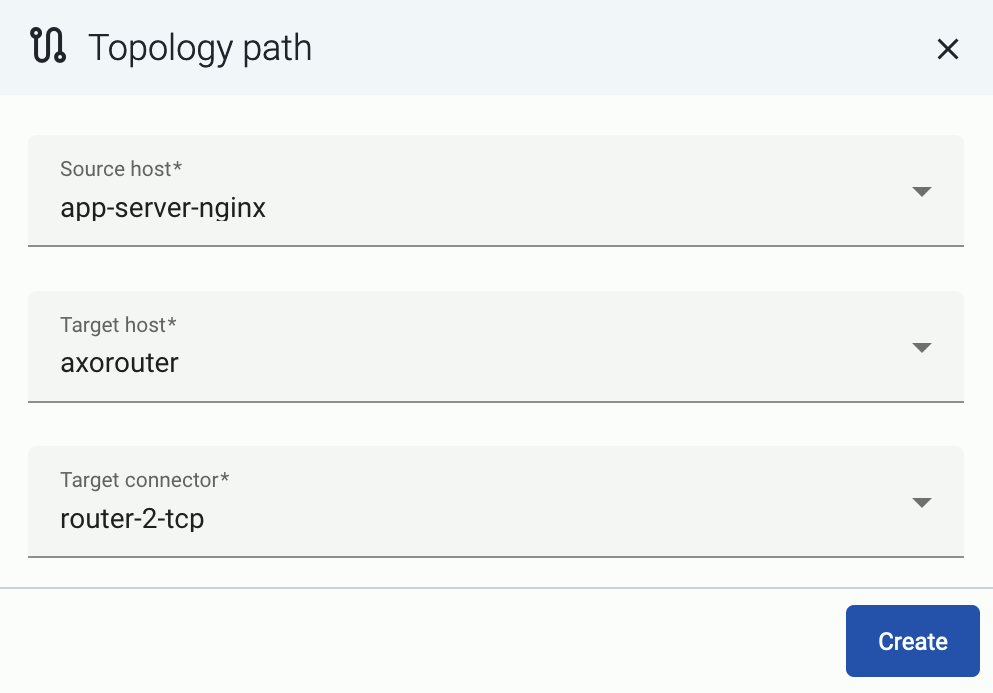
Create a path between the source source and the AxoRouter instance. If you've added the source from the Detected list, you can skip this step, as the path is created automatically. (Creating a path is usually part of adding the source source. You only have to add paths explicitly if you forgot to do that during source provisioning.)
-
Select Topology > Add Item > Path.

-
Select your data source in the Source host field.
-
Select the target router or aggregator this source is sending its data to in the Target host field, for example,
axorouter. -
Select the Target connector. The connector determines how the destination receives the data (for example, using which protocol or port).
-
Select Add. The new path appears on the Topology page.

syslog-ng, Splunk Connect for Syslog (SC4S), or AxoSyslog as its log forwarder agent, consider installing Axolet on the host and instrumenting the configuration of the log forwarder to receive detailed metrics about the host and the processed data. For details, see Manage and monitor the pipeline.
Create a store
Create a store called default to store the incoming messages.
-
Navigate to Routers > Stores > Add Store.
-
Enter
defaultas the Name of the store. This name will appear in the list of destinations (with the-storesuffix) when setting the destination of a Flow. You cannot modify the name of the store later.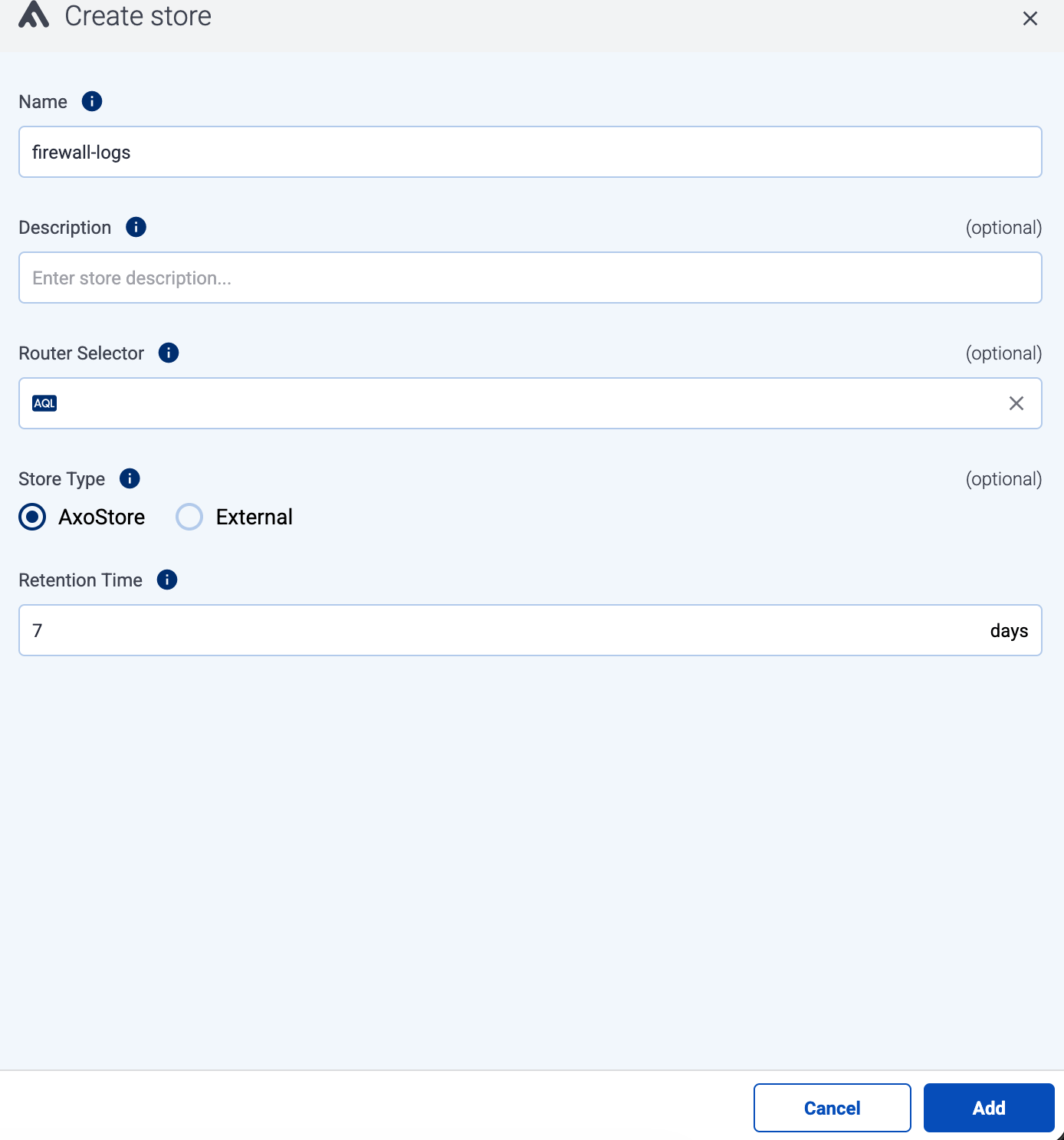
-
Set Store type to AxoStore.
-
Set the Router Selector so it matches the AxoRouter instances where you want to create this store.
You can use any labels and metadata of the AxoRouter hosts in the Router selectors, for example, the hostname of the AxoRouter, or any custom labels.
- If you leave the Router Selector field empty, the selector will match every AxoRouter instance.
- To select only a specific AxoRouter instance, set the
namefield to the name of the instance as selector. For example,name = my-axorouter. - If you set multiple fields in the selector, the selector will match only AxoRouter instances that match all elements of the selector. (There in an AND relationship between the fields.)
-
Set the Retention Time (in days) so older data is automatically deleted from the store. You cannot modify this parameter later.
-
Select Add.
Create a flow
Create a flow to route the traffic from your AxoRouter instance to the `default-store` destination.
-
Select Flows.
-
Select Add Flow.
-
Enter a name for the flow, for example,
my-test-flow.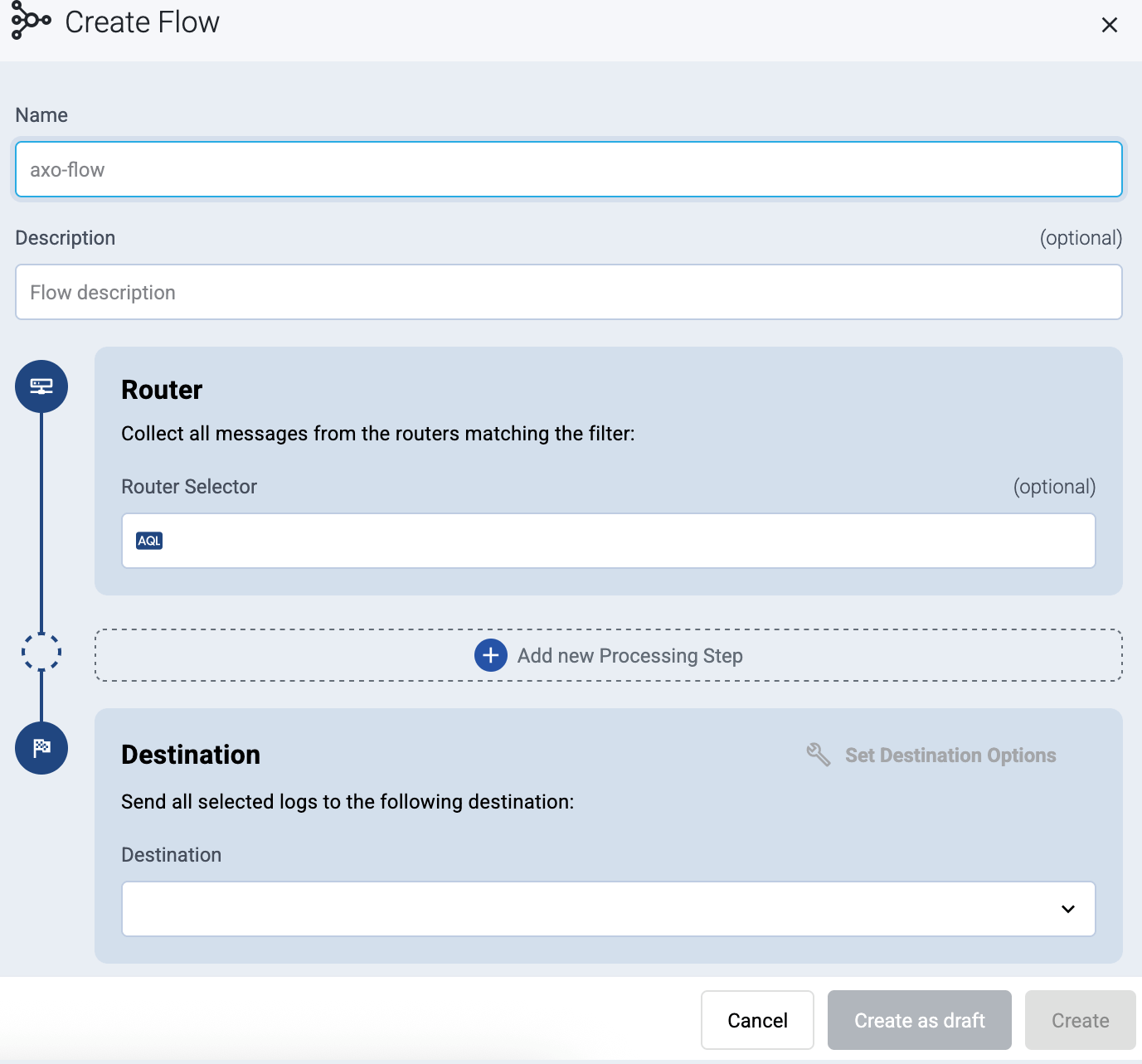
-
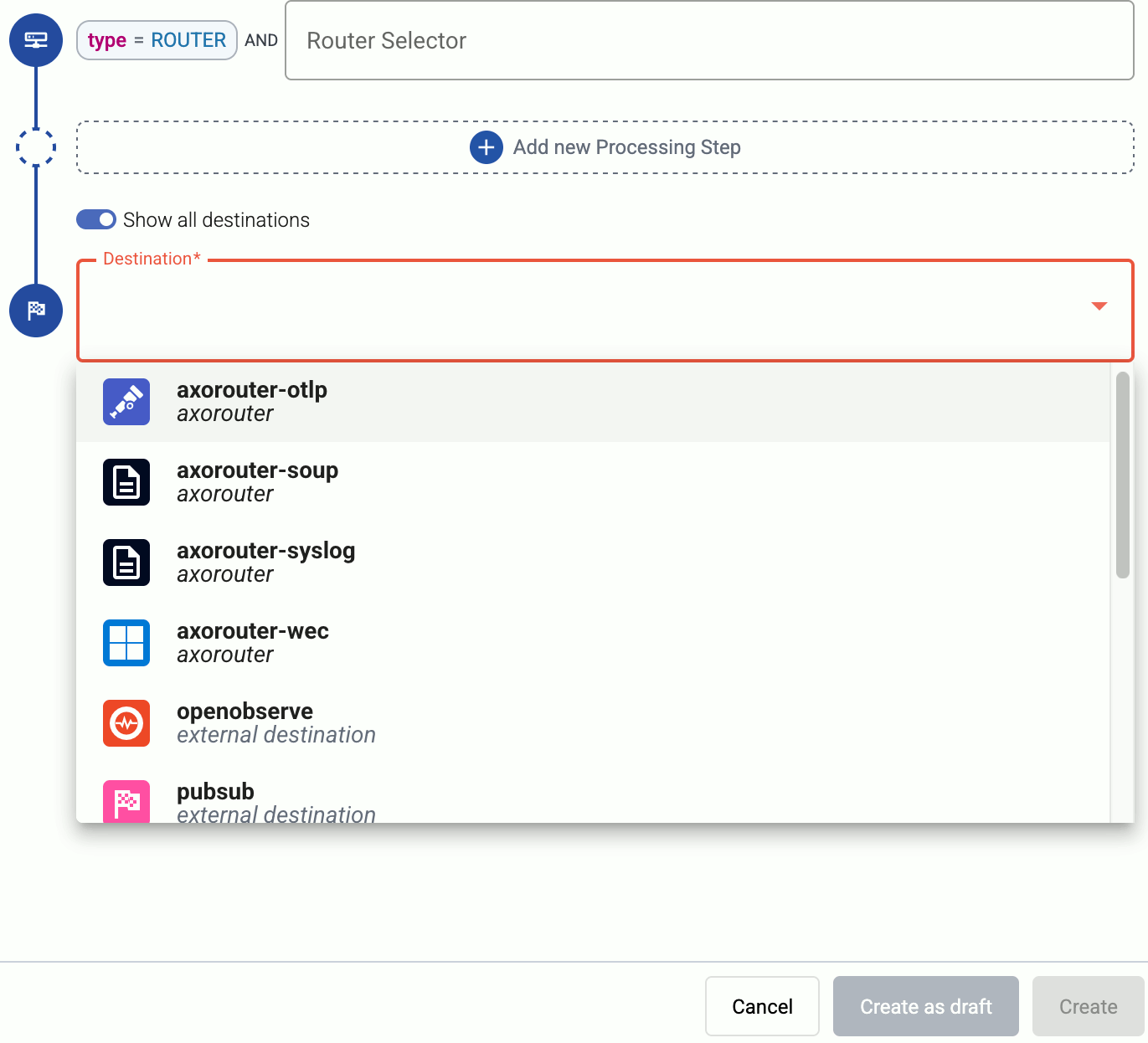
In the Router Selector field, enter an expression that matches the router(s) you want to apply the flow. To select a specific router, use a name selector, for example,
name = my-axorouter-hostname.You can use any labels and metadata of the AxoRouter hosts in the Router selectors, for example, the hostname of the AxoRouter, or any custom labels.
- If you leave the Router Selector field empty, the selector will match every AxoRouter instance.
- To select only a specific AxoRouter instance, set the
namefield to the name of the instance as selector. For example,name = my-axorouter. - If you set multiple fields in the selector, the selector will match only AxoRouter instances that match all elements of the selector. (There in an AND relationship between the fields.)
-
Set the Destination where you want to send your data. Select default-store. For details on the different destinations, see Destinations.
-
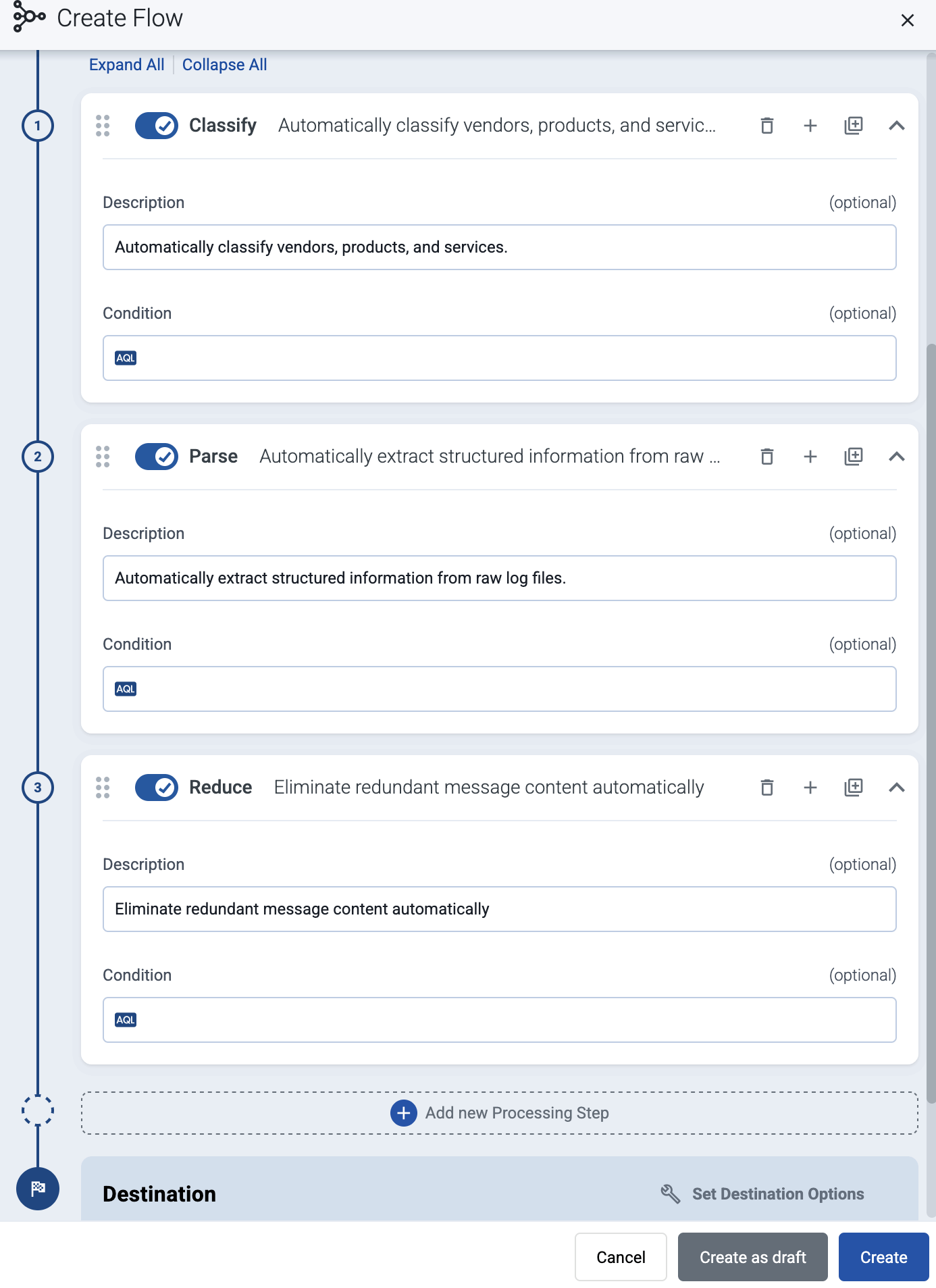
(Optional) To process the data transferred in the flow, select Add New Processing Step. For details, see Processing steps. For example:
- Add a Classify, a Parse, and a Reduce step, in that order, to automatically remove redundant and empty fields from your data.
- To select which messages are processed by the flow, add a Select Messages step, and enter a filter into the AQL Expression field. For example, to select only the messages received from Fortinet FortiGate firewalls, use the
meta.vendor = fortinet AND meta.product = fortigatequery. - Save the processing steps.
-
Select Add.
-
The new flow appears in the Flows list.

Check the metrics on the Topology page
Open the Topology page and verify that your AxoRouter instance is connected both to the source and the destination.
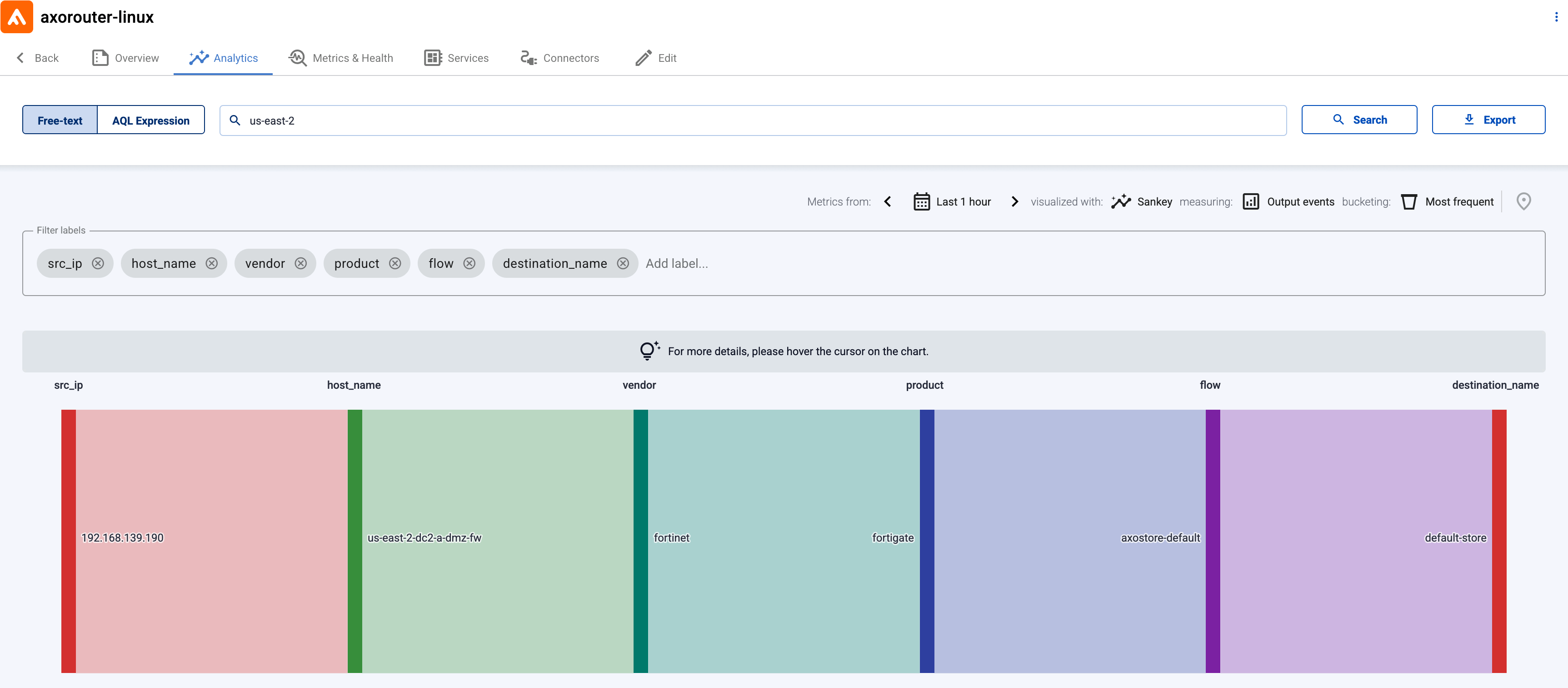
If you have traffic flowing from the source to your AxoRouter instance, the Topology page shows the amount of data flowing on the path. Click the AxoRouter instance, then select Analytics to visualize the data flow.
Search logs
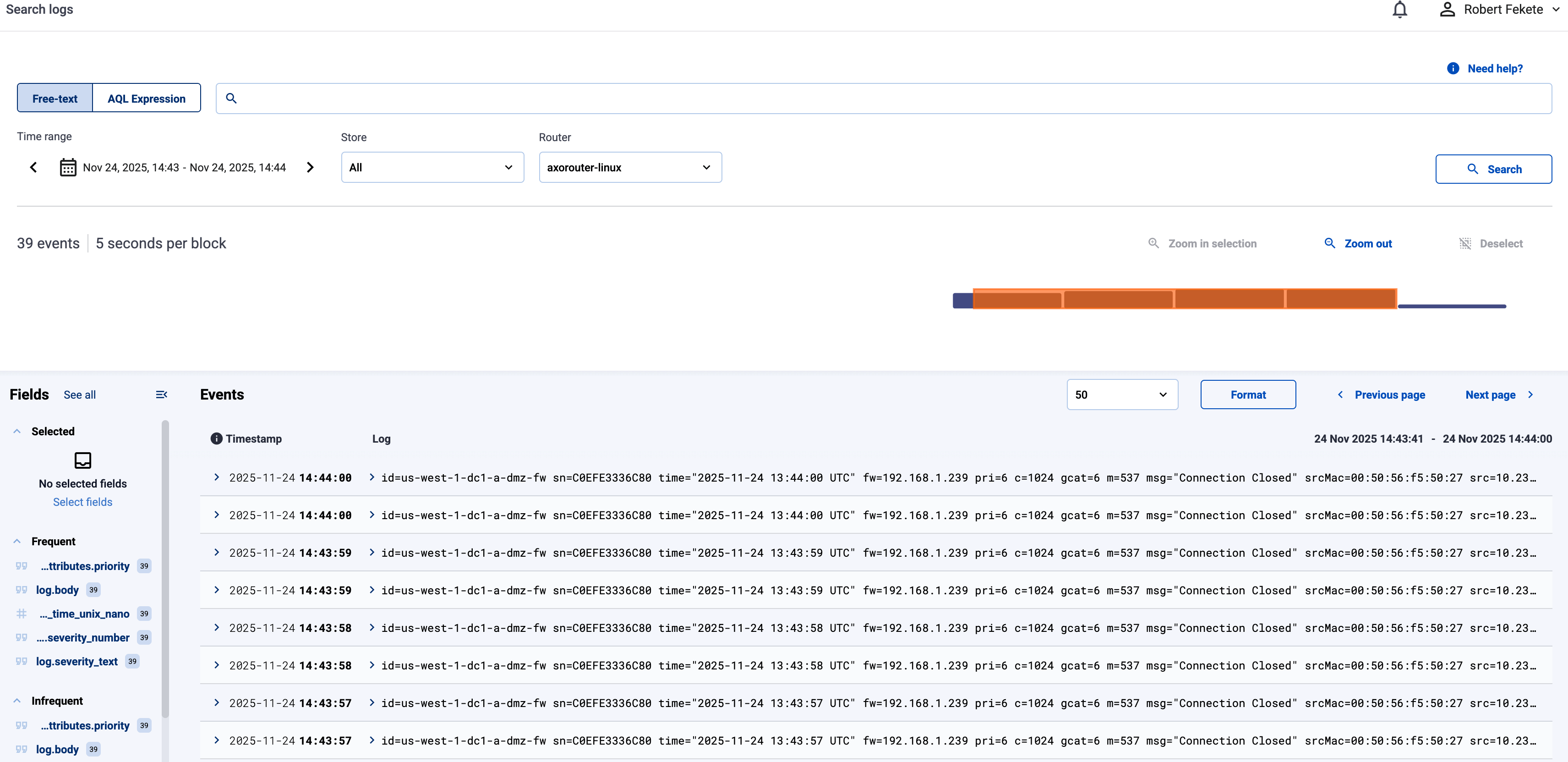
Open the Search logs page, then select Search. The recently received logs in AxoStore will be displayed.
Tap into the log flow
Log tapping in Axoflow samples the log flow. You can use labels to filter for specific messages (like ones with parse errors) and tap only those messages. To not get overwhelmed with events, Axoflow automatically samples the output: if many messages match the selected filter, only a subset is shown (about 1 message per second). Using log tapping, you can quickly troubleshoot both parsing/curation errors and destination ingest (API) errors, and check:
- What was in the original message?
- What is sent in the final payload to the destination?
Tap into the log flow.
-
Click your AxoRouter instance on the Topology page, then select ⋮ > Tap log flow.

-
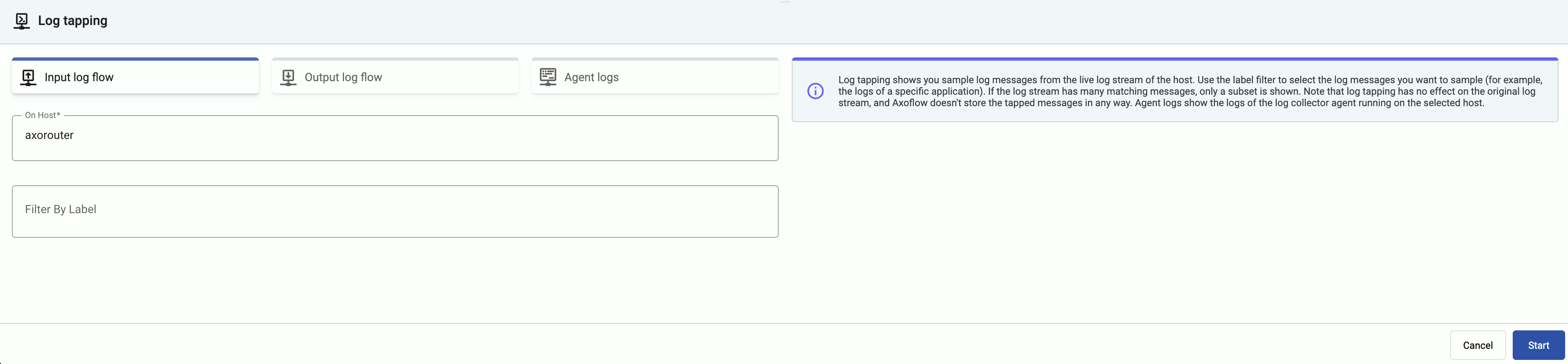
Tap into the log flow.
- To see the input data, select Input log flow > Start.
- To see the output data, select Output log flow > Start.
You can use labels to filter the messages and sample only the matching ones.
-
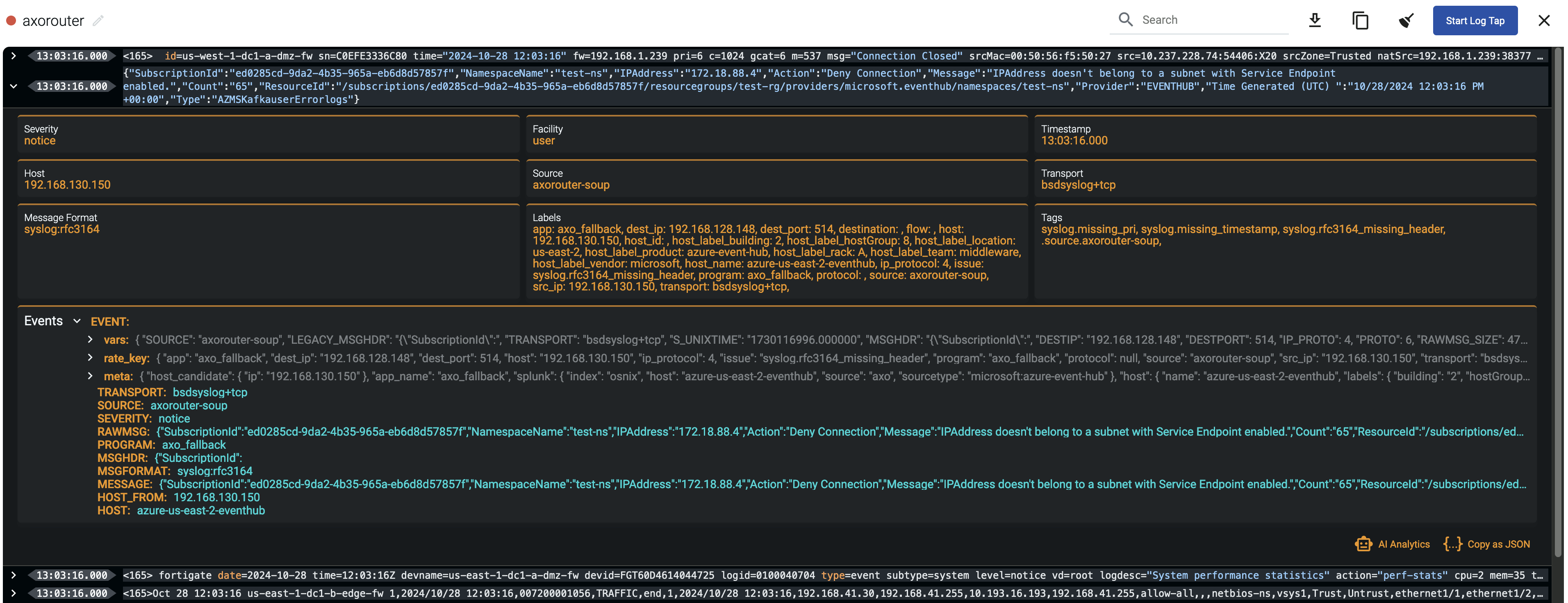
When the logs you’re interested in show up, click Stop Log Tap, then click a log message to see its details.
-
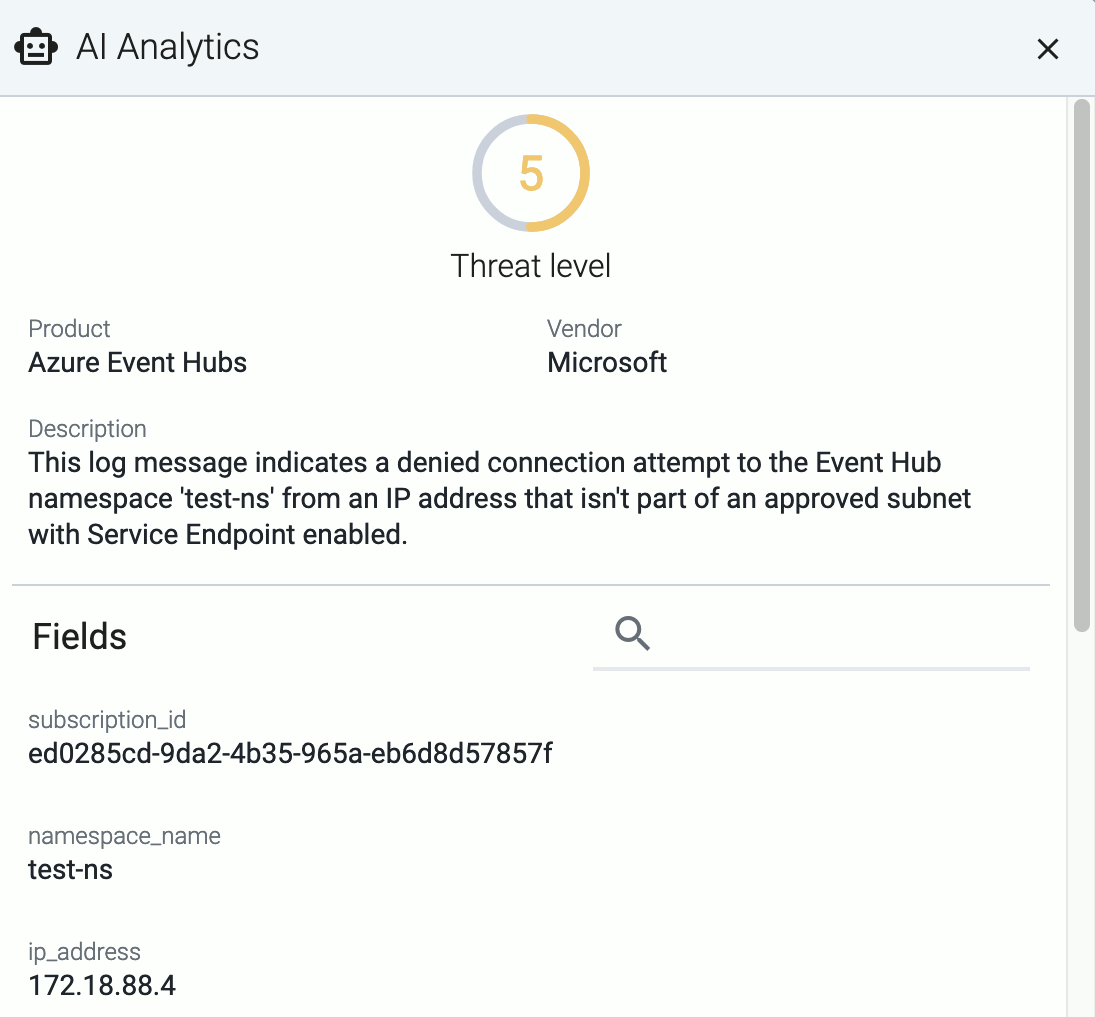
If you don’t know what the message means, select AI Analytics to ask our AI to interpret it.
Troubleshooting
In case you run into problems, or you’re not getting any data in AxoStore, check the logs of your AxoRouter instance:
- Select Topology, then select your AxoRouter instance.
- Select ⋮ > Tap agent logs > Start. Axoflow displays the log messages of AxoRouter. Check the logs for error messages.