Axoflow provides Axoflow agent for Windows (a customized OpenTelemetry Collector distribution) to collect data from Microsoft Windows hosts.
Axoflow agent can collect data from files, Windows Event Log, and Windows Event Traces (ETW).
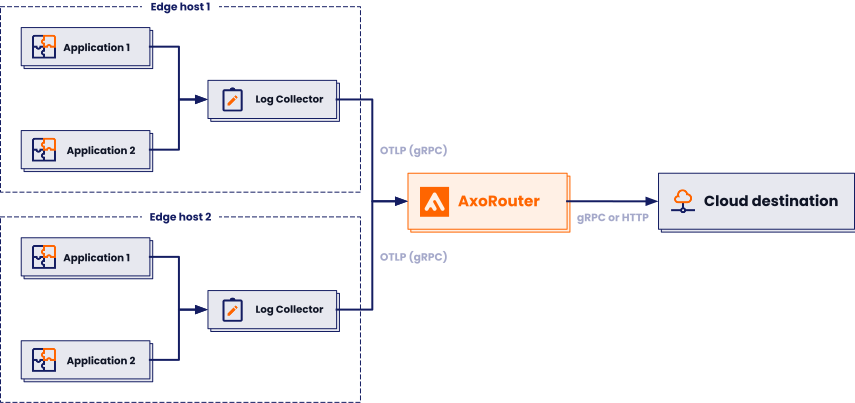
What the installer does
When you deploy axolet, you run a command that installs the required software packages, configures them and sets up the connection with Axoflow.
The installer script performs the following main steps:
- Executes prerequisite checks:
- Tests the network connection with the console endpoints.
- Checks if the operating system is supported.
- Downloads the installers (
.msi) of the Axolet agent and the Axoflow agent for Windows. - The installer script installs the packages. If the packages are already installed, the installer will update them to the latest version.
The installer installs:
- The collector agent (by default) to
C:\Program Files\Axoflow\OpenTelemetry Collector\axoflow-otel-collector.exe. - A default configuration file to
C:\ProgramData\Axoflow\OpenTelemetry Collector\config.yaml. - The
axoletmanagement agent (by default) toC:\Program Files\Axoflow\Axolet\axolet.exe.
axolet performs the following main steps on its first execution:
- Generates and persists a unique identifier (GUID).
- Initiates a cryptographic handshake process to AxoConsole.
- AxoConsole issues a client certificate to axolet, which will be stored in the above mentioned
config.jsonfile. - The service waits for an approval on AxoConsole. Once you approve the host registration request, axolet starts to send telemetry data to AxoConsole. It keeps doing so as long as the agent is registered.
To install Axoflow agent on a Windows host, complete the following steps. For other platforms, see Provision pipeline elements.
Prerequisites
-
You’ll need Administrator PowerShell access to the Windows host.
-
Axoflow agent supports the following Windows versions on x86_64 architectures:
- Windows Server 2025
- Windows Server 2022
- Windows Server 2019
- Windows Server 2016
- Windows 11
- Windows 10
-
When using Axoflow agent with an on-premises AxoConsole deployment, you must prepare the Axoflow agent host
Network access
The host must be able to access the following domains related to the AxoConsole:
-
When using AxoConsole SaaS:
<your-tenant-id>.cloud.axoflow.io: HTTPS traffic on TCP port 443, needed to download the binaries for Axoflow software (like Axolet and AxoRouter).kcp.<your-tenant-id>.cloud.axoflow.io: HTTPS (mutual TLS) traffic on TCP port 443 for management traffic.telemetry.<your-tenant-id>.cloud.axoflow.io: HTTPS (mutual TLS) traffic on TCP port 443, where Axolet sends the metrics of the host.us-docker.pkg.dev: HTTPS traffic on TCP port 443, but only if you’re forcing the installation script to pull the container images from the public repository. The Axolet and AxoRouter for Linux installation scripts download the images directly from AxoConsole.
-
When using an on-premise AxoConsole:
-
The following domains should point to AxoConsole IP address to access Axoflow from your desktop and AxoRouter hosts:
your-host.your-domain: The main domain of your AxoConsole deployment.idp.your-host.your-domain: A subdomain for the identity provider.kcp.your-host.your-domain: A subdomain for management traffic.telemetry.your-host.your-domain: A subdomain for agent telemetry.
-
The AxoConsole host must have the following Open Ports:
- 80 TCP: Traefik ingress (HTTP, redirected to HTTPS).
- 443 TCP: HTTPS for the AxoConsole UI, API, and all web traffic.
-
-
When installing Axoflow agent for Windows or Linux:
github.com: HTTPS traffic on TCP port 443, for downloading installer packages.
- To transport data to an AxoRouter, Axoflow agent must be able to access the OpenTelemetry Connector of the AxoRouter. By default, the connector uses the 4317 TCP port.
Limitations
Communication between the Axoflow agent hosts and AxoRouter hosts uses the OpenTelemetry Protocol (OTLP/gRPC), but currently doesn’t use TLS or authentication.
Install Axoflow agent for Windows
-
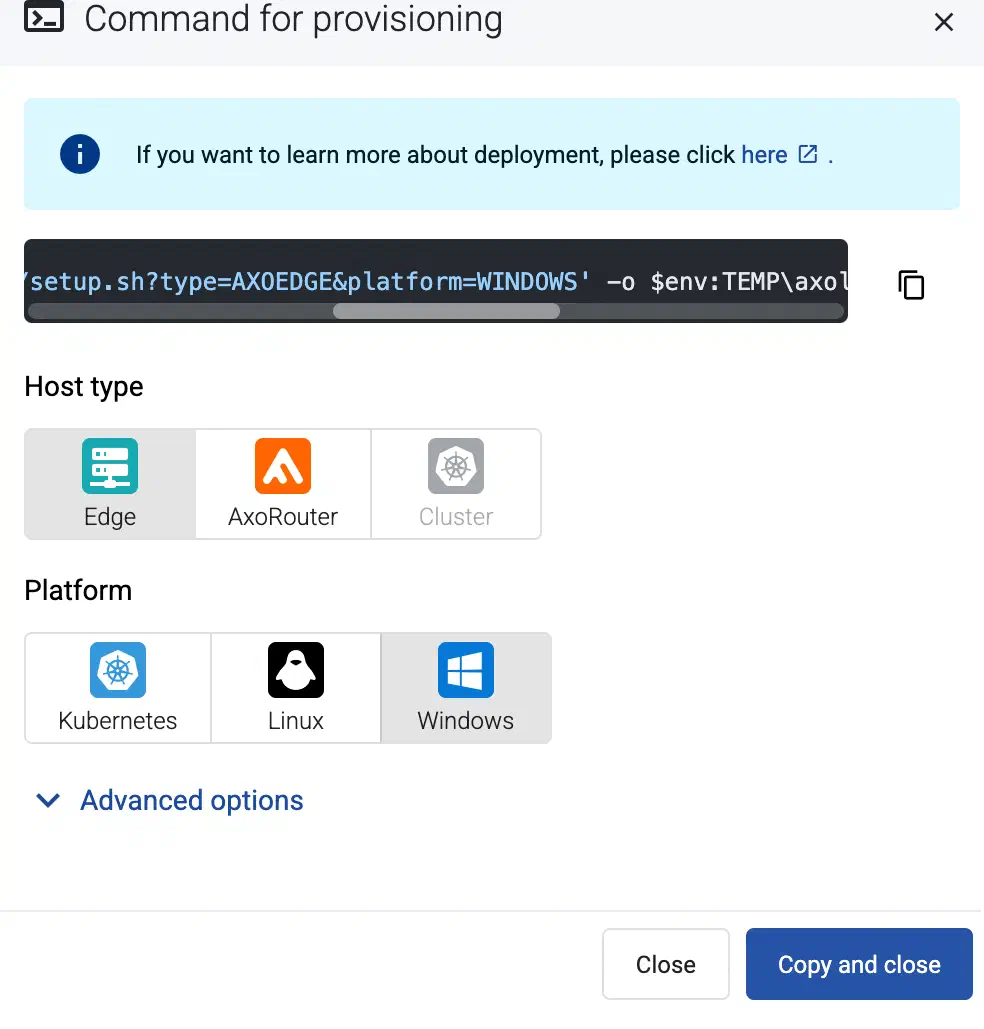
Select Provisioning > Select type and platform.
-
Select the type (Edge) and platform (Windows). The one-liner installation command is displayed.
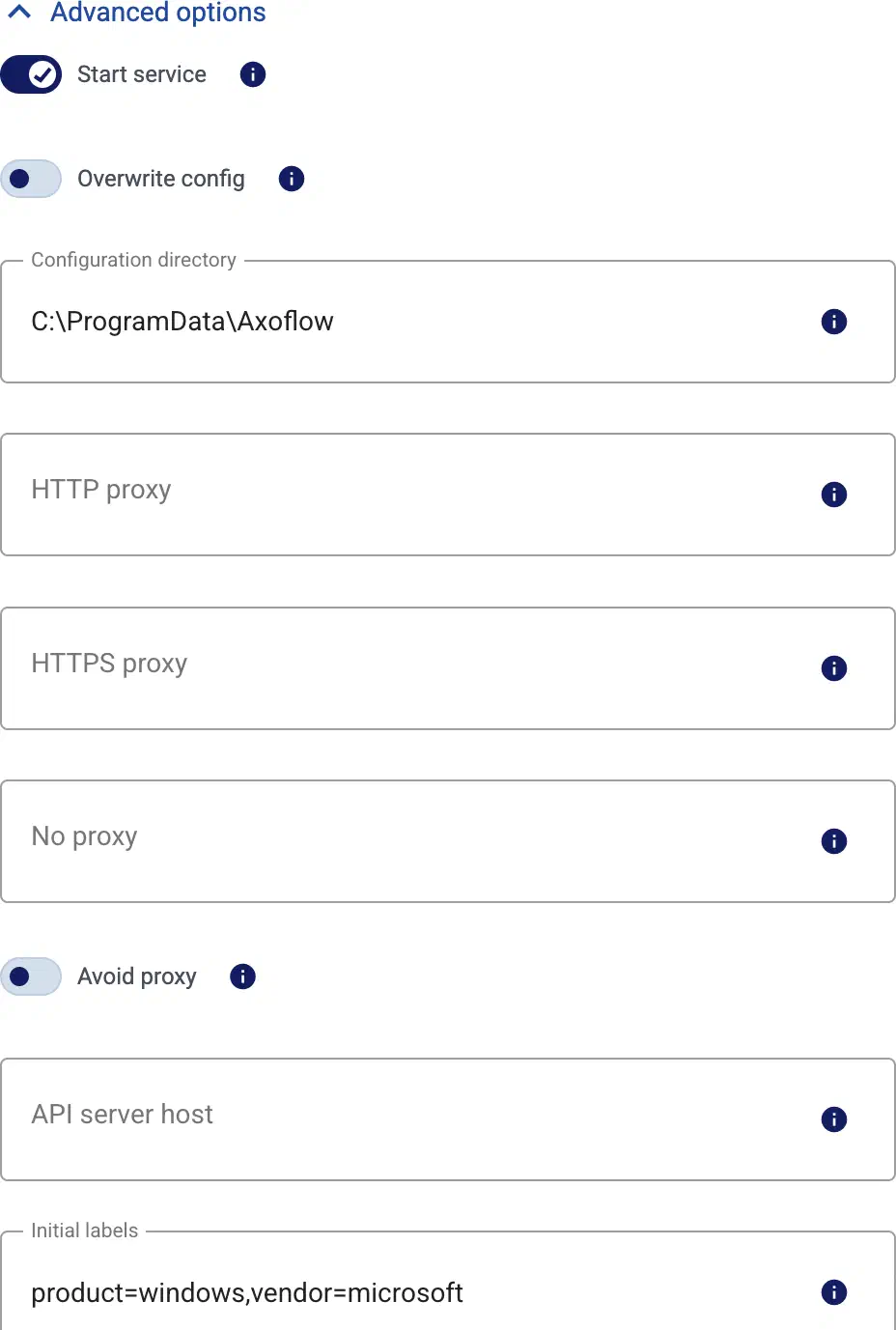
If needed, set the Advanced options (for example, proxy settings, or External image pull in air-gapped environments) to modify the installation parameters. Usually, you don’t have to use advanced options unless the Axoflow support team instructs you to do so.
-
Open a PowerShell terminal as Administrator on the host where you want to install Axoflow agent.
-
Only on Windows Server 2016: Explicitly enable TLS1.2 encryption (Windows Server 2016, PowerShell 5.1 defaults to TLS 1.0 or 1.1 for web requests).
[Net.ServicePointManager]::SecurityProtocol = [Net.SecurityProtocolType]::Tls12 -
Run the one-liner, then follow the on-screen instructions.
Example output:
Invoke-WebRequest -Headers @{'%v' = 'X-AXO-TOKEN:xxx'} -Uri 'https://<your-tenant-id>.cloud.axoflow.io/setup.sh?type=AXOEDGE&platform=WINDOWS' -OutFile $env:TEMP\\axolet-installer.ps1; & $env:TEMP\\axolet-installer.ps1 Do you want to install Axolet now? [Y] Installing Axoflow agent... Axolet service is running. Now continue with onboarding the host on the Axoflow web UI. -
Verify that the
axoletandaxoflow-otel-collectorservices are running.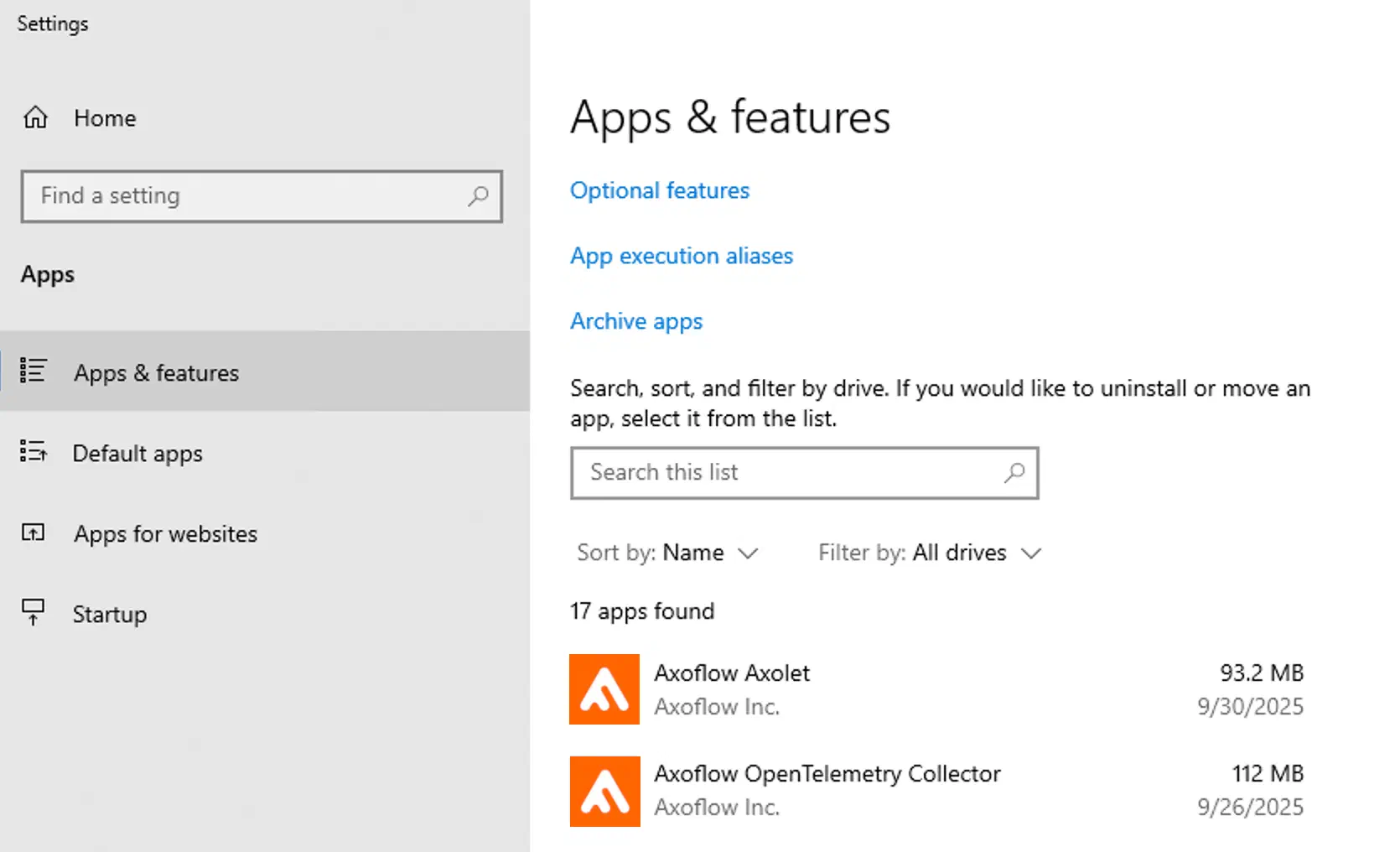
If you run into errors or problems, see Troubleshooting.
-
On the AxoConsole, reload the Provisioning page. A registration request for the new host should be displayed. Accept it.
-
The host now appears on the Topology page. To collect data from the host, the host must match the edge selector of an Edge collection rule.
Metadata fields
The AxoRouter connector that receives data from Axoflow agent adds the following fields to the meta variable:
| field | Value |
|---|---|
| meta.connector.type | otlp |
| meta.connector.name | <name of the connector> |
| meta.product | windows, windows-dns, windows-dhcp |
| meta.platform | windows |
Troubleshooting
If you run into problems when installing Axoflow agent for Windows, complete the following steps.
-
Double-check that you’re running the installation command:
- as administrator,
- in PowerShell, not in Cmd.
-
Set the following environment variable to store the installation logs. Adjust the directory as needed.
$env:TEMP_DIR = "C:\Temp\axoflow-agent-install" -
Re-run the installation command.
-
Open the Windows Event Viewer and check the Windows Logs > System events at the time of installation for errors or issues logged by the Service Control Manager.
-
Check that the installation logs of
axoletandaxoflow-otel-collectorare available, for example, theC:\Temp\axoflow-agent-install\axolet-windows-amd64_<version-number>.msi-install.logandC:\Temp\axoflow-agent-install\axoflow-otel-collector_<version-number>-axoflow.1_windows_x64.msi-install.logfiles exist. -
If you suspect that the installer is incorrectly reporting connectivity issues, disable the preflight check and re-run the installation command.
$env:SKIP_PREFLIGHT_CHECK = 'true' -
If needed, contact our support team.