Log tapping in Axoflow samples the log flow. You can use labels to filter for specific messages (like ones with parse errors) and tap only those messages. To not get overwhelmed with events, Axoflow automatically samples the output: if many messages match the selected filter, only a subset is shown (about 1 message per second). Using log tapping, you can quickly troubleshoot both parsing/curation errors and destination ingest (API) errors, and check:
- What was in the original message?
- What is sent in the final payload to the destination?
To see log tapping in action, check this blog post.
- Tap into your log flow.
- Display the logs of the log collector service. Service logs also contain the output of the systemd units used to launch the containers (where applicable).
Tap into the log flow
To tap into your log flow, complete the following steps.
-
Select the AxoRouter where you want to tap the logs on the Topology or Routers page. Alternatively, select
⌘/Ctrl + Kand enter the name of the AxoRouter. -
Select ⋮ Host Options > Tap log flow.

-
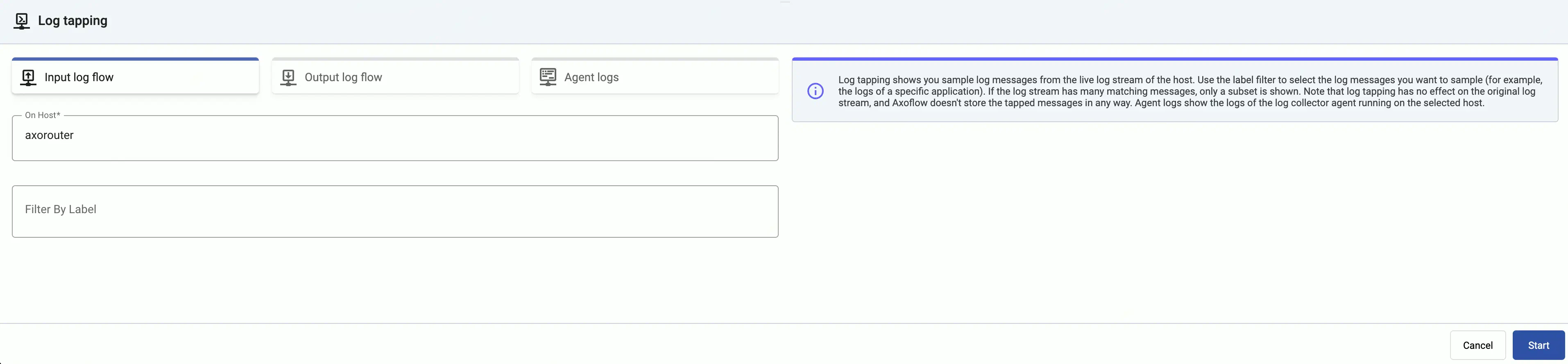
Tap into the log flow.
- To see the input data, select Input log flow > Start.
- To see the output data, select Output log flow > Start.
You can use labels to filter the messages and sample only the matching ones.
-
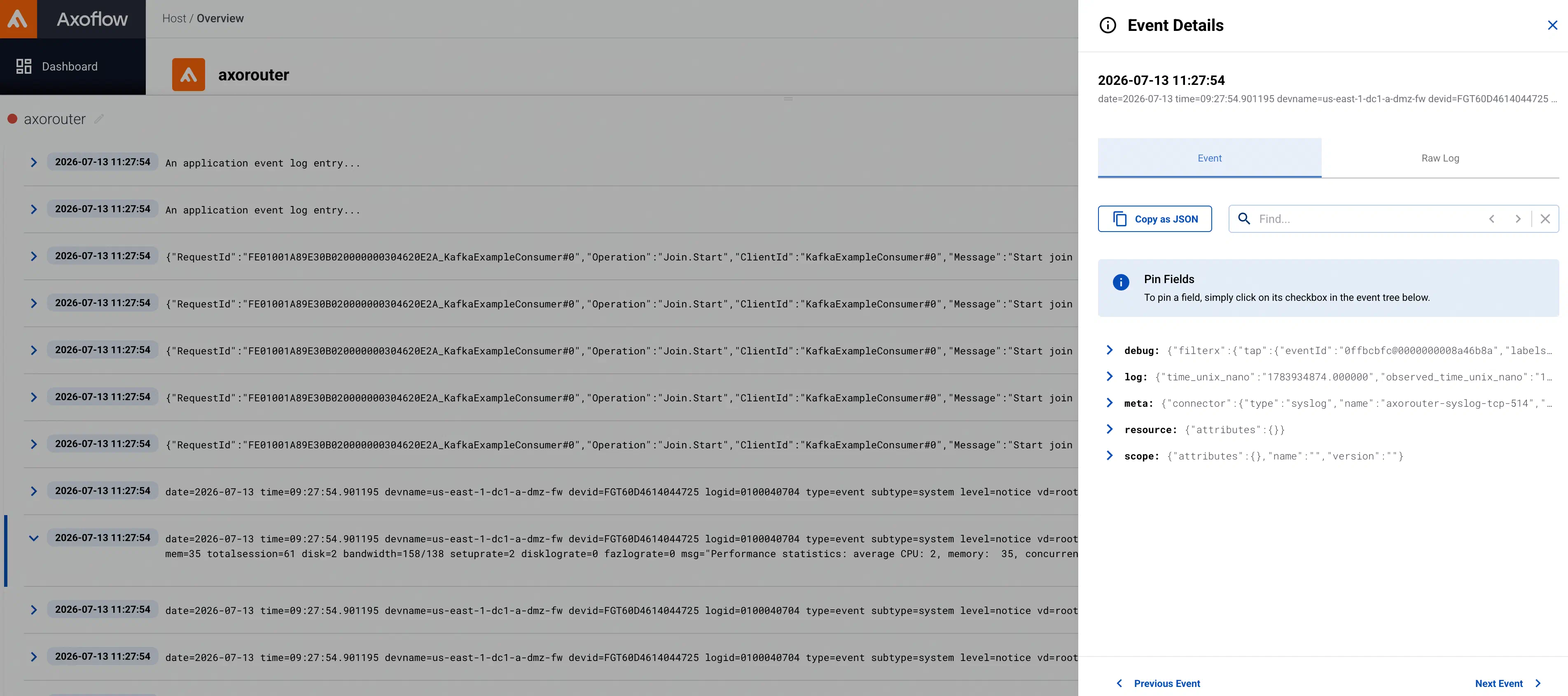
When the logs you’re interested in show up, click Stop Log Tap, then click the icon next to a log message to see its details. For details about the message schema and the displayed fields, see Message schema reference. To also display AxoRouter’s internal representation of the message, see Show debug data.
 Note
NoteFor sources that are not yet registered in the AxoConsole host database, the Register source button is shown at the end of the message. Click it to add the source to AxoConsole: this will allow attributing the logs coming from the given source as such, enriching the messages, the analytics data, as well as the Topology page.
 Note When using Log tapping, ETW events look a bit weird: the body of these events is empty. That’s normal, the reason for that is that everything is sent as metadata.
Tap service logs
Display the logs of the log collector service, complete the following steps. AxoConsole supports service log tapping on AxoRouter and Axoflow agent for Linux hosts.
-
Find the host you want to tap.
- Select the AxoRouter on the Topology or Routers page.
- Select the Axoflow agent on the Topology or Sources page.
Alternatively, select
⌘/Ctrl + Kand enter the name of the host. -
To start log tapping instantly, select Services > ✓ Service log in the row of the
axorouter-syslogoraxoflow-otel-collector.serviceservice.To filter the logs or to tap the logs of a specific service, select ⋮ Host Options > Tap service logs and complete the following steps.
-
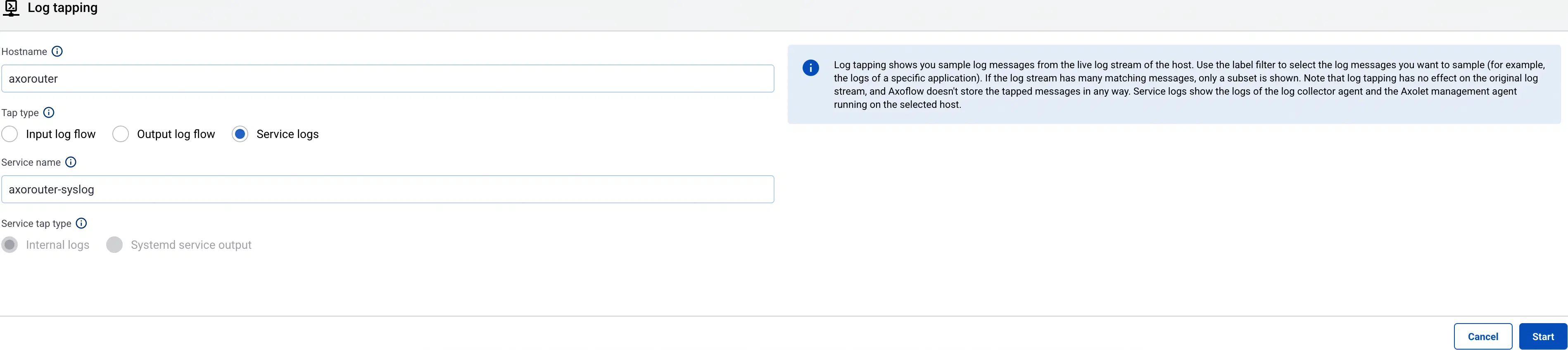
Select Service logs.
-
Set the Service name field to see the logs of a specific service.
Depending on the configuration of the host, the following services can be available:
- axoflow-otel-collector: The collector agent on edge hosts.
- axolet: The monitoring and management agent for Axoflow pipeline elements.
- axorouter-resolver: A service for retrieving host data from external CMDB systems.
- axorouter-syslog: The main processing element of AxoRouter deployments.
- axorouter-wec: The service that handles the Windows Events connector (WEC).
- axostore: The service that handles AxoStore on the host. Only available if there are stores configured on the host.
If systemd is available on the host, select Systemd service output to show the logs of the service from the systemd journal. Otherwise, the Internal logs of the service are available.
-
-
When the logs you’re interested in show up, click Stop Log Tap, then click the icon next to a log message to see its details.
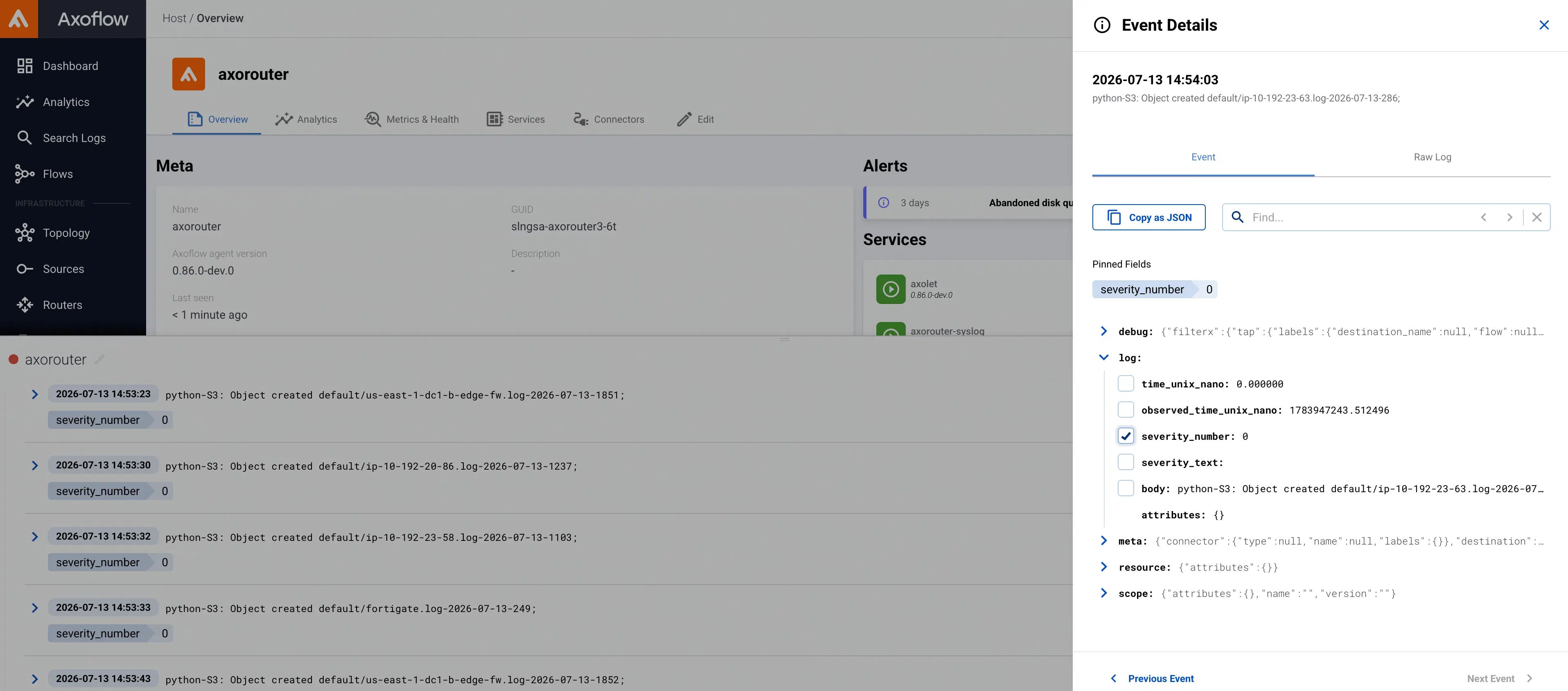
The Event Details panel allows you to inspect a specific event. For details on the available fields and their structure, see Message schema reference.
-
To display the original log message, select Raw Log.
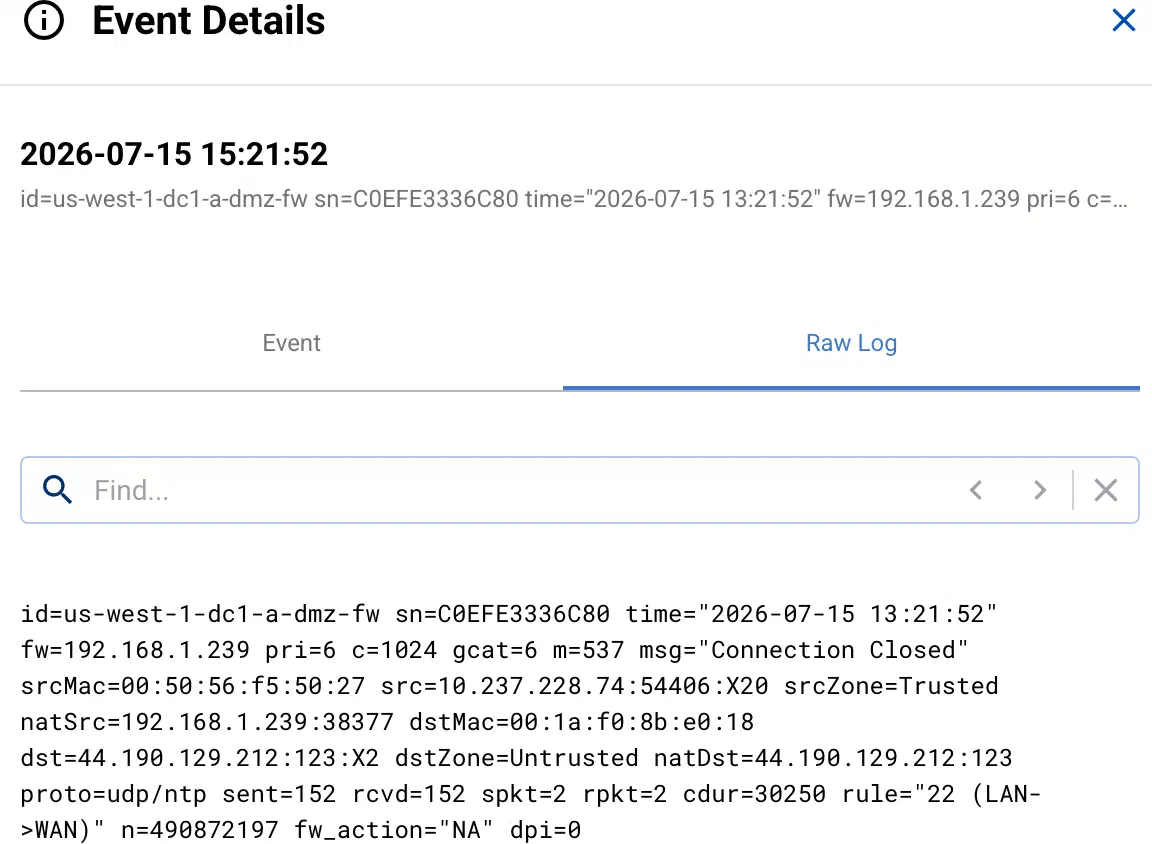
-
To copy the entire event as JSON to the clipboard, select Copy as JSON.
-
To search the event body and metadata, enter a search keyword into the Find field. This searches for the string on the Event Details panel, including the log, metadata, or label names and values.
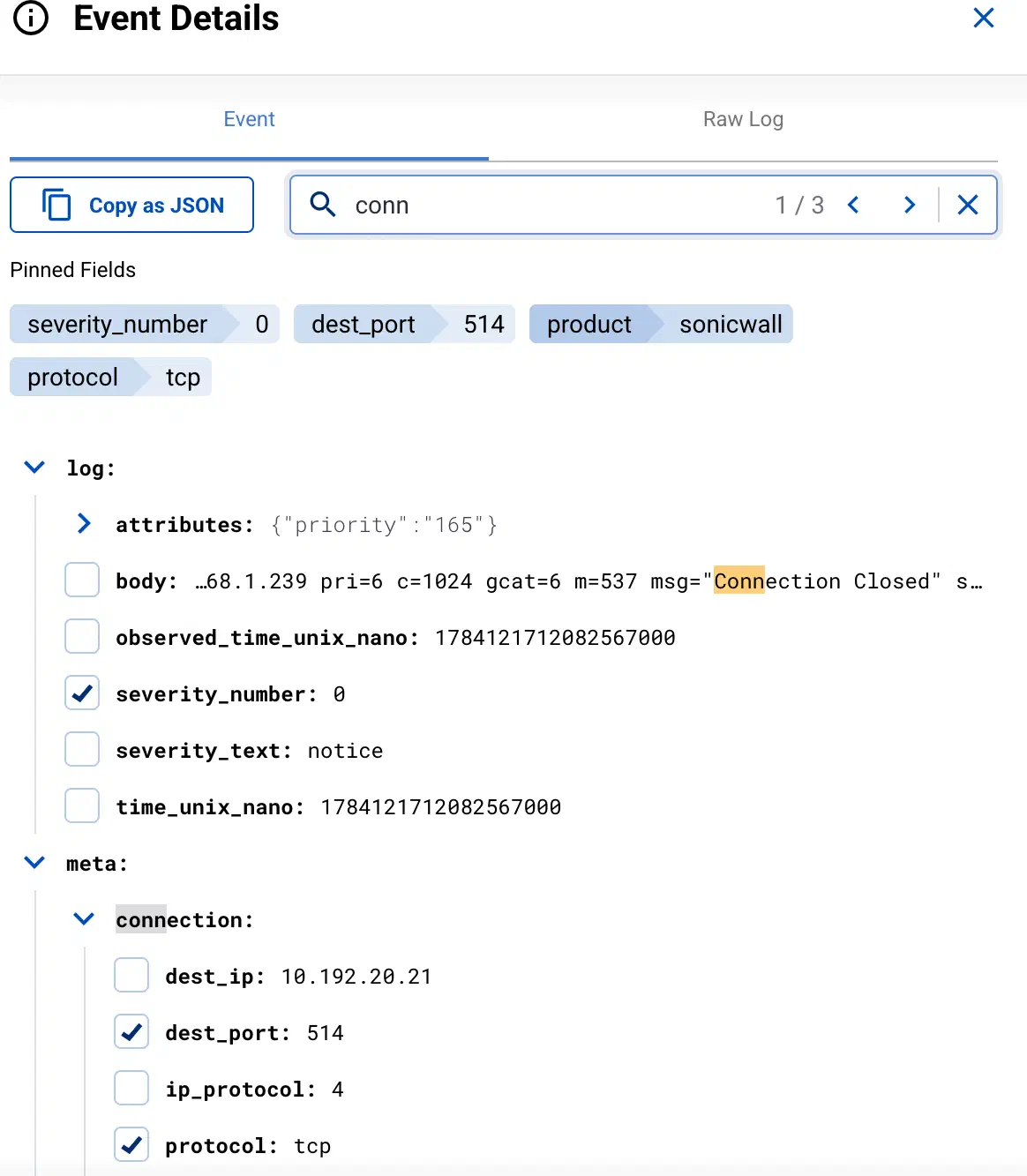
-
To add a field to the Pinned Fields and display it for every event, click the checkbox before the field. Pinned fields show up in the event details, and also in the list of the events, making it easy to get a quick glance on the distribution of the field values. They’re included as separate fields when you Export the search results into a CSV file.
To unpin a field, select the field in any of the events, then select Unpin from the local menu.
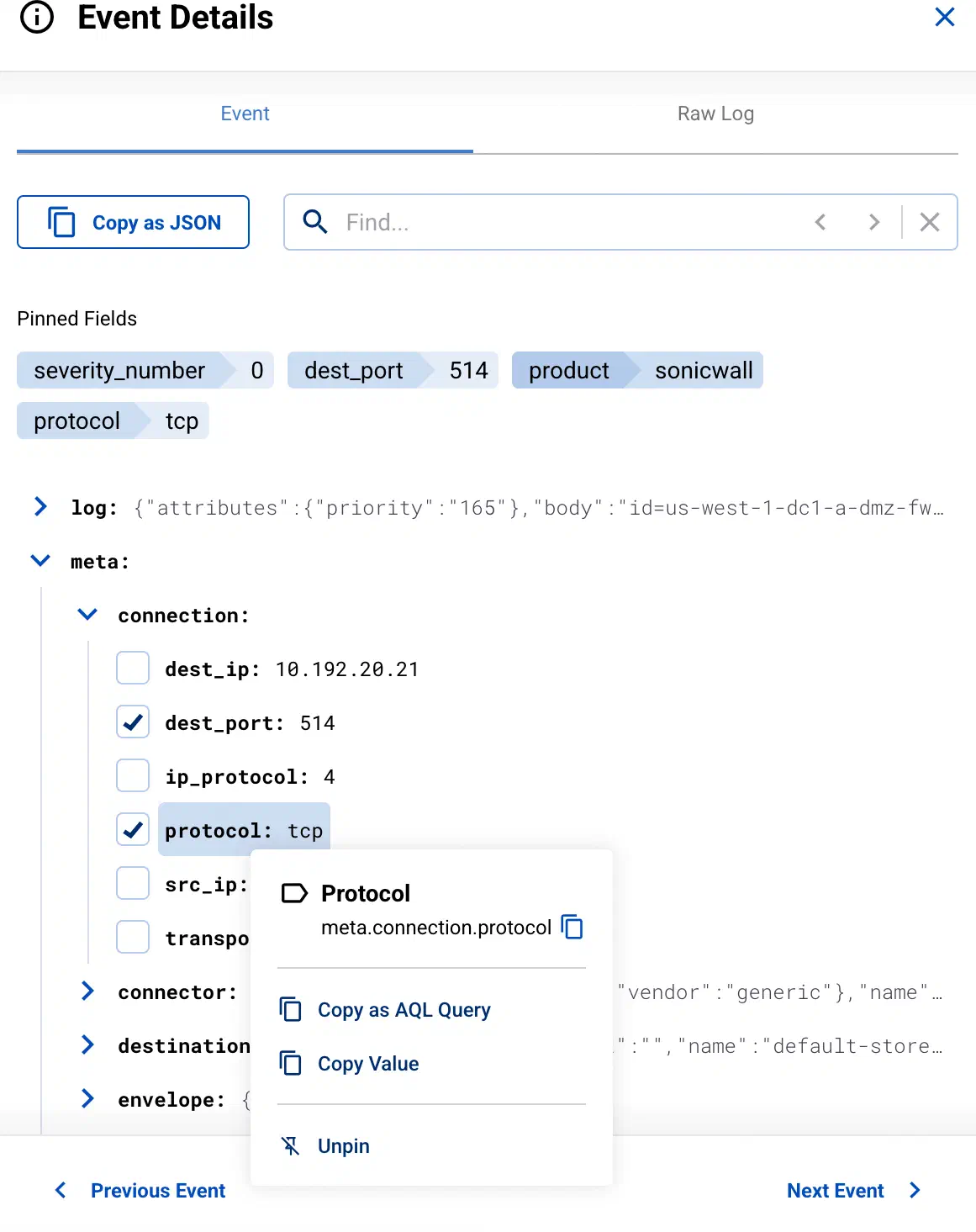
-
To copy the name or the value of a field, select the name of the field, then select or Copy Value.
-
To copy an AQL query that matches this field and its current value, select the name of the field, then select Copy as AQL Query. You can paste this query into the AQL search field, and use it for filtering.
-
If the field refers to a pipeline element in Axoflow (for example, a flow in the
meta.flowfield, a store, or an AxoRouter), you can jump to the page of the related element.
-
Service status messages
While a tapping session is active, AxoConsole shows status messages about the tapped service inline in the log stream, color-coded by severity. These messages don’t come from your data sources. Axoflow inserts them to tell you when the service is restarted or its configuration is reloaded, for example, after you save a change to a flow or a connector rule. That way you can tell whether a change in the messages you see is the result of your configuration change, and notice when applying the new configuration failed.
The following status messages can appear:
| Message | Severity | Meaning |
|---|---|---|
Restarting service |
notice | AxoConsole has started restarting the service. |
Service restart initiated successfully |
notice | The service has accepted the restart request. |
Restart failed: <details> |
error | The service couldn’t be restarted. |
Reload complete |
notice | The service is running with the new configuration. |
Reload failed: <details> |
error | The service couldn’t apply the new configuration, and keeps running with the previous one. Usually this means that the new configuration is invalid, for example, a FilterX processing step contains a syntax error. |
Reload blocked due to missing config files: <details> |
error | The service couldn’t apply the new configuration because a file it references (such as a certificate) isn’t available on the host. |
Show debug data
The details of a tapped message can include a debug field that shows how AxoRouter represents the message internally:
debug.filterxcontains the FilterX variables that are set when the message reaches the tapping point.debug.msgcontains the name-value pairs of the message.
These fields are hidden by default. To display them, open the details of a message, then select Show Debug Data. The switch is available only for messages that have debug data.
Debug data is useful when you’re troubleshooting a processing step that doesn’t behave as you expect, or when Axoflow support asks you for it. For the fields of the message itself, see Message schema reference.
Filter the messages
You can add labels to the Filter By Label field to sample only messages matching the filter. If you specify multiple labels, only messages that match all filters will be sampled. For example, the following filter selects messages from a specific source IP, sent to a specific destination IP.
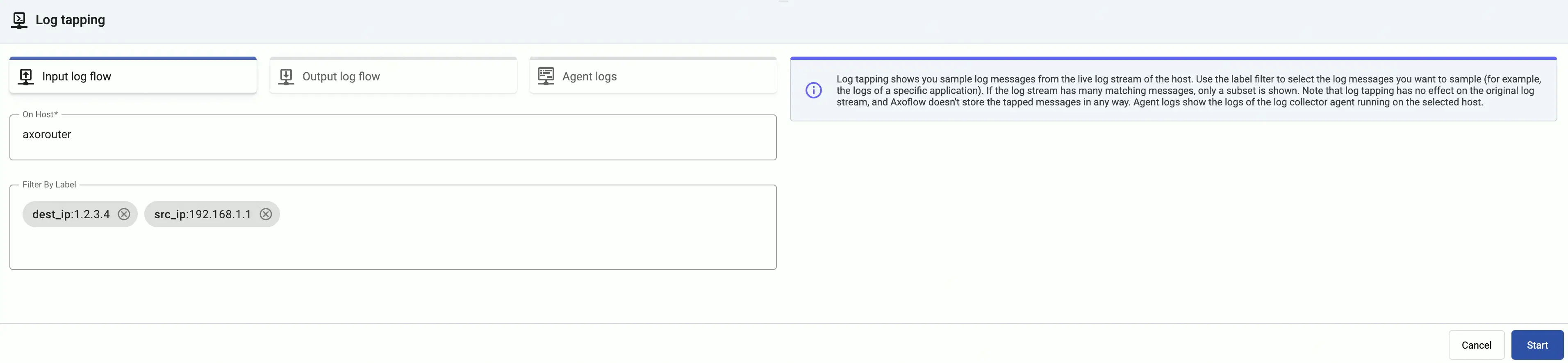
For details about the labels available for filtering, see Metrics schema.
To tap the messages received from edge hosts, you can use the related metrics labels of the edge collector, for example, edge_connector_type:windowsEventLog samples only the event log messages received from edge hosts. For details about the message schema and the available fields, see Message schema reference.