The Search Logs page provides a federated search console to query all data stored in AxoStores (the storage component of AxoRouter) and external stores (AxoLake). Note that AxoStore is only available on an AxoRouter if it was enabled when the AxoRouter host was deployed or updated. For details, see Install AxoRouter on Linux.
To display data from the specified period without any specific search keywords, just select Search.
-
Basic Search mode searches in the values of the following fields of the messages:
body,host_nameBasic Search is case insensitive. Adding multiple keywords searches for matches in any of the previous fields. This is equivalent to the
@ANY =* keyword1 AND @ANY =* keyword2AQL query. -
AQL Query Search mode allows you to search in specific labels of the hosts using different operators.
It also makes more complex filtering possible, using the Equals, Contains (partial match), and Match (regular expression match) operators. Note that:
- To execute the search, click Search, or hit ESC then ENTER.
- AxoConsole autocompletes the built-in and custom labels and field names, as well as their most frequent values, but doesn’t autocomplete labels and variables created by data parsing and processing steps.
- You can use the AND and OR operators to combine expressions, and also parenthesis if needed. For details on AQL, see AQL operator reference.
- The precedence of the operators is the following: parentheses, AND, OR, comparison operators.
- Use the usual keyboard shortcuts to undo (⌘/Ctrl + Z) or redo (⌘/Ctrl + Shift + Z) your edits.
For example,
meta.vendor = palo-alto-networks,meta.host.labels.location != us-east-1, ormeta.connection.src_ip =* 192.168.When searching in stores, you can use the following fields (depending on the configuration of the store).
To limit the search, you can:
- Adjust the Time range of the search (default is 1 day). Note that AxoStore retains data only for 7 days.
- Search only the data stored on a specific Router (by default, AxoConsole searches in the data of every AxoRouter that has AxoStore deployed).
- Search only the data in a specific Store. (By default, every AxoRouter that has AxoStore deployed has a
defaultstore. To create a new store, see Create Store or Create External Store.)

The time distribution of the search results allows you to quickly zoom in on a specific time period. You can select multiple bars to zoom in on them.
Events
The Events section of the page shows the search results.
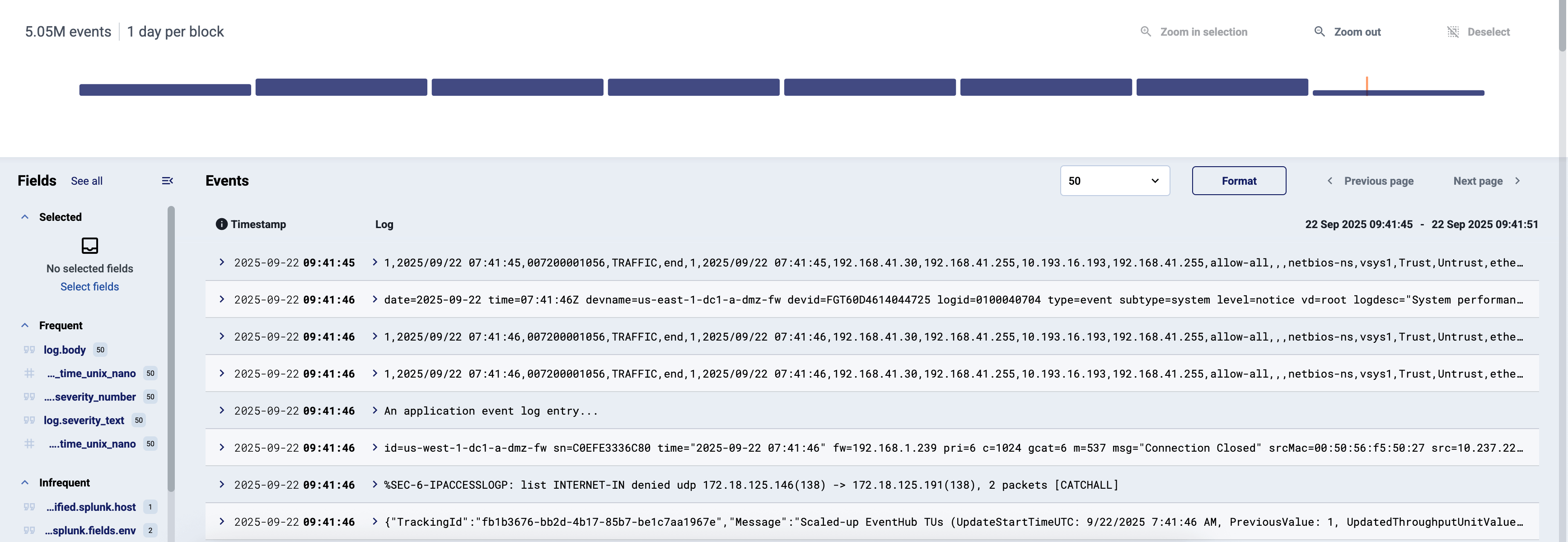
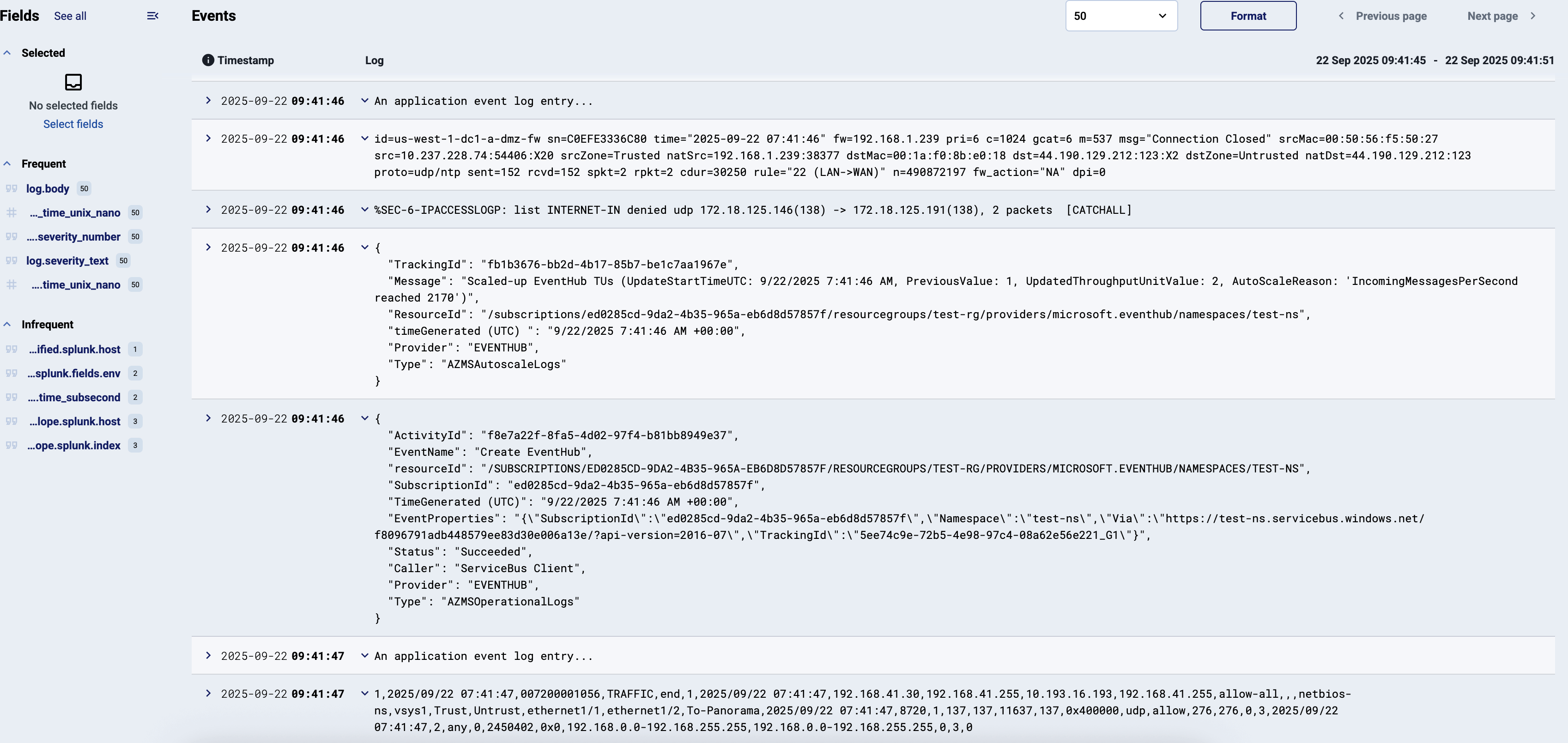
Select Format to Wrap long events, and/or Prettify to format JSON messages into human-readable format.
You can open the elements of an event to see its metadata and other details. Depending on the configuration of the store, you can access the following fields.
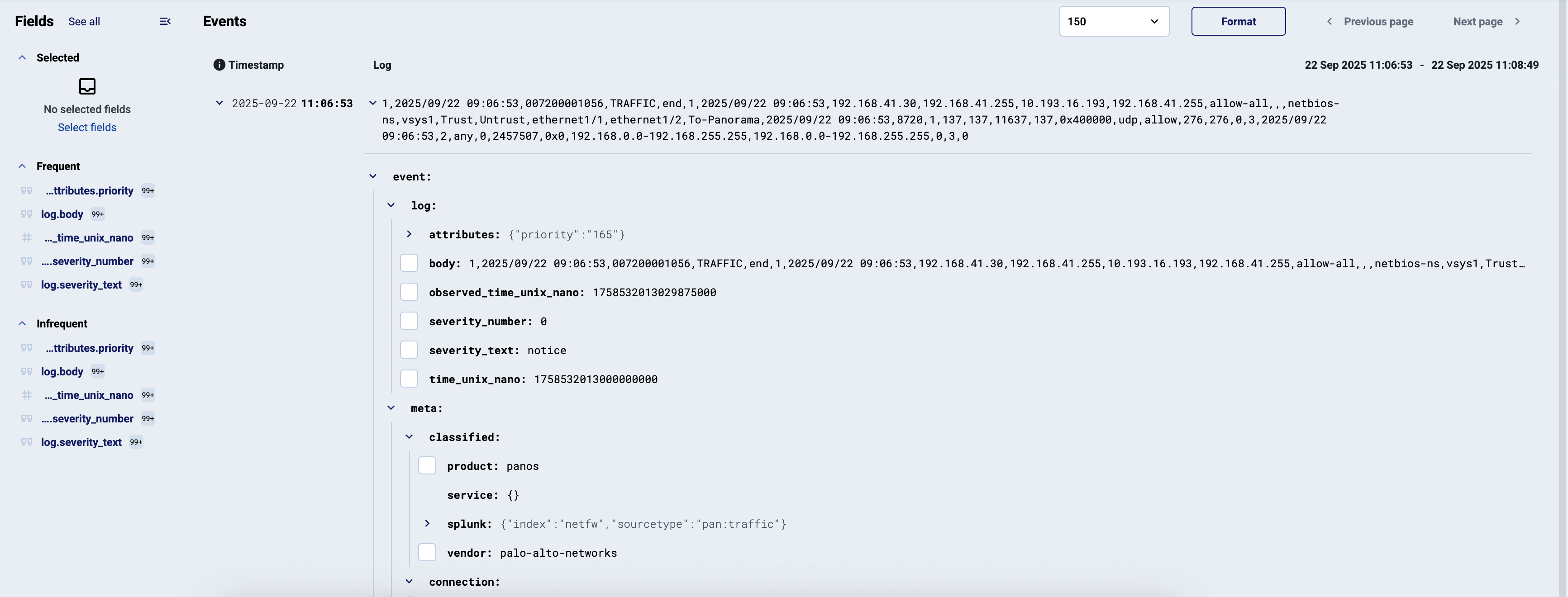
- To add a field to the selected fields and display it for every event, click the checkbox before the field. Selected fields are included as separate fields when you Export the search results into a CSV file.
- To copy the name or the value of a field, select the name of the field, then select Copy Path or Copy Value.
- To copy an AQL query that matches this field and its current value, select the name of the field, then select Copy as Query. You can paste this query into the AQL search field, and use it for filtering.
Fields
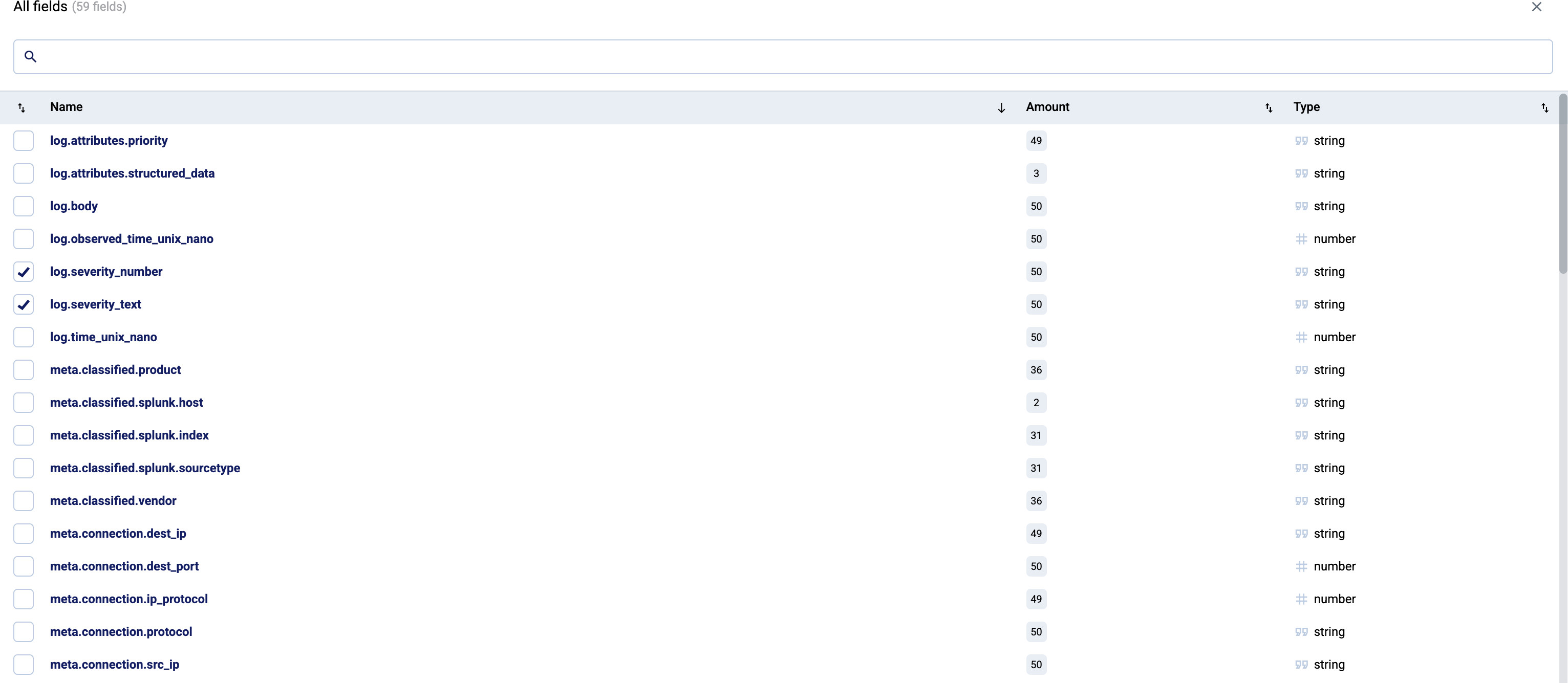
The sidebar shows the Frequent and Infrequent fields that appear in the events of the current page (and the number of their occurrence).
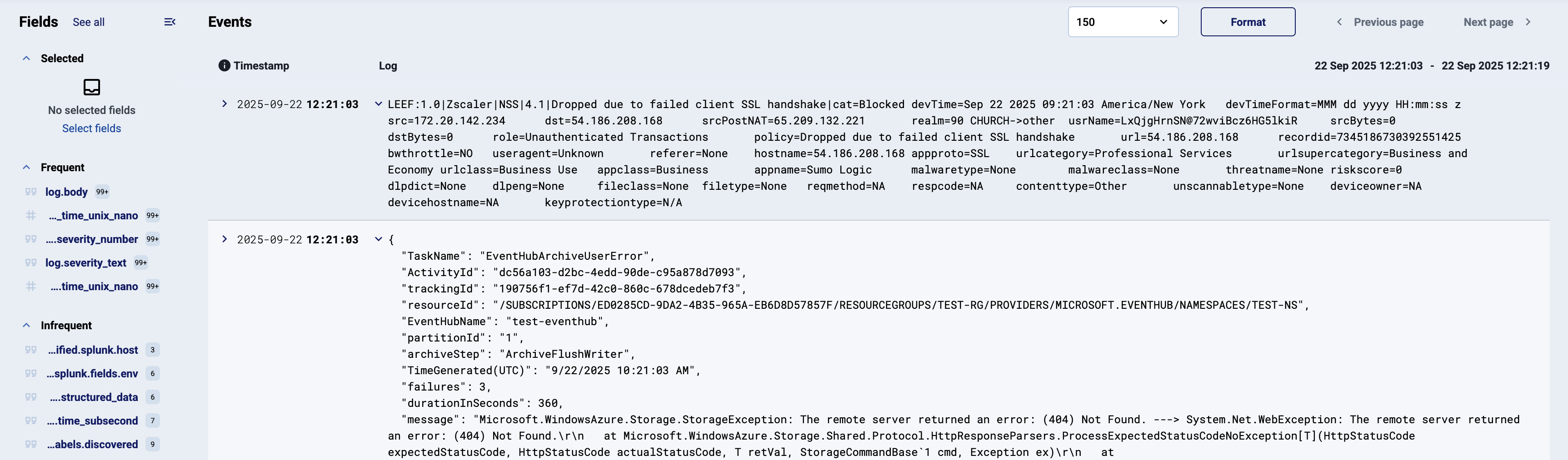
You can hover over any field and select to show the selected field and its value under each event that has this field.

To show other fields (and their occurrence) in the sidebar, select See all, then select the fields you want to display. Depending on the configuration of the store, you can access the following fields.
Export search results
To export the search results, select Export. Note that:
- Only the search results shown on the current page will be exported (50 entries by default)
- By default, the timestamp and the message fields are exported. To include other fields, add them to the selected fields before exporting the data.