To create a new store in an AxoStore, complete the following steps.
- AxoStore stores logs locally on the AxoRouter that processed the messages.
- External stores use a separately deployed AxoLake or an existing compatible ClickHouse cluster.
Prerequisites
The AxoRouters you want to store data on must have been provisioned with the Enable AxoStore option enabled. (If there is a service called axostore in the Router > your-AxoRouter > Overview > Services list (even it’s grayed out), that AxoRouter has AxoStore enabled.)
To enable using AxoStore on an already deployed AxoRouter, re-deploy the AxoRouter with the Enable AxoStore option enabled.
Steps
To create a new store in an AxoStore, complete the following steps.
-
Navigate to Routers > Stores > Add Store.
-
Enter a Name for the store. This name will appear in the list of destinations (with the
-storesuffix) when setting the destination of a Flow. You cannot modify the name of the store later.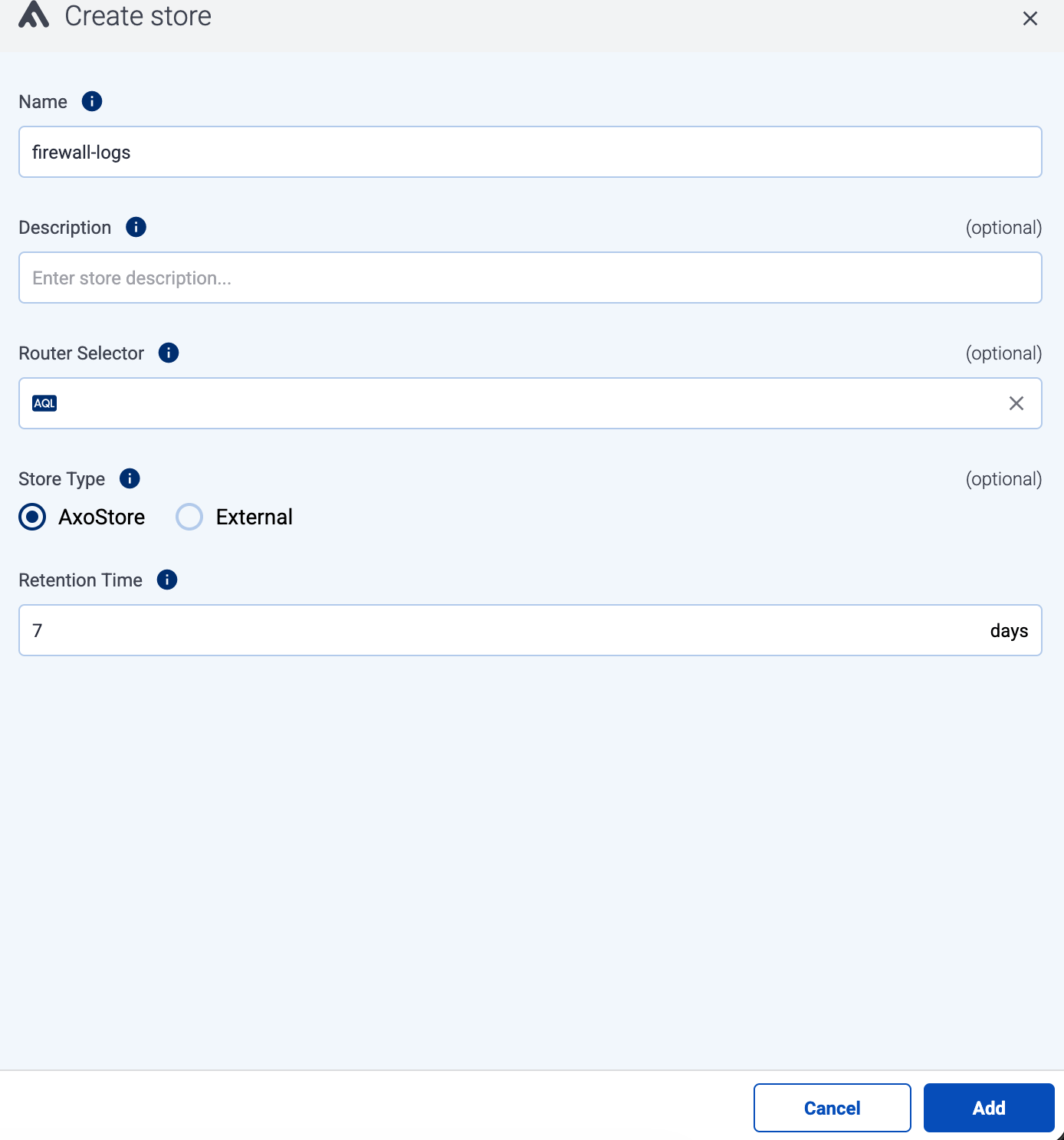
-
(Optional) Enter a description for the store.
-
Set Store type to AxoStore.
-
Set the Router Selector so it matches the AxoRouter instances where you want to create this store.
You can use any labels and metadata of the AxoRouter hosts in the Router selectors, for example, the hostname of the AxoRouter, or any custom labels.
- If you leave the Router Selector field empty, the selector will match every AxoRouter instance.
- To select only a specific AxoRouter instance, set the
namefield to the name of the instance as selector. For example,name = my-axorouter. - If you set multiple fields in the selector, the selector will match only AxoRouter instances that match all elements of the selector. (There in an AND relationship between the fields.)
-
(Optional) Select additional options about which message parts to store:
-
Include Metadata: If enabled, the metadata of the events is stored as a separate object. Otherwise, only the metadata that has dedicated fields in the Storage schema will be recorded.
-
Include Raw Body: Store also the original, unparsed (raw) message as a separate field.
CAUTION:
Enabling this option approximately doubles the storage size of the message.
-
-
Set the Retention Time (in days) so older data is automatically deleted from the store. You cannot modify this parameter later.
-
Select the Config Profile to use for the AxoStore. The profile determines resource limits (CPU, memory) and various optimization and performance settings. Every AxoRouter that creates this AxoStore will use the same profile. The following profiles are available:
CAUTION:
You cannot change the Config Profile of the AxoStore later.- Default: Recommended for small-scale deployments and evaluation use cases.
- Large: For AxoRouters with powerful hardware (at least 16 vCPU and 32GiB RAM), used for storing large amount of data.
For AxoRouter hardware sizing recommendations, see Resource requirements.
-
Select Create.
-
The new store will be created on the AxoRouters matching the Router Selector. You can check the stores available on an AxoRouter by selecting Routers > your-AxoRouter > Overview > Stores.