Google Security Operations (SecOps): A cloud service designed for enterprises to privately retain, analyze, and search the massive amounts of security and network telemetry they generate.
To add a Google Security Operations (SecOps) destination to Axoflow, complete the following steps.
Prerequisites
- A Google SecOps subscription.
- An IAM service account that Axoflow uses for authentication.
Steps
-
Create a new destination.
- Open the AxoConsole.
- Select Destinations > + Add Destination.
-
Configure the destination.
-
Select SecOps.
-
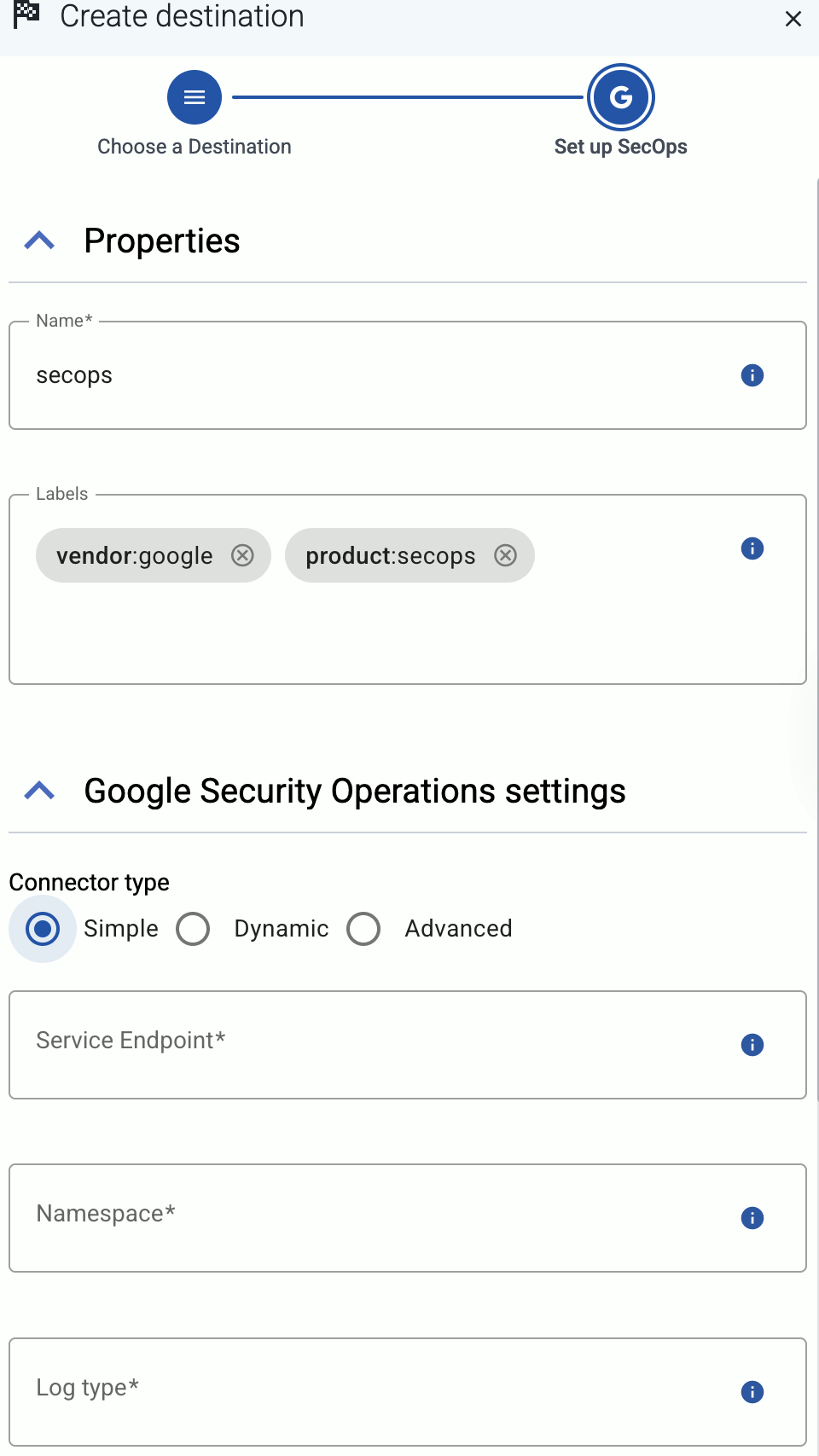
Select which type of configuration you want to use:
- Simple: Send all data into a namespace with a single log type.
- Dynamic: Send data to a namespace with a log type based on the content or metadata of the incoming messages (or to a default namespace/log type).
- Advanced: Specify the full endpoint URL.
-
Enter a name for the destination.
-
Enter the URL endpoint for the destination.
- Simple and Dynamic: Enter base URL for the regional service endpoint to use into the Service Endpoint field, for example,
https://malachiteingestion-pa.googleapis.comfor the US region. - Advanced: Enter the full URL to use for ingesting logs into the Endpoint URL field, for example,
https://malachiteingestion-pa.googleapis.com/v2/unstructuredlogentries:batchCreate.
- Simple and Dynamic: Enter base URL for the regional service endpoint to use into the Service Endpoint field, for example,
-
Specify the log type to send the data to.
- Simple and Advanced: Enter the Log type to assign to the data. All data will be assigned the specified log type.
- Dynamic: Enter the Default log type. The data will be sent with the specified log type unless it is set during the processing of the message (for example, by the automatic classification, or the processing steps of the Flow).
You can use AxoSyslog macros in this field.
-
Enter the unique ID of your Google SecOps instance into the Customer ID field.
-
(Optional) Specify the namespace to send the data to. Usually it’s not needed to use namespaces.
- Simple and Advanced: Enter the Namespace where to send the data. All data will be sent to this namespace.
- Dynamic: Enter the Default namespace. The data will be sent into this namespace unless it is set during the processing of the message (for example, by the processing steps of the Flow).
You can use AxoSyslog macros in this field.
-
Configure the authentication method to access the GCP project.
- Automatic (ADC): Use the service account attached to the cloud resource (VM) that hosts AxoRouter.
- Service Account File: Specify the path where a service account key file is located (for example,
/etc/axorouter/user-config/serviceaccount.json). You must manually copy that file to its place, currently you can’t distribute it from Axoflow.
-
(Optional) Set other options as needed for your environments.
- Timeout: The number of seconds to wait for a log-forwarding request to complete, and attempt to reconnect the server if exceeded. If the timeout is exceeded, AxoRouter attempts to reconnect the destination. The default (
0) is unlimited. For more details, see the AxoSyslog documentation.
-
Disk Buffer: Explicitly enable or disable disk buffer on AxoRouter. Default value: Enabled.
AxoRouter can store messages on the local disk if the destination or the network connection to the destination becomes unavailable. AxoRouter automatically sends the stored messages (in the order they were received) to the destination when the connection is reestablished. Note that the disk buffer is separate from AxoStore.
Disk buffer capacity (bytes per worker): Size of the disk buffer files in bytes. This value applies for each worker. Default value is 100MiB (104857600 bytes), which is also the recommended minimum.
The disk required for using disk buffering is **Disk buffer capacity (bytes per worker)***Number of Workers for each destination of AxoRouter.
-
Batch Bytes: Sets the maximum size of payload in a batch. If the size of the messages reaches this value, AxoRouter sends the batch to the destination even if the number of messages is less than the value of the batch lines option.
CAUTION:
When setting Batch Bytes:
- Note that the actual HTTP request will be about 4KB larger because of the request headers.
- Check the configuration of your destination, as SaaS solutions and ingress controllers often limit the maximal size of HTTP requests. If the sum of Batch Bytes and the request headers exceeds this limit, the data will be rejected. (In case of NGINX, with a
client intended to send too large bodyerror message.)
-
Batch Lines: Number of lines sent to the destination in one batch. AxoRouter waits for this number of lines to accumulate and sends them off in a single batch. Increasing this number increases throughput as more messages are sent in a single batch, but also increases message latency.
Note that Initial window size * Maximum Connections must be greater or equal than Batch lines * Number of workers for all the sources that feeds a given destination. Otherwise, the destination worker might be unable to send data until Batch timeout expires, even if there’s data available.
For more details, see the AxoSyslog documentation.
-
Batch Timeout: Maximal time in milliseconds to wait for a batch to be filled before sending it. The default value (
-1) means that the batch should be full before sending, which may result in a long wait if the incoming traffic is low. For more details, see the AxoSyslog documentation.
- Content compression: Specifies the compression to use when sending data to the destination.
No compressionexplicitly disables compression. Other possible values:Gzip,Deflate. Select only compression that your destination supports and has enabled. Default value:No compression
- Number of Workers: Used for scaling the destination in case of high message load. Specifies the number of worker threads AxoRouter uses for sending messages to the destination. The default is 1. If high message throughput is not a concern, leave it on 1. For maximum performance, increase it up to the number of CPU cores available on AxoRouter. For more details, see the AxoSyslog documentation.
-
Response actions: Specifies what AxoRouter does with the log message, based on the response code received from the destination.
- If the status code begins with 2 (for example,
200), AxoRouter assumes the message was successfully sent. - If you’ve configured a custom action in AxoConsole for the status code, AxoRouter performs the specified action.
- If the status code appears in the default response actions table, AxoRouter performs the specified action.
- For other status codes, AxoRouter disconnects.
To add a custom response action, select Add new action, then enter the HTTP status code and the related Action. The following actions are available:
- Disconnect: Keep trying to resend the message indefinitely.
- Drop: Drop the message without trying to resend it.
- Retry: Retry sending the message for a maximum of 3 times.
- Success: Assume the message was successfully sent.
- If the status code begins with 2 (for example,
Show default actions
code explanation action 100 “Continue” disconnect 101 “Switching Protocols” disconnect 102 “Processing” retry 103 “Early Hints” retry 200 “OK” success 201 “Created” success 202 “Accepted” success 203 “Non-Authoritative Information” success 204 “No Content” success 205 “Reset Content” success 206 “Partial Content” success 300 “Multiple Choices” disconnect 301 “Moved Permanently” disconnect 302 “Found” disconnect 303 “See Other” disconnect 304 “Not Modified” retry 307 “Temporary Redirect” disconnect 308 “Permanent Redirect” disconnect 400 “Bad Request” disconnect 401 “Unauthorized” disconnect 402 “Payment Required” disconnect 403 “Forbidden” disconnect 404 “Not Found” disconnect 405 “Method Not Allowed” disconnect 406 “Not Acceptable” disconnect 407 “Proxy Authentication Required” disconnect 408 “Request Timeout” disconnect 409 “Conflict” disconnect 410 “Gone” drop 411 “Length Required” disconnect 412 “Precondition Failed” disconnect 413 “Payload Too Large” disconnect 414 “URI Too Long” disconnect 415 “Unsupported Media Type” disconnect 416 “Range Not Satisfiable” drop 417 “Expectation Failed” disconnect 418 “I’m a teapot” disconnect 421 “Misdirected Request” disconnect 422 “Unprocessable Entity” drop 423 “Locked” disconnect 424 “Failed Dependency” drop 425 “Too Early” drop 426 “Upgrade Required” disconnect 428 “Precondition Required” retry 429 “Too Many Requests” disconnect 431 “Request Header Fields Too Large” disconnect 451 “Unavailable For Legal Reasons” drop 500 “Internal Server Error” disconnect 501 “Not Implemented” disconnect 502 “Bad Gateway” disconnect 503 “Service Unavailable” disconnect 504 “Gateway Timeout” retry 505 “HTTP Version Not Supported” disconnect 506 “Variant Also Negotiates” disconnect 507 “Insufficient Storage” disconnect 508 “Loop Detected” drop 510 “Not Extended” disconnect 511 “Network Authentication Required” disconnect - Timeout: The number of seconds to wait for a log-forwarding request to complete, and attempt to reconnect the server if exceeded. If the timeout is exceeded, AxoRouter attempts to reconnect the destination. The default (
-
Select Add.
-
-
Create a flow to connect the new destination to an AxoRouter instance.
-
Select Flows.
-
Select Add Flow.
-
Enter a name for the flow, for example,
my-test-flow.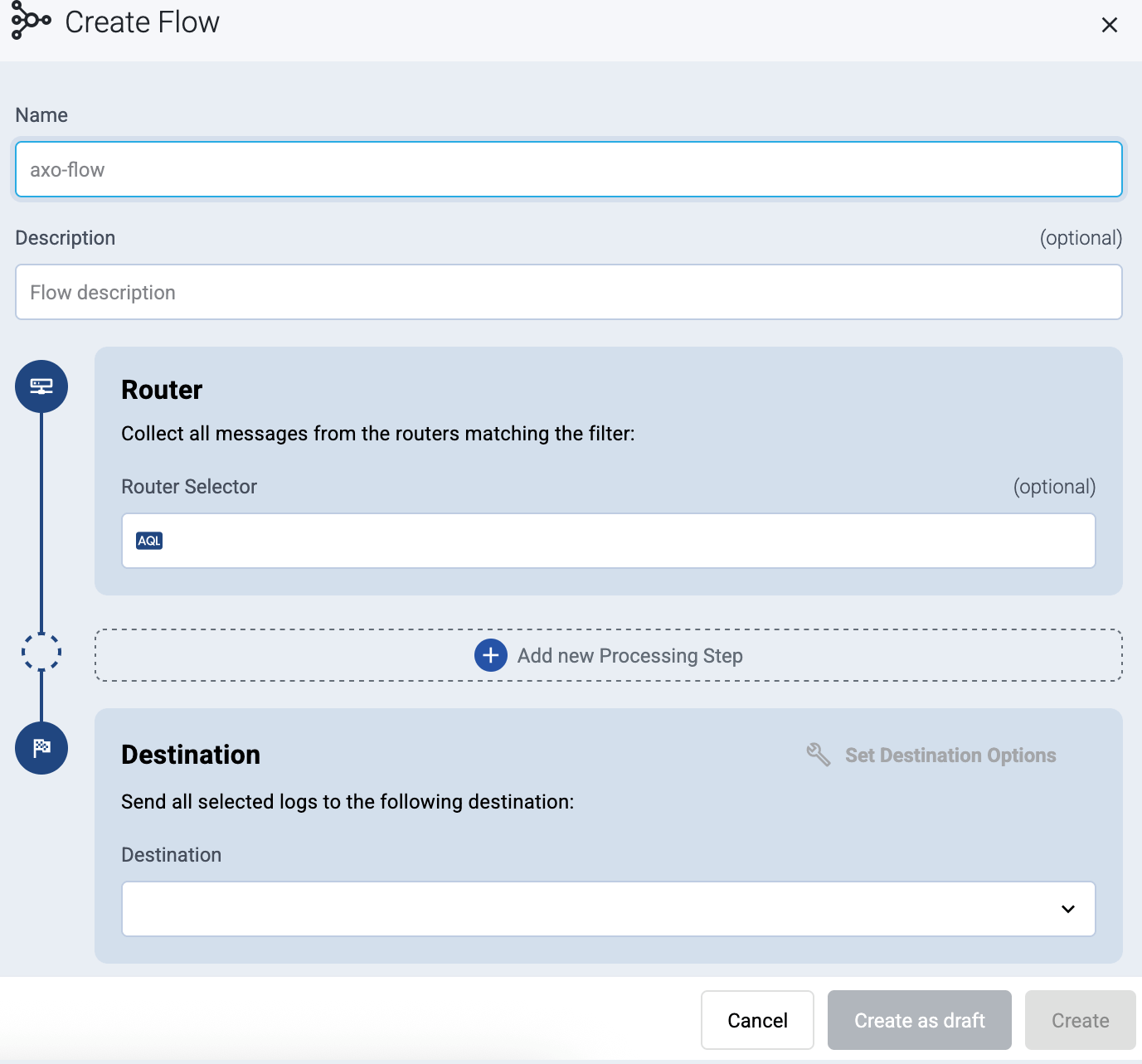
-
In the Router Selector field, enter an expression that matches the router(s) you want to apply the flow. To select a specific router, use a name selector, for example,
name = my-axorouter-hostname.You can use any labels and metadata of the AxoRouter hosts in the Router selectors, for example, the hostname of the AxoRouter, or any custom labels.
- If you leave the Router Selector field empty, the selector will match every AxoRouter instance.
- To select only a specific AxoRouter instance, set the
namefield to the name of the instance as selector. For example,name = my-axorouter. - If you set multiple fields in the selector, the selector will match only AxoRouter instances that match all elements of the selector. (There in an AND relationship between the fields.)
-
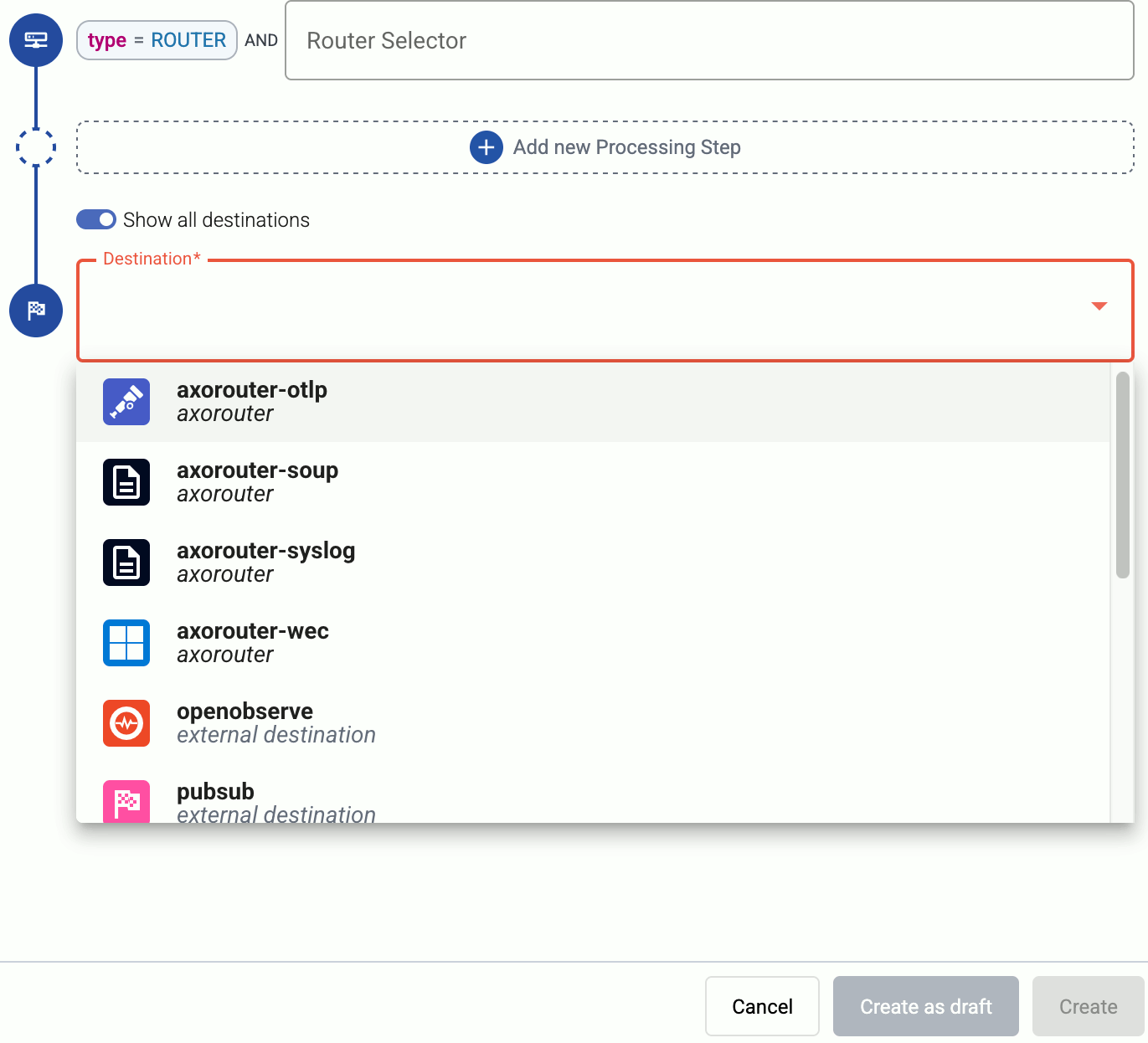
Select the Destination where you want to send your data. If you don’t have any destination configured, you can select + Add in the destination section to create a new destination now. For details on the different destinations, see Destinations.
- If you don’t have any destination configured, see Destinations.
- If you’ve already created a store, it automatically available as a destination. Note that the Router Selector of the flow must match only AxoRouters that have the selected store available, otherwise you’ll get an error message.
- If you want to send data to another AxoRouter, enable the Show all destinations option, and select the connector of the AxoRouter where you want to send the data.
-
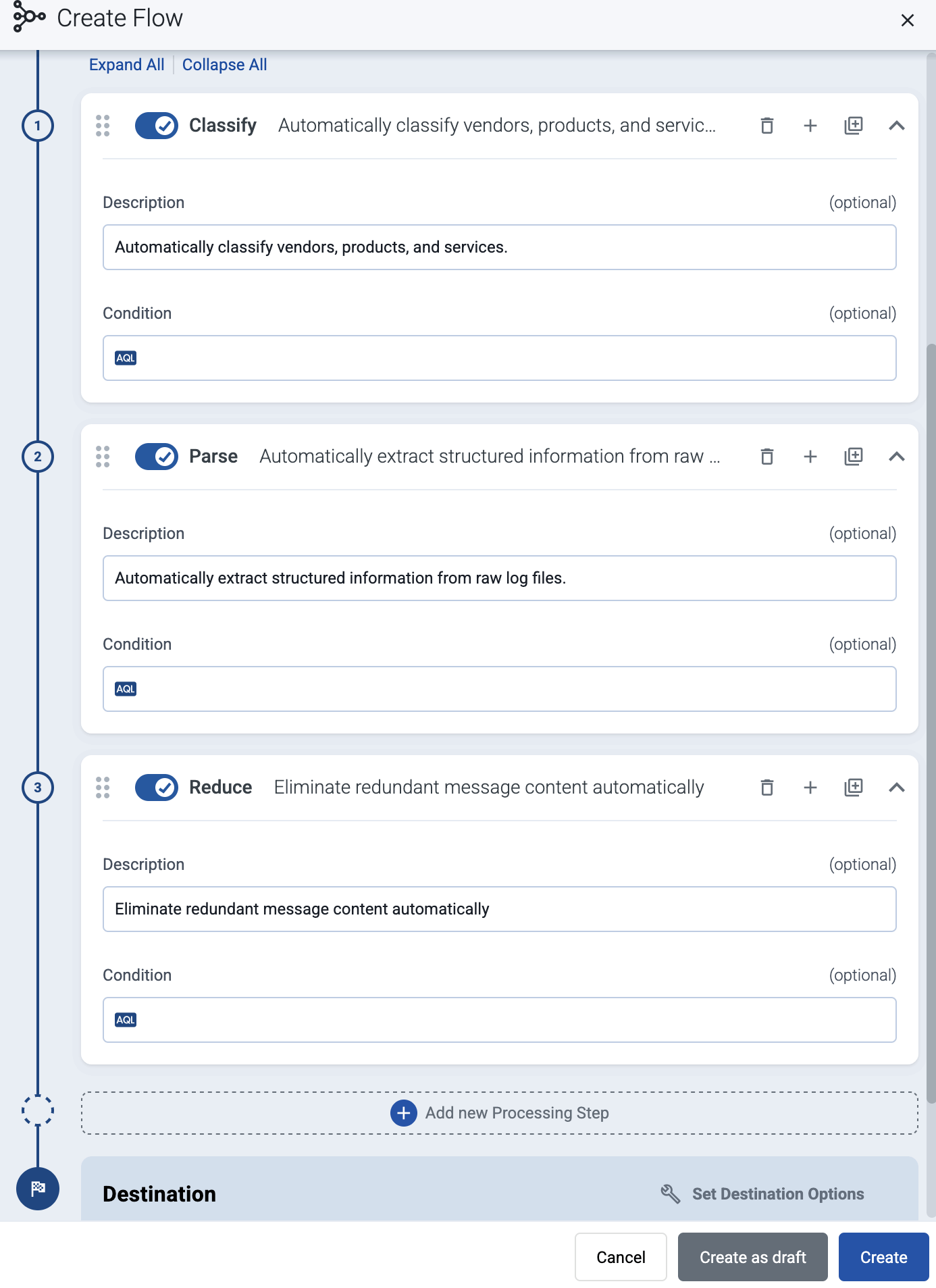
(Optional) To process the data transferred in the flow, select Add New Processing Step. For details, see Processing steps. For example:
- Add a Classify, a Parse, and a Reduce step, in that order, to automatically remove redundant and empty fields from your data.
- To select which messages are processed by the flow, add a Select Messages step, and enter a filter into the AQL Expression field. For example, to select only the messages received from Fortinet FortiGate firewalls, use the
meta.vendor = fortinet AND meta.product = fortigatequery. - Save the processing steps.
-
Select Add.
-
The new flow appears in the Flows list.

-
Related message fields
You can use the following message fields to modify messages sent to this destination using processing steps.
For example, you can add your custom labels using a Set Fields processing step to meta.destination.google_secops.labels:
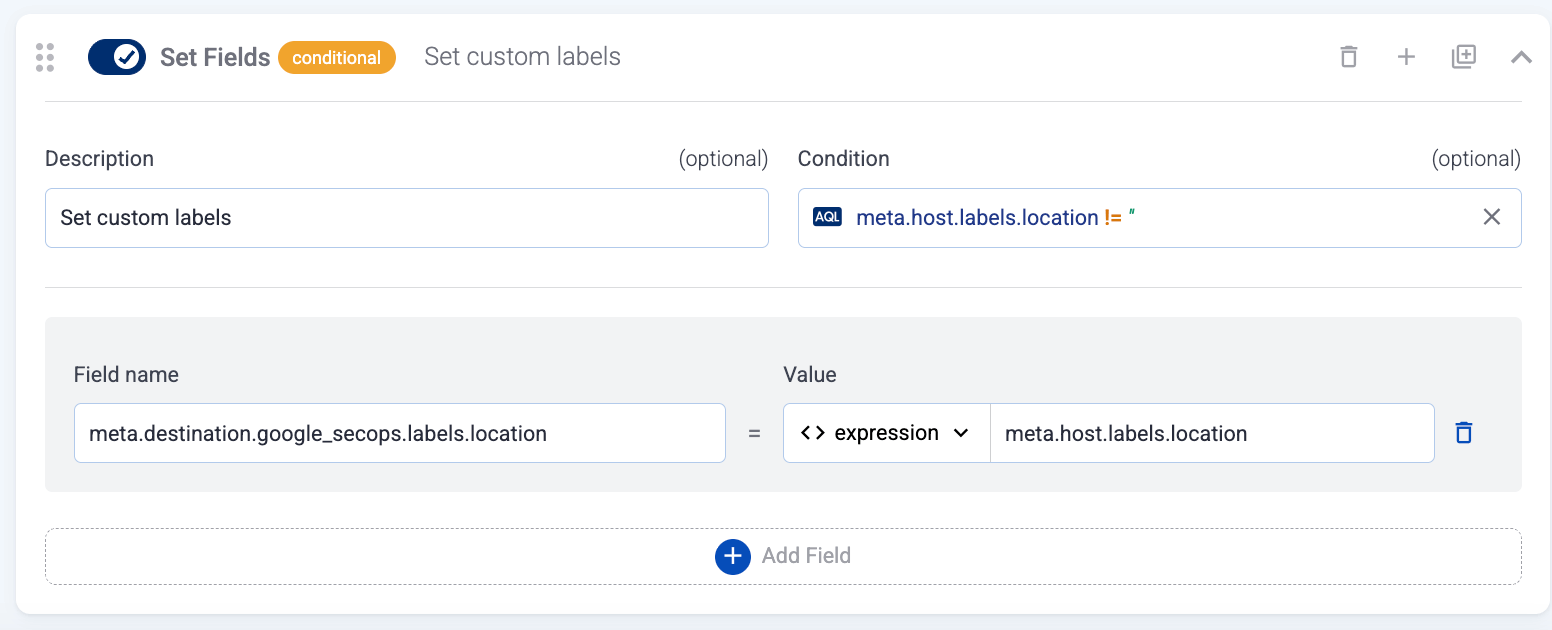
Note that sending custom labels to SecOps can have significant performance impact. Make sure to increase the number of workers (More options > Number of Workers), ideally to have at least one worker for each custom label.