This is the multi-page printable view of this section. Click here to print.
On-premise
- 1: Deployment guide
- 2: syslog-ng
- 3: Authentication
- 4: Authorization
- 5: Prepare AxoRouter hosts
- 6: Upgrade
1 - Deployment guide
This guide shows you how to install AxoConsole on a local, on-premises virtual machine using k3s and Helm. Installation of other components like the ingress controller and the cert-manager is also included. Since this is a single instance deployment, we don’t recommend using it in production environments. For additional steps and configurations needed in production environments, contact our support team.
To deploy AxoConsole in an air-gapped environment, see Air-gapped.
At a high level, the deployment consists of the following steps:
-
Running the installation script on the virtual machine that deploys:
- Kubernetes
- cert-manager and Traefik
- AxoConsole
Any of these components can be skipped if already installed.
-
Basic authentication with admin user and password is configured by default. You can also configure other common authentication methods like LDAP, Github and Google.
-
Before deploying AxoRouter describes the steps you have to complete on a host before deploying AxoRouter on it. These steps are specific to on-premises AxoConsole deployments, and aren’t needed when using the SaaS AxoConsole.
Prerequisites
To install AxoConsole, you’ll need the following:
-
The URL for the AxoConsole installation script. You’ll receive this URL from our team. You can request it using the contact form.
CAUTION:
Don’t start the Install AxoConsole process until you’ve received the URL.
-
A license key for AxoConsole. You’ll receive this from our team. You can request it using the contact form.
-
A host that meets the system requirements.
-
Network access set up for the host.
System requirements
Supported operating system: Ubuntu 24.04, Red Hat 9 and compatible (tested with AlmaLinux 9)
The virtual machine (VM) must have at least:
| Resource | Minimum | Production |
|---|---|---|
| CPU | 4 vCPU | 16 vCPU |
| RAM | 8 GB | 16 GB |
Disk (/) |
100 GB | 250 GB |
-
A Minimum setup with 4 vCPU (x86_64-based), 8 GB RAM, and 100 GB disk space can handle about 100 AxoRouter instances and 1000 data source hosts.
-
A real-life production scenario that handles 100 AxoRouter and 3000 data source hosts with 30-day metric retention would need:
- 16 vCPU (x86_64-based)
- 16 GB RAM
- 250 GB disk space
For details on sizing, contact our support team.
You’ll need to have access to a user with sudo privileges.
Network access
The host must be able to access the following domains related to the AxoConsole:
-
When using AxoConsole SaaS:
<your-tenant-id>.cloud.axoflow.io: HTTPS traffic on TCP port 443, needed to download the binaries for Axoflow software (like Axolet and AxoRouter).kcp.<your-tenant-id>.cloud.axoflow.io: HTTPS (mutual TLS) traffic on TCP port 443 for management traffic.telemetry.<your-tenant-id>.cloud.axoflow.io: HTTPS (mutual TLS) traffic on TCP port 443, where Axolet sends the metrics of the host.us-docker.pkg.dev: HTTPS traffic on TCP port 443, but only if you’re forcing the installation script to pull the container images from the public repository. The Axolet and AxoRouter for Linux installation scripts download the images directly from AxoConsole.
-
When using an on-premise AxoConsole:
-
The following domains should point to AxoConsole IP address to access Axoflow from your desktop and AxoRouter hosts:
your-host.your-domain: The main domain of your AxoConsole deployment.idp.your-host.your-domain: A subdomain for the identity provider.kcp.your-host.your-domain: A subdomain for management traffic.telemetry.your-host.your-domain: A subdomain for agent telemetry.
-
The AxoConsole host must have the following Open Ports:
- 80 TCP: Traefik ingress (HTTP, redirected to HTTPS).
- 443 TCP: HTTPS for the AxoConsole UI, API, and all web traffic.
-
-
When installing Axoflow agent for Windows or Linux:
github.com: HTTPS traffic on TCP port 443, for downloading installer packages.
Install AxoConsole
CAUTION:
This procedure covers how to deploy a new AxoConsole instance. The installation script can’t upgrade existing deployments, contact the Axoflow support team for detailed upgrade instructions.
-
Download the installation script from the URL you’ve received from the Axoflow Support Team.
-
Transfer the file to the host where you want to install AxoConsole.
-
Run the installation script with your license key and the domain name for your AxoConsole deployment.
Note Re-running the installer will reuse any existing or modified manifests or user settings (for example, authentication settings added to/var/lib/rancher/k3s/server/manifests/axoflow-config.yaml) available on the host.sudo LICENSE_KEY=<your-license-key> BASE_HOSTNAME=<axoconsole-domain-name> AXOFLOW_VERSION=0.86.0 bash ./axoflow-install.sh ‐‐no-airgapNote If you omitBASE_HOSTNAME, the installer probes whether<VM_IP>.nip.ioresolves and offers it as the default. nip.io is a free wildcard DNS service — handy for testing and demos because the console and all its subdomains resolve without any DNS or/etc/hostsconfiguration. For production deployments, use a proper domain name.You can use the following flags as needed for your environment.
--step: Prompt before each step--dry-run: Show what would be done without executing anything--skip-k3s: Skip k3s installation (already installed)--skip-cert-manager: Skip cert-manager installation--disable-traefik: Disable the built-in Traefik ingress controller of k3s. Use this option when using a custom ingress controller.--skip-nip-io: Skip the automatic<VM_IP>.nip.ioDNS probe and useaxoflow.localas the default base hostname.--diagnose [namespace]: Inspect pods that are not ready and explain why (image-pull errors, configuration issues, crashes). Runs automatically on a timeout; use on demand after a failed install.--uninstall: Uninstall AxoConsole. Prompts before each step — removing workloads, deleting data, and removing k3s — so you can stop at any point. See Uninstall AxoConsole.
Advanced flags:
--skip-images: Skip container image import entirely. Use when images are already loaded into k3s.--image-mode bundle|component|skip: Control how container images are imported.bundle(default) imports pre-packaged image tarballs;componentimports one image per component;skipskips import.--prepare-env: Install k3s, cert-manager, and Traefik only — skip AxoConsole itself. Use for a two-phase install where you want to configure the environment before deploying AxoConsole.--ignore-requirements: Bypass hardware requirement checks.
-
If needed, follow the on-screen instructions. For a test installation, you can usually use the default values. For recommendations for a production environment, contact our support team.
-
Wait a few minutes until everything is installed.
In case of any errors, check Troubleshooting for tips.
-
The script prompts to display the password of the default
adminuser. Record it, you’ll need it to log in to AxoConsole.... [2026-06-02 20:44:28] [INFO ] All pods in axoflow are ready/complete [2026-06-02 20:44:28] [INFO ] Axoflow is healthy [2026-06-02 20:44:28] [INFO ] Access the UI at: https://<axoconsole-domain-name> Show admin credentials? [y/N]: y Username: admin Password: MzGIjuWKjXOtiRs4If needed, later you can retrieve the password by running:
kubectl -n "${AXOFLOW_NAMESPACE}" get secret axoidp-admin \
-o go-template='Username: {{ .data.username | base64decode }}{{ printf "\n" }}Password: {{ .data.password | base64decode }}{{ printf "\n" }}'
Login to AxoConsole
-
If the domain name of AxoConsole cannot be resolved from your desktop, add it to the
/etc/hostsfile in the following format. Use and IP address of AxoConsole that can be accessed from your desktop.<AXOFLOW-CONSOLE-IP-ADDRESS> <your-host.your-domain> idp.<your-host.your-domain> kcp.<your-host.your-domain> telemetry.<your-host.your-domain> -
Open the
https://<your-host.your-domain>URL in your browser. -
The on-premise deployment of AxoConsole shows a self-signed certificate. If your browser complains about the related risks, accept it.
-
Use the email address and password you got or set in the installation step to log in to AxoConsole.
Prepare AxoRouter hosts
AxoConsole service reference
| Service Name | Namespace | Purposes | Function |
|---|---|---|---|
| KCP | axoflow |
Backend API | Kubernetes Like Service with built in database, that service manage all the settings that our system manage |
| Chalco | axoflow |
Frontend API | Serve the UI API Calls, implement business logic for the UI |
| Controller-Manager | axoflow |
Backend Service | Reacts to state changes in our business entities, manage business logic for the Backend |
| Telemetry Proxy | axoflow |
Backend API | Receives agents telemetries |
| UI | axoflow |
Dashboard | The frontend for AxoConsole |
| Prometheus | axoflow |
Backend API /Service | Monitoring component to store time series information and an API for query, manage alert rules |
| Alertmanager | axoflow |
Backend API /Service | Monitoring component to send alerts based on alerting rules (optional, disabled by default) |
| Axoflow IDP | axoflow |
Identity Connector/Proxy | Identity Connector/Proxy to allow the customer to use own identity (Google, LDAP, etc.) |
| Axolet Dist | axoflow |
Backend API | Static artifact store to contains agents binaries |
| Cert Manager (kcp) | axoflow |
Automated Certificate management tool | Manage certificates for Agents |
| Cert Manager | cert-manager |
Automated Certificate management tool | Manage certificates for Axoflow components (Backend API, HTTP Proxy) |
| FilterX Validator | axoflow |
Backend API | Validates FilterX expressions used in data processing pipelines |
| Traefik Ingress Controller | ingress-traefik |
HTTP Proxy | Route the HTTP traffic between multiple Frontend/Backend APIs |
Troubleshooting
- If you get the
[ERROR] Timed out waiting for k3s node to be Readyerror message, increase the timeout limit by runningK3S_TIMEOUT=180, then rerun the installation script.
In case of other errors, run the following command to create a debug package from the cluster, and contact our support team.
sudo k3s kubectl cluster-info dump --all-namespaces --output-directory=./cluster-dump && tar -czvf cluster-dump.tar.gz cluster-dump
Uninstall AxoConsole
To uninstall AxoConsole, run the installer with the --uninstall flag:
sudo ./axoflow-install.sh --uninstall
The uninstaller prompts before each step and requires separate confirmation for:
-
Removing the AxoConsole workloads and manifests
-
Deleting stored data (namespace and PersistentVolumeClaims) — irreversible
CAUTION:
Hazard of data loss!
Confirming step 2 permanently deletes all stored data.
-
Removing k3s
CAUTION:
Hazard of data loss!
If you’re using k3s to run other software apart from AxoConsole, decline step 3 to keep k3s in place.
The uninstaller is safe to run on a partial or incomplete installation.
1.1 - Manual deployment for AxoConsole 0.78.0
This guide shows you how to install AxoConsole on a local, on-premises virtual machine using k3s and Helm. Installation of other components like the ingress controller and the cert-manager is also included. Since this is a single instance deployment, we don’t recommend using it in production environments. For additional steps and configurations needed in production environments, contact our support team.
At a high level, the deployment consists of the following steps:
- Preparing a virtual machine.
- Installing Kubernetes on the virtual machine.
- Basic authentication with admin user and password is configured by default. This guide also shows you how to configure other common authentication methods like LDAP, Github and Google.
- Before deploying AxoRouter describes the steps you have to complete on a host before deploying AxoRouter on it. These steps are specific to on-premises AxoConsole deployments, and are not needed when using the SaaS AxoConsole.
Prerequisites
To install AxoConsole, you’ll need the following:
-
The URL for the AxoConsole Helm chart. You’ll receive this URL from our team. You can request it using the contact form.
CAUTION:
Don’t start the Install AxoConsole process until you’ve received the chart URL.
-
A license key for AxoConsole. You’ll receive this from our team. You can request it using the contact form.
-
A host that meets the system requirements.
-
Network access set up for the host.
System requirements
Supported operating system: Ubuntu 24.04, Red Hat 9 and compatible (tested with AlmaLinux 9)
The virtual machine (VM) must have at least:
- 4 vCPUs (x86_64-based)
- 8 GB RAM
- 100 GB disk space
This setup can handle about 100 AxoRouter instances and 1000 data source hosts.
For reference, a real-life scenario that handles 100 AxoRouter and 3000 data source hosts with 30-day metric retention would need:
- 16 vCPU (x86_64-based)
- 16 GB RAM
- 250 GB disk space
For details on sizing, contact our support team.
You’ll need to have access to a user with sudo privileges.
Network access
The host must be able to access the following domains related to the AxoConsole:
-
When using AxoConsole SaaS:
<your-tenant-id>.cloud.axoflow.io: HTTPS traffic on TCP port 443, needed to download the binaries for Axoflow software (like Axolet and AxoRouter).kcp.<your-tenant-id>.cloud.axoflow.io: HTTPS (mutual TLS) traffic on TCP port 443 for management traffic.telemetry.<your-tenant-id>.cloud.axoflow.io: HTTPS (mutual TLS) traffic on TCP port 443, where Axolet sends the metrics of the host.us-docker.pkg.dev: HTTPS traffic on TCP port 443, but only if you’re forcing the installation script to pull the container images from the public repository. The Axolet and AxoRouter for Linux installation scripts download the images directly from AxoConsole.
-
When using an on-premise AxoConsole:
-
The following domains should point to AxoConsole IP address to access Axoflow from your desktop and AxoRouter hosts:
your-host.your-domain: The main domain of your AxoConsole deployment.idp.your-host.your-domain: A subdomain for the identity provider.kcp.your-host.your-domain: A subdomain for management traffic.telemetry.your-host.your-domain: A subdomain for agent telemetry.
-
The AxoConsole host must have the following Open Ports:
- 80 TCP: Traefik ingress (HTTP, redirected to HTTPS).
- 443 TCP: HTTPS for the AxoConsole UI, API, and all web traffic.
-
-
When installing Axoflow agent for Windows or Linux:
github.com: HTTPS traffic on TCP port 443, for downloading installer packages.
Set up Kubernetes
Complete the following steps to install k3s and some dependencies on the virtual machine.
-
Run
getenforceto check the status of SELinux. -
Check the
/etc/selinux/configfile and make sure that the settings match the results of thegetenforceoutput (for example,SELINUX=disabled). K3S supports SELinux, but the installation can fail if there is a mismatch between the configured and actual settings. -
Install k3s.
-
Run the following command:
curl -sfL https://get.k3s.io | INSTALL_K3S_EXEC="--disable traefik --disable metrics-server" K3S_KUBECONFIG_MODE="644" sh -s - -
Check that the k3s service is running:
systemctl status k3s
-
-
Install the NGINX ingress controller.
NGINX_VERSION="v4.11.3" sudo tee /var/lib/rancher/k3s/server/manifests/ingress-nginx.yaml > /dev/null <<EOF --- apiVersion: helm.cattle.io/v1 kind: HelmChart metadata: name: ingress-nginx namespace: kube-system spec: createNamespace: true chart: ingress-nginx repo: https://kubernetes.github.io/ingress-nginx version: $NGINX_VERSION targetNamespace: ingress-nginx valuesContent: |- controller: extraArgs: enable-ssl-passthrough: true hostNetwork: true hostPort: enabled: true service: enabled: false admissionWebhooks: enabled: false updateStrategy: strategy: type: Recreate EOF -
Install the cert-manager controller.
-
Run the command:
CM_VERSION="1.16.2" sudo tee /var/lib/rancher/k3s/server/manifests/cert-manager.yaml > /dev/null <<EOF --- apiVersion: helm.cattle.io/v1 kind: HelmChart metadata: name: cert-manager namespace: kube-system spec: createNamespace: true chart: cert-manager version: $CM_VERSION repo: https://charts.jetstack.io targetNamespace: cert-manager valuesContent: |- crds: enabled: true enableCertificateOwnerRef: true EOF -
Wait for the helm chart to be installed:
while ! kubectl get job helm-install-cert-manager -n kube-system; do
  sleep 1
done
kubectl wait --for=condition=complete job/helm-install-cert-manager -n kube-system --timeout=300s
-
Install the AxoConsole
Complete the following steps to deploy the AxoConsole Helm chart.
-
Set the following environment variables as needed for your deployment.
-
The domain name for your AxoConsole deployment. This must point to the IP address of the VM you’re installing AxoConsole on.
BASE_HOSTNAME=your-host.your-domainNote To use Google authentication, AxoConsole must be deployed on a publicly accessible domain name (the$BASE_HOSTNAMEmust end with a valid top-level domain, for example,.comor.io.) -
The license key of AxoConsole. You’ll receive this from our team. You can request it using the contact form.
LICENSE_KEY="your-license-key" -
The version number of AxoConsole you want to deploy.
VERSION="0.78.0" -
The internal IP address of the virtual machine. This is needed so the authentication service can communicate with the identity provider without relying on DNS.
VM_IP_ADDRESS=$(hostname -I | cut -d' ' -f1)Check that the above command returned the correct IP, it might not be accurate if the host has multiple IP addresses.
-
The URL of the Axoflow Helm chart. You’ll receive this URL from our team. You can request it using the contact form.
AXOFLOW_HELM_CHART_URL="<the-chart-URL-received-from-Axoflow>"
-
-
Install AxoConsole. You can either let the chart create a password, or you can set an email and password manually.
-
Add password automatically: The following configuration file enables automatic password creation. If this basic setup is working, you can configure another authentication provider.
sudo tee /var/lib/rancher/k3s/server/manifests/axoflow.yaml > /dev/null <<EOF
---
apiVersion: helm.cattle.io/v1
kind: HelmChart
metadata:
  name: axoflow
  namespace: kube-system
spec:
  createNamespace: true
  targetNamespace: axoflow
  version: $VERSION
  chart: $AXOFLOW_HELM_CHART_URL
  failurePolicy: abort
  valuesContent: |-
    baseHostName: $BASE_HOSTNAME
    licenseKey: $LICENSE_KEY
    dex:
      localIP: $VM_IP_ADDRESS
EOF
To reclaim your autogenerated password, use the following command.
kubectl -n axoflow get secret axoflow-admin -o go-template='Email: {{ .data.email | base64decode }}{{ printf "\n" }}Password: {{ .data.password | base64decode }}{{ printf "\n" }}'Record the email and password, you’ll need it to log in to AxoConsole.
-
Set password manually: If you’d like to set the email/password manually, create the secret storing the required information, then set a unique identifier for the administrator user using
uuidgen. Note that:- On Ubuntu, you must first install the
uuid-runtimepackage by runningsudo apt install uuid-runtime. - To set the bcrypt hash of the administrator password, you can generate it with the
htpasswdtool, which is part of thehttpd-toolspackage on Red Hat (install it usingsudo dnf install httpd-tools), and theapache2-utilspackage on Ubuntu (install it usingsudo apt install apache2-utils).
ADMIN_USERNAME="<your admin username>" ADMIN_EMAIL="<your admin email>" ADMIN_PASSWORD="<your admin password>" ADMIN_UUID=$(uuidgen) ADMIN_PASSWORD_HASH=$(echo $ADMIN_PASSWORD | htpasswd -BinC 10 $ADMIN_USERNAME | cut -d: -f2) sudo tee /var/lib/rancher/k3s/server/manifests/axoflow.yaml > /dev/null <<EOF --- apiVersion: helm.cattle.io/v1 kind: HelmChart metadata: name: axoflow namespace: kube-system spec: createNamespace: true targetNamespace: axoflow version: $VERSION chart: $AXOFLOW_HELM_CHART_URL failurePolicy: abort valuesContent: |- baseHostName: $BASE_HOSTNAME licenseKey: $LICENSE_KEY pomerium: policy: emails: - $ADMIN_EMAIL dex: localIP: $VM_IP_ADDRESS defaultCredential: create: false EOF kubectl -n axoflow create secret generic axoflow-admin --from-literal=username=$ADMIN_USERNAME --from-literal=password_hash=$ADMIN_PASSWORD_HASH --from-literal=email=$ADMIN_EMAIL --from-literal=uuid=$ADMIN_UUID - On Ubuntu, you must first install the
-
-
Wait a few minutes until everything is installed. Check that every component has been installed and is running:
kubectl get pods -AThe output should be similar to:
NAMESPACE       NAME                                       READY   STATUS      RESTARTS       AGE
axoflow         axolet-dist-55ccbc4759-q7l7n               1/1     Running     0              2d3h
axoflow         chalco-6cfc74b4fb-mwbbz                    1/1     Running     0              2d3h
axoflow         configure-kcp-1-x6js6                      0/1     Completed   2              2d3h
axoflow         configure-kcp-cert-manager-1-wvhhp         0/1     Completed   1              2d3h
axoflow         configure-kcp-token-1-xggg7                0/1     Completed   1              2d3h
axoflow         controller-manager-5ff8d5ffd-f6xtq         1/1     Running     0              2d3h
axoflow         dex-5b9d7b88b-bv82d                        1/1     Running     0              2d3h
axoflow         kcp-0                                      1/1     Running     1 (2d3h ago)   2d3h
axoflow         kcp-cert-manager-0                         1/1     Running     0              2d3h
axoflow         pomerium-56b8b9b6b9-vt4t8                  1/1     Running     0              2d3h
axoflow         prometheus-server-0                        2/2     Running     0              2d3h
axoflow         telemetryproxy-65f77dcf66-4xr6b            1/1     Running     0              2d3h
axoflow         ui-6dc7bdb4c5-frn2p                        2/2     Running     0              2d3h
cert-manager    cert-manager-74c755695c-5fs6v              1/1     Running     5 (144m ago)   2d3h
cert-manager    cert-manager-cainjector-dcc5966bc-9kn4s    1/1     Running     0              2d3h
cert-manager    cert-manager-webhook-dfb76c7bd-z9kqr       1/1     Running     0              2d3h
ingress-nginx   ingress-nginx-controller-bcc7fb5bd-n5htp   1/1     Running     0              2d3h
kube-system     coredns-ccb96694c-fhk8f                    1/1     Running     0              2d3h
kube-system     helm-install-axoflow-b9crk                 0/1     Completed   0              2d3h
kube-system     helm-install-cert-manager-88lt7            0/1     Completed   0              2d3h
kube-system     helm-install-ingress-nginx-qvkhf           0/1     Completed   0              2d3h
kube-system     local-path-provisioner-5cf85fd84d-xdlnr    1/1     Running     0              2d3h
(For details on what the different services do, see the service reference.)
Login to AxoConsole
-
If the domain name of AxoConsole cannot be resolved from your desktop, add it to the
/etc/hostsfile in the following format. Use and IP address of AxoConsole that can be accessed from your desktop.<AXOFLOW-CONSOLE-IP-ADDRESS> <your-host.your-domain> idp.<your-host.your-domain> authenticate.<your-host.your-domain> -
Open the
https://<your-host.your-domain>URL in your browser. -
The on-premise deployment of AxoConsole shows a self-signed certificate. If your browser complains about the related risks, accept it.
-
Use the email address and password you got or set in the installation step to log in to AxoConsole.
Prepare AxoRouter hosts
AxoConsole service reference
| Service Name | Namespace | Purposes | Function |
|---|---|---|---|
| KCP | axoflow |
Backend API | Kubernetes Like Service with built in database, that service manage all the settings that our system manage |
| Chalco | axoflow |
Frontend API | Serve the UI API Calls, implement business logic for the UI |
| Controller-Manager | axoflow |
Backend Service | Reacts to state changes in our business entities, manage business logic for the Backend |
| Telemetry Proxy | axoflow |
Backend API | Receives agents telemetries |
| UI | axoflow |
Dashboard | The frontend for AxoConsole |
| Prometheus | axoflow |
Backend API /Service | Monitoring component to store time series information and an API for query, manage alert rules |
| Alertmanager | axoflow |
Backend API /Service | Monitoring component to Send alert based on alerting rules |
| Dex | axoflow |
Identity Connector/Proxy | Identity Connector/Proxy to allow the customer to use own identity (Google, Ldap, etc.) |
| Pomerium | axoflow |
HTTP Proxy | Allow policy based access to the Frontend API (Chalco) |
| Axolet Dist | axoflow |
Backend API | Static artifact store to contains agents binaries |
| Cert Manager (kcp) | axoflow |
Automated Certificate management tool | Manage certificates for Agents |
| Cert Manager | cert-manager |
Automated Certificate management tool | Manage certificates for Axoflow components (Backend API, HTTP Proxy) |
| NGINX Ingress Controller | ingress-nginx |
HTTP Proxy | Allow routing the HTTP traffic between multiple Frontend/Backend API |
2 - syslog-ng
Onboarding allows you to collect metrics about the host, display the host on the Topology page, and to tap into the log flow.
Onboarding requires you to modify the host and the configuration of the logging agent (syslog-ng) running on the host.
- Level 1: Install Axolet on the host where syslog-ng is running. Axolet collects metrics from the host and sends them to the AxoConsole, so you can check host-level metrics on the Metrics & Health page of the host, and displays the host on the Topology page.
- Level 2: Instrument the configuration of the logging agent to provide detailed metrics about the traffic flow. This allows you to display data about the host on the Analytics page.
- Level 3: Instrument the configuration of the logging agent to allow you to access the logs of the logging agent and to tap into the log flow from the AxoConsole. The exact steps for this integration depend on the configuration of your logging agent. We provide basic instrumentation instructions for getting started in this guide, but we strongly recommend to contact us so our professional services can help you with a production integration.
Prerequisites
For syslog-ng PE, version 7.0.33 or newer is required. Note that the 7.0.x product line needs a different configuration snippet than the 8.1.x product line.
For syslog-ng OSE, version 4.1.1 or newer is required, but we recommend using AxoSyslog instead (at least syslog-ng OSE version 4.5.0).
Provision syslog-ng
To onboard an existing syslog-ng instance into Axoflow, complete the following steps.
-
Install Axolet on the host, then approve its registration on the Provisioning page of the AxoConsole.
-
The syslog-ng host will now be visible on the Topology page of the AxoConsole as a source.
-
If you've already added the AxoRouter instance or other destination where this newly-registered host is sending data to the AxoConsole, add a path to connect the host to the AxoRouter or the destination.
-
Select Topology > Add Item > Path.
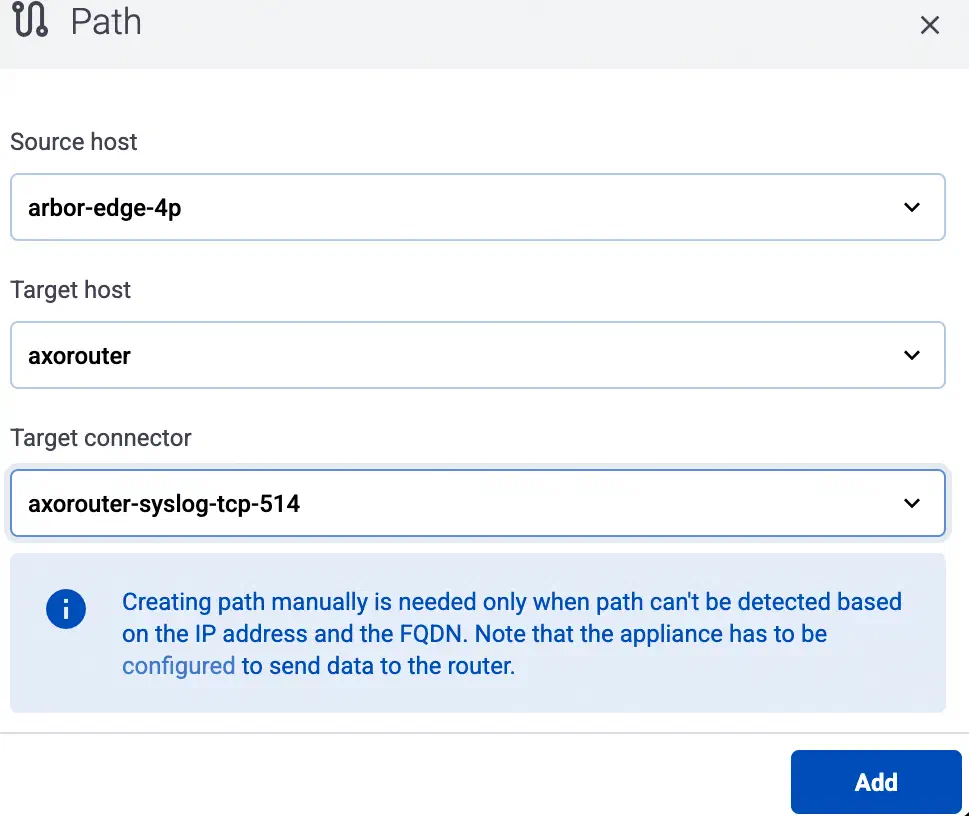
-
If not set automatically, select the beginning of the path in the Source host field.
-
Select the target router or aggregator this source is sending its data to in the Target host field, for example,
axorouter. -
Select the Target connector. The connector determines how the destination receives the data (for example, using which protocol or port).
-
Select Add. The new path appears on the Topology page.

-
-
Access the syslog-ng host and edit the configuration of syslog-ng. Set the statistics-related global options like this (if the
optionsblock already exists, add these lines to the bottom of the block):options { stats-level(2); stats-freq(0); # Inhibit statistics output to stdout }; -
(Optional) To get detailed metrics and analytics about the traffic that flows through the host, instrument your syslog-ng configuration as follows:
Note You can use Axolet with an un-instrumented syslog-ng configuration file, but that limits available metrics to host statistics (for example, disk, memory, queue information). You won’t be able to access data about the actual traffic flowing through the host. To collect traffic-related metrics, instrument configuration withmetrics-probe()stanzas. The example below shows how to instrument the configuration to highlight common macros such as$HOSTand$PROTOCOL. If you want to customize the collected metrics or need help with the instrumentation, contact us.-
Download the following configuration snippet to the syslog-ng host, for example, as
For syslog-ng PE, use/etc/syslog-ng/conf.d/axoflow-instrumentation.conffor syslog-ng./opt/syslog-ng/etc/axoflow-instrumentation.conf.For syslog-ng PE 8.x and newer:
# Metrics probe parser definition for a specified destination
# This will yield a reasonable number of metrics for common
# syslog-ng macros
block parser metrics-output(destination(undefined)) {

  # This will probe for the number of *events*.
  # key name is fixed; labels are user-specified
  metrics-probe(
    key("classified_output_events_total")
    labels(
      "host" => "${HOST}"
      "service" => "${PROGRAM}"
      "source" => "${SOURCE}"
      "dest_port" => "$DESTPORT"
      "dest_ip" => "$DESTIP"
      "src_ip" => "$SOURCEIP"
      "protocol" => "$(if ($PROTO == 6) TCP $(if ($PROTO == 17) UDP $PROTO))"
      "ip_protocol" => "$IP_PROTO"
      "transport" => "$TRANSPORT"
      "destination_name" => "`destination`"
      "issue" => "$(or $(tags-head message.parse_error syslog.unexpected_framing syslog.missing_pri syslog.rfc3164_missing_header syslog.invalid_hostname message.utf8_sanitized) 'none')"
    )
  );

  # This will probe for the number of *bytes*.
  # key name is fixed; labels are user-specified
  metrics-probe(
    key("classified_output_event_bytes_total")
    increment("${RAWMSG_SIZE}")
    labels(
        "host" => "${HOST}"
        "service" => "${PROGRAM}"
        "source" => "${SOURCE}"
        "dest_port" => "$DESTPORT"
        "dest_ip" => "$DESTIP"
        "src_ip" => "$SOURCEIP"
        "protocol" => "$(if ($PROTO == 6) TCP $(if ($PROTO == 17) UDP $PROTO))"
        "ip_protocol" => "$IP_PROTO"
        "transport" => "$TRANSPORT"
        "destination_name" => "`destination`"
        "issue" => "$(or $(tags-head message.parse_error syslog.unexpected_framing syslog.missing_pri syslog.rfc3164_missing_header syslog.invalid_hostname message.utf8_sanitized) 'none')"
    )
  );
};


# For syslog-ng OSE this should be /var/lib/syslog-ng/axotap.sock
@define AXOTAP_SOCK "/opt/syslog-ng/var/axotap.sock"

block rewrite format_axotap_sock_message(service_type("input")) {
  set("$(substr ${MESSAGE} 0 32768)" value(MESSAGE));
  set("$(substr ${RAWMSG} 0 32768)" value(RAWMSG));
  set("$(format-json --no-cast debug.msg=$(format-json --no-cast --scope all-nv-pairs) log.body=${MESSAGE})" value(".tap.event"));
  set(json('{"note":"message object too long for tapping"}') value(".tap.event") condition("$(length ${.tap.event})" > 131072));

  set("$(format-json --no-cast tap=$(format-json --no-cast tapId='' serviceType='`service_type`' eventId=${UNIQID} labels=$(format-json --no-cast) hostCandidate=$(format-json --no-cast) facility=${FACILITY} format=${MSGFORMAT} hostFrom=${HOST_FROM} message=$(echo ${MESSAGE}) rawMessage=${RAWMSG} severity=${SEVERITY} source=${SOURCE} tags=${TAGS} timestamp=${ISODATE} transport=${TRANSPORT}) event=json(${.tap.event}))" value(".tap.formatted"));
};


# input side tapping
destination "d_axotap_input_static" {
  channel {
    filter {
      rate-limit(key("$SOURCE:$PROGRAM:$HOST:$SOURCEIP:$DESTIP") rate(1));
    };

    rewrite {
      format_axotap_sock_message(service_type("input"));
    };

    destination {
      unix-dgram("`AXOTAP_SOCK`" persist-name("axotap_input_static") template("${.tap.formatted}"));
    };
  };
};


log {
  destination("d_axotap_input_static");
  flags(catchall);
};


# output side tapping
destination "d_axotap_output" {
  channel {
    filter {
      rate-limit(key("$SOURCE:$PROGRAM:$HOST:$SOURCEIP:$DESTIP") rate(1));
    };

    rewrite {
      format_axotap_sock_message(service_type("output"));
    };

    destination {
      unix-dgram("`AXOTAP_SOCK`" template("${.tap.formatted}"));
    };
  };
};
For syslog-ng PE 7.0.33 and newer 7.0.x, and syslog-ng OSE version 4.1.1-4.4.0:
# Metrics probe parser definition for a specified destination # This will yield a reasonable number of metrics for common # syslog-ng macros block parser metrics-output(destination(undefined)) { # This will probe for the number of *events*. # key name is fixed; labels are user-specified metrics-probe( key("classified_output_events_total") labels( "host" => "${HOST}" "service" => "${PROGRAM}" "source" => "${SOURCE}" "dest_port" => "$DESTPORT" "dest_ip" => "$DESTIP" "src_ip" => "$SOURCEIP" "protocol" => "$(if ($PROTO == 6) TCP $(if ($PROTO == 17) UDP $PROTO))" "ip_protocol" => "$IP_PROTO" "transport" => "$TRANSPORT" "destination_name" => "`destination`" ) ); # This will probe for the number of *bytes*. # key name is fixed; labels are user-specified metrics-probe( key("classified_output_event_bytes_total") increment("${RAWMSG_SIZE}") labels( "host" => "${HOST}" "service" => "${PROGRAM}" "source" => "${SOURCE}" "dest_port" => "$DESTPORT" "dest_ip" => "$DESTIP" "src_ip" => "$SOURCEIP" "protocol" => "$(if ($PROTO == 6) TCP $(if ($PROTO == 17) UDP $PROTO))" "ip_protocol" => "$IP_PROTO" "transport" => "$TRANSPORT" "destination_name" => "`destination`" ) ); }; # For syslog-ng OSE this should be /var/lib/syslog-ng/axotap.sock @define AXOTAP_SOCK "/opt/syslog-ng/var/run/axotap.sock" block rewrite format_axotap_sock_message(service_type("input")) { set("$(substr ${MESSAGE} 0 32768)" value(MESSAGE)); set("$(substr ${RAWMSG} 0 32768)" value(RAWMSG)); set("$(format-json --no-cast debug.msg=$(format-json --no-cast --scope all-nv-pairs) log.body=${MESSAGE})" value(".tap.event")); set(json('{"note":"message object too long for tapping"}') value(".tap.event") condition("$(length ${.tap.event})" > 131072)); set("$(format-json --no-cast tap=$(format-json --no-cast tapId='' serviceType='`service_type`' eventId=${UNIQID} labels=$(format-json --no-cast) hostCandidate=$(format-json --no-cast) facility=${FACILITY} format=${MSGFORMAT} hostFrom=${HOST_FROM} message=$(echo ${MESSAGE}) rawMessage=${RAWMSG} severity=${SEVERITY} source=${SOURCE} tags=${TAGS} timestamp=${ISODATE} transport=${TRANSPORT}) event=json(${.tap.event}))" value(".tap.formatted")); }; # input side tapping destination "d_axotap_input_static" { channel { filter { rate-limit(template("$SOURCE:$PROGRAM:$HOST:$SOURCEIP:$DESTIP") rate(1)); }; rewrite { format_axotap_sock_message(service_type("input")); }; destination { unix-dgram("`AXOTAP_SOCK`" persist-name("axotap_input_static") template("${.tap.formatted}")); }; }; }; log { destination("d_axotap_input_static"); flags(catchall); }; # output side tapping destination "d_axotap_output" { channel { filter { rate-limit(template("$SOURCE:$PROGRAM:$HOST:$SOURCEIP:$DESTIP") rate(1)); }; rewrite { format_axotap_sock_message(service_type("output")); }; destination { unix-dgram("`AXOTAP_SOCK`" template("${.tap.formatted}")); }; }; }; -
Include it in at the top of your configuration file:
@version: current @include "axoflow-instrumentation.conf" -
Edit every destination statement to include a
parser { metrics-output(destination(my-destination)); };line (making sure to include thechannelconstruct if your destination block does not already contain it):destination my-destination { channel { parser { metrics-output(destination(my-destination)); }; destination { file("/dev/null"); }; }; }; -
Reload the configuration of syslog-ng.
systemctl reload syslog-ng -
To enable log tapping for the output logs (traffic that the host sends to its destinations), add the
d_axotap_outputdestination in your log paths. This allows the Axolet agent to collect rate-limited log samples from that specific point in the pipeline.Tapping the input logs (traffic arriving to the sources of the host) needs only the configuration snippet.
Note There are multiple ways to add tapping to your configuration, which in some cases can introduce unwanted side effects. Contact us to help you create a safe tapping configuration for your use case!-
Find a log path that you want to tap into and add the tap destination in a safe way, for example, by adding it in a separate inner log path:
log { source(s_udp514); log { destination(d_udp514); }; log { destination(d_axotap); }; }; -
Reload the configuration of syslog-ng.
systemctl reload syslog-ng -
Unregister the service so that auto service registration can discover the new tapping point:
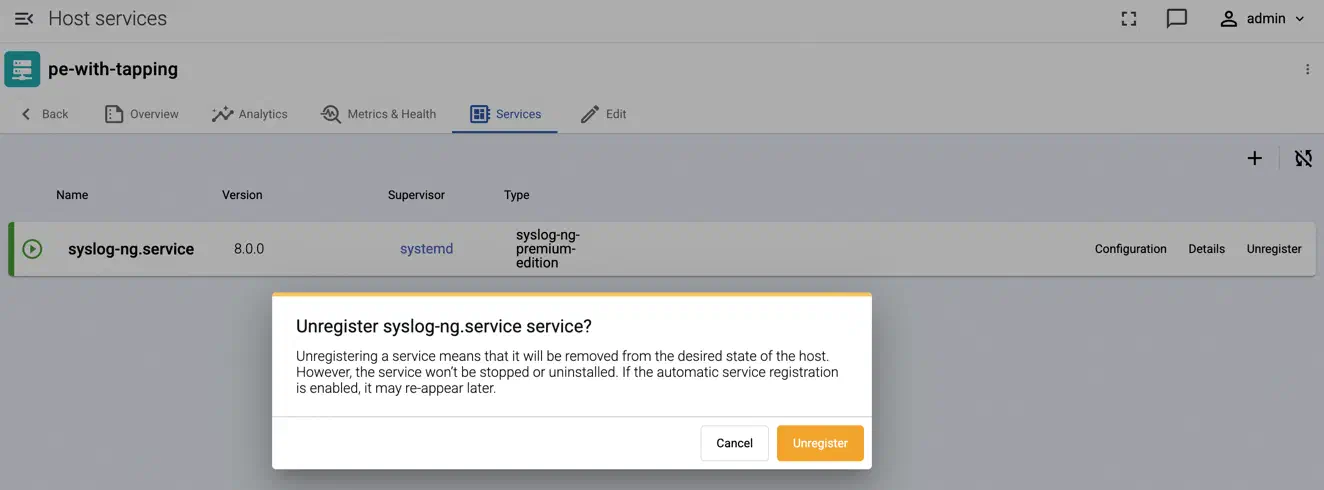
-
Test log tapping from the top right menu:
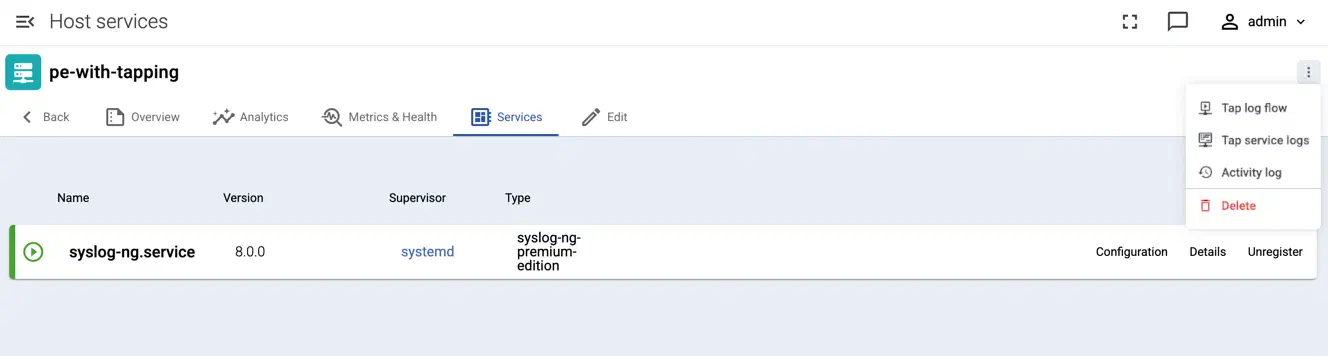
-
-
-
If your AxoConsole is a self-managed on-premises deployment, run the following command on your AxoConsole host.
kubectl apply -f - <<EOT
apiVersion: batch/v1
kind: CronJob
metadata:
  annotations:
  labels:
    app: tap-updater
  name: tap-updater
spec:
  concurrencyPolicy: Forbid
  failedJobsHistoryLimit: 1
  jobTemplate:
    metadata:
      name: tap-updater
    spec:
      template:
        spec:
          containers:
          - args:
            - -exc
            - |
              export KUBECONFIG=/home/nobody/kcp/config
              kubectl get edge -o name | xargs -r kubectl patch --type=json -p='[{"op":"add","path":"/spec/services/0/tap/socket","value":"/var/lib/syslog-ng/axotap.sock"}]'
            command:
            - /bin/sh
            image: us-docker.pkg.dev/axoflow-registry-prod/axoflow/axoflow:0.86.0
            imagePullPolicy: IfNotPresent
            name: configure
            resources:
              limits:
                memory: 200Mi
              requests:
                cpu: 400m
            terminationMessagePath: /dev/termination-log
            terminationMessagePolicy: File
            volumeMounts:
            - mountPath: /home/nobody/kcp
              name: kcp-account
          dnsPolicy: ClusterFirst
          restartPolicy: OnFailure
          schedulerName: default-scheduler
          securityContext: {}
          terminationGracePeriodSeconds: 30
          volumes:
          - name: kcp-account
            secret:
              defaultMode: 420
              optional: false
              secretName: kcp-account
  schedule: '1 * * * *'
  successfulJobsHistoryLimit: 3
  suspend: false
EOT
3 - Authentication
AxoConsole supports the following authentication providers for on-premises deployments:
| Provider | Description | When to use |
|---|---|---|
| Built-in (axoidp) | Axoflow’s built-in identity provider | Default for all installations. Manages local users with username and password. |
| Dex | Open-source identity federation layer | Use when you want to authenticate users with an existing identity system such as LDAP, Google, or GitHub. |
The built-in provider is enabled automatically during installation. To use a different provider, see the relevant section below.
3.1 - Dex
Dex is an open-source identity federation layer. When you configure AxoConsole to use Dex, Dex handles authentication with your existing identity system and passes user identity back to AxoConsole.
The following connectors are supported:
- LDAP — connect to an LDAP or Active Directory server
- GitHub — authenticate with GitHub OAuth
- Google — authenticate with Google accounts or Google Groups
Switch from the built-in provider to Dex
Configure Dex as the OIDC provider in the /var/lib/rancher/k3s/server/manifests/axoflow-config.yaml file. For example:
chalco:
  oidc:
    enabled: true
    provider: "dex"

axoidp:
  enabled: false

dex:
  enabled: true
After saving the file, k3s automatically applies the changes. Users will be redirected to the Dex login page on next login.
3.1.1 - GitHub
This section shows you how to use GitHub OAuth2 as an authentication backend for AxoConsole. It is assumed that you already have a GitHub organization. Complete the following steps.
Prerequisites
Register a new OAuth GitHub application for your organization. (For testing, you can create it under your personal account.) Make sure to:
-
Set the Homepage URL to the URL of your AxoConsole deployment:
https://<your-console-host.your-domain>/callback, for example,https://axoflow-console.example.com. -
Set the Authorization callback URL to:
https://auth.<your-console-host.your-domain>/callback, for example,https://auth.axoflow-console.example.com/callback.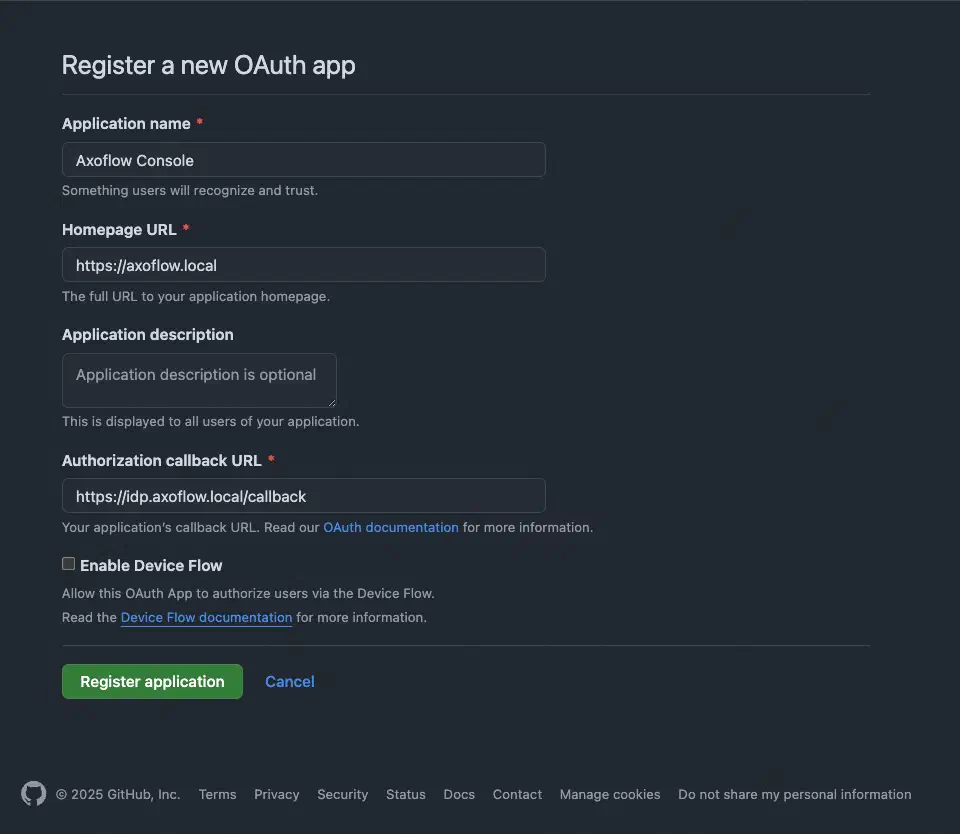
-
Save the Client id of the app, you’ll need it to configure AxoConsole.
-
Generate a Client secret and save it, you’ll need it to configure AxoConsole.
Configuration
-
Configure Dex as the OIDC provider in the
/var/lib/rancher/k3s/server/manifests/axoflow-config.yamlfile. For example:chalco: oidc: enabled: true provider: "dex" axoidp: enabled: false dex: enabled: true -
Configure authentication by editing the
spec.dex.configsection of the/var/lib/rancher/k3s/server/manifests/axoflow-config.yamlfile.-
(Optional) If you’ve used our earlier example, delete the
spec.dex.config.staticPasswordssection. -
Add the
spec.dex.config.connectorssection to the file, like this:dex: enabled: true localIP: $VM_IP_ADDRESS config: create: true connectors: - type: github # Required field for connector id. id: github # Required field for connector name. name: GitHub config: # Credentials can be string literals or pulled from the environment. clientID: <ID-of-GitHub-application> clientSecret: <Secret-of-GitHub-application> redirectURI: <idp.your-host.your-domain/callback> orgs: - name: <your-GitHub-organization>Note that if you have a valid domain name that points to the VM, you can omit the
localIP: $VM_IP_ADDRESSline. -
Edit the following fields. For details on the configuration parameters, see the Dex GitHub connector documentation.
connectors.config.clientID: The ID of the GitHub OAuth application.connectors.config.clientSecret: The client secret of the GitHub OAuth application.connectors.config.redirectURI: The callback URL of the GitHub OAuth application:https://auth.<your-console-host.your-domain>/callback, for example,https://auth.axoflow-console.example.com/callback.- If you want to fetch every GitHub group, replace the entire
orgssection with theloadAllGroups: true connectors.config.orgs: List of the GitHub organizations whose members can access AxoConsole. Restrict access to your organization.
-
-
Configure authorization in the
kcp.rbac.rolessection of the/var/lib/rancher/k3s/server/manifests/axoflow-config.yamlfile.The following roles are available in AxoConsole by default:
-
IAMadmin: Can manage the roles and permissions to access AxoConsole. Only this role can make changes on the Settings > Roles page. Can see the Identity Provider Admin Panel link, which points to the authentication and administration page of the identity provider used to authenticate on AxoConsole. (Every user can access their own profile page at the identity provider by selecting <their username> > Profile in the top-left.) -
admin: Has full access to AxoConsole, but has only read access to the Settings > Roles page. -
infrastructureManager: Can manage the infrastructure (without the permissions to view or tap log contents, or to rehydrate data). Has full access to the following pages: Activity Logs, Alerting, Routers, Sources, Flows, Provisioning, Search Logs. Can tap into service logs which may contain event payload. -
infrastructureViewer: Similar to infrastructure-manager, but can only view the pages. -
contentManager: Can view log content and manage content related details like flows (without the permissions to manage infrastructure, but including access to view infrastructure details).- Has full access to the Rehydration page.
- Can view and modify Flows, but can’t create or delete them.
- Can view Routers, Sources, Search Logs, Analytics.
- Can tap into logs.
-
contentViewer: Can view content like analytics, log search, log tapping (without the permissions to manage or view infrastructure details).- Can view Search Logs, Analytics.
- Can tap into logs.
If you need other roles, contact the Axoflow support team. Composing other roles is possible as part of a custom integration.
You can use email addresses or GitHub groups to assign your users to AxoConsole user roles.
To use the groups fetched from GitHub, prefix the name of the GitHub group with
groups:, and add them to the related roles underkcp.rbac.roles.<role>.groups. For example:rbac: createRoles: true createRoleBindings: true roles: IAMadmin: groups: - groups:iamadmin admin: groups: - groups:admins contentViewer: groups: - groups:readonly-
A specific email address, for example,
email:username@example.comNote- The user must be able to authenticate to AxoConsole using this email address, so authentication must be properly set up.
- Multiple identity providers may allow authentication with the same email address, possibly with different level of ownership validation.
-
An entire email domain, for example,
emaildomain:example.com. Any user who authenticates with an email address belonging to this email domain will have access to the role. -
A user group. The format of the group depends on the OID provider.
- If you’re using AxoConsole as a SaaS, specify the group in the following format:
cognito:groups:<groupname-retrieved-from-cognito>, for example,cognito:groups:ExampleGoogleSaml:Operator. - If you’re using an on-prem AxoConsole deployment, specify the group in the following format:
groups:<groupname-retrieved-from-dex>for example,groups:operator.
- If you’re using AxoConsole as a SaaS, specify the group in the following format:
-
A specific session of an authenticated user, in the following format:
user:<oidc-response-subject>, for example:user:42c4e962-f077-705f-138f-f01ba1220c44. -
Every authenticated user:
axoflow:user
For details on authorization settings, see Authorization.
-
-
Save the file.
-
Restart the dex deployment after changing the connector:
kubectl rollout restart deployment/dex -n axoflowExpected output:
deployment.apps/dex restarted -
Open the main page of your AxoConsole deployment in your browser. You’ll be redirected to the GitHub authentication page.
After completing the GitHub authentication you can access AxoConsole.
Getting help
You can troubleshoot common errors by running kubectl logs -n axoflow <dex-container-name>
If you run into problems setting up the authentication or authorization, contact our support team.
3.1.2 - Google
This section shows you how to use Google OpenID Connect as an authentication backend for AxoConsole. It is assumed that you already have a Google organization and Google Cloud Console access. Complete the following steps.
Prerequisites
-
To use Google authentication, AxoConsole must be deployed on a publicly accessible domain name (the
$BASE_HOSTNAMEmust end with a valid top-level domain, for example,.comor.io.) -
Configure OpenID Connect and create an OpenID credential for a Web application.
- Make sure to set the Authorized redirect URIs to:
https://auth.<your-console-host.your-domain>/callback, for example,https://auth.axoflow-console.example.com/callback. - Save the Client ID of the app and the Client secret of the application, you’ll need them to configure AxoConsole.
For details on setting up OpenID Connect, see the official documentation.
- Make sure to set the Authorized redirect URIs to:
Google group membership
To use group memberships when assigning your users to AxoConsole user roles, you have to configure a service account to retrieve group memberships. Otherwise, you can use email domains. To set up a proper service account, complete the following steps.
- Set up a service account with Domain-Wide Delegation.
- Save the JSON key file that contains the authentication information for the service account. You’ll need it later.
- Delegate the
https://www.googleapis.com/auth/admin.directory.group.readonlyscope to the service account. Do not delegate any other scope. - Enable the Admin SDK.
You’ll also need the email address of a Google Workspace user with a minimum of the Groups Reader Role assigned. The service account will impersonate this user when making calls to the admin API.
Configuration
-
Configure Dex as the OIDC provider in the
/var/lib/rancher/k3s/server/manifests/axoflow-config.yamlfile. For example:chalco: oidc: enabled: true provider: "dex" axoidp: enabled: false dex: enabled: true -
Configure authentication by editing the
spec.dex.configsection of the/var/lib/rancher/k3s/server/manifests/axoflow-config.yamlfile.-
(Optional) If you’ve used our earlier example, delete the
spec.dex.config.staticPasswordssection. -
Add the
spec.dex.config.connectorssection to the file, like this:connectors: - type: google id: google name: Google config: # Connector config values starting with a "$" will read from the environment. clientID: <ID-of-Google-application> clientSecret: <Secret-of-GitHub-application> # Dex's issuer URL + "/callback" redirectURI: <idp.your-host.your-domain/callback> # Set the value of `prompt` query parameter in the authorization request # The default value is "consent" when not set. promptType: consent # Google supports whitelisting allowed domains when using G Suite # (Google Apps). The following field can be set to a list of domains # that can log in: # hostedDomains: - <your-domain> # For group membership authorization: #serviceAccountFilePath: "/etc/dex/sa-file/service-account.json" #domainToAdminEmail: #"*": <impersonated-group-reader-email-address> -
Edit the following fields. For details on the configuration parameters, see the Dex Google connector documentation.
connectors.config.clientID: The ID of the Google application.connectors.config.clientSecret: The client secret of the Google application.connectors.config.redirectURI: The callback URL of the Google application:https://auth.<your-console-host.your-domain>/callback, for example,https://auth.axoflow-console.example.com/callback.connectors.config.hostedDomains: The domain where AxoConsole is deployed, for example,example.com. Your users must have email addresses for this domain at Google.
-
If you’ll use Google group memberships for authorization, uncomment the
serviceAccountFilePathanddomainToAdminEmailsections. Replace<impersonated-group-reader-email-address>with the email address you created in Google group memberships prerequisites.# For group membership authorization: serviceAccountFilePath: "/etc/dex/sa-file/service-account.json" domainToAdminEmail: "*": <impersonated-group-reader-email-address>
-
-
Configure authorization in the
kcp.rbac.rolessection of the/var/lib/rancher/k3s/server/manifests/axoflow-config.yamlfile.The following roles are available in AxoConsole by default:
-
IAMadmin: Can manage the roles and permissions to access AxoConsole. Only this role can make changes on the Settings > Roles page. Can see the Identity Provider Admin Panel link, which points to the authentication and administration page of the identity provider used to authenticate on AxoConsole. (Every user can access their own profile page at the identity provider by selecting <their username> > Profile in the top-left.) -
admin: Has full access to AxoConsole, but has only read access to the Settings > Roles page. -
infrastructureManager: Can manage the infrastructure (without the permissions to view or tap log contents, or to rehydrate data). Has full access to the following pages: Activity Logs, Alerting, Routers, Sources, Flows, Provisioning, Search Logs. Can tap into service logs which may contain event payload. -
infrastructureViewer: Similar to infrastructure-manager, but can only view the pages. -
contentManager: Can view log content and manage content related details like flows (without the permissions to manage infrastructure, but including access to view infrastructure details).- Has full access to the Rehydration page.
- Can view and modify Flows, but can’t create or delete them.
- Can view Routers, Sources, Search Logs, Analytics.
- Can tap into logs.
-
contentViewer: Can view content like analytics, log search, log tapping (without the permissions to manage or view infrastructure details).- Can view Search Logs, Analytics.
- Can tap into logs.
If you need other roles, contact the Axoflow support team. Composing other roles is possible as part of a custom integration.
To assign Google groups to AxoConsole roles, add the groups of your users to the related roles under
kcp.rbac.roles.<role>.groups.Note Make sure that you’ve completed the prerequisites detailed in Google group membership.rbac: createRoles: true createRoleBindings: true roles: IAMadmin: groups: - groups:iamadmin@example.com admin: groups: - groups:admin@example.com contentViewer: groups: - groups:readonly@example.com-
A specific email address, for example,
email:username@example.comNote- The user must be able to authenticate to AxoConsole using this email address, so authentication must be properly set up.
- Multiple identity providers may allow authentication with the same email address, possibly with different level of ownership validation.
-
An entire email domain, for example,
emaildomain:example.com. Any user who authenticates with an email address belonging to this email domain will have access to the role. -
A user group. The format of the group depends on the OID provider.
- If you’re using AxoConsole as a SaaS, specify the group in the following format:
cognito:groups:<groupname-retrieved-from-cognito>, for example,cognito:groups:ExampleGoogleSaml:Operator. - If you’re using an on-prem AxoConsole deployment, specify the group in the following format:
groups:<groupname-retrieved-from-dex>for example,groups:operator.
- If you’re using AxoConsole as a SaaS, specify the group in the following format:
-
A specific session of an authenticated user, in the following format:
user:<oidc-response-subject>, for example:user:42c4e962-f077-705f-138f-f01ba1220c44. -
Every authenticated user:
axoflow:user
For details on authorization settings, see Authorization.
-
-
Save the file.
-
If you’re using Google groups to assign user roles, complete the following steps.
-
Run the following command to delete the
dex-google-service-accountsecret. This is a placeholder secret that you’ll re-create with valid values in the next step.kubectl -n axoflow delete secret dex-google-service-account -
Re-create the secret using the JSON key of the Google service account you’ve created in Google group membership.
kubectl -n axoflow create secret dex-google-service-account --from-file <path-to-the-JSON-key>Expected output:
secret/dex-google-service-account created -
Edit the
/var/lib/rancher/k3s/server/manifests/axoflow-config.yamlfile and set thedex.googleServiceAccount.createoption tofalse.
-
-
Restart the dex deployment after changing the connector:
kubectl rollout restart deployment/dex -n axoflowExpected output:
deployment.apps/dex restarted -
Open the main page of your AxoConsole deployment in your browser. You’ll be redirected to the Google authentication page.
After completing the Google authentication you can access AxoConsole.
Getting help
You can troubleshoot common errors by running kubectl logs -n axoflow <dex-container-name>
If you run into problems setting up the authentication or authorization, contact our support team.
3.1.3 - LDAP
This section shows you how to use LDAP as an authentication backend for AxoConsole. In the examples we used the public demo service of FreeIPA as an LDAP server. It is assumed that you already have an LDAP server in place. Complete the following steps.
-
Configure Dex as the OIDC provider in the
/var/lib/rancher/k3s/server/manifests/axoflow-config.yamlfile. For example:chalco: oidc: enabled: true provider: "dex" axoidp: enabled: false dex: enabled: true -
Configure authentication by editing the
spec.dex.configsection of the/var/lib/rancher/k3s/server/manifests/axoflow-config.yamlfile.-
(Optional) If you’ve used our earlier example, delete the
spec.dex.config.staticPasswordssection. -
Add the
spec.dex.config.connectorssection to the file, like this:CAUTION:
This example shows a simple configuration suitable for testing. In production environments, make sure to:
- configure TLS encryption to access your LDAP server
- retrieve the bind password from a vault or environment variable. Note that if the bind password contains the
$character, you must set it in an environment variable and pass it likebindPW: $LDAP_BINDPW.
dex: enabled: true localIP: $VM_IP_ADDRESS config: create: true connectors: - type: ldap name: OpenLDAP id: ldap config: host: ipa.demo1.freeipa.org insecureNoSSL: true # This would normally be a read-only user. bindDN: uid=admin,cn=users,cn=accounts,dc=demo1,dc=freeipa,dc=org bindPW: Secret123 usernamePrompt: Email Address userSearch: baseDN: dc=demo1,dc=freeipa,dc=org filter: "(objectClass=person)" username: mail # "DN" (case sensitive) is a special attribute name. It indicates that # this value should be taken from the entity's DN not an attribute on # the entity. idAttr: uid emailAttr: mail nameAttr: cn groupSearch: baseDN: dc=demo1,dc=freeipa,dc=org filter: "(objectClass=groupOfNames)" userMatchers: # A user is a member of a group when their DN matches # the value of a "member" attribute on the group entity. - userAttr: DN groupAttr: member # The group name should be the "cn" value. nameAttr: cn -
Edit the following fields. For details on the configuration parameters, see the Dex LDAP connector documentation.
connectors.config.host: The hostname and optionally the port of the LDAP server in “host:port” format.connectors.config.bindDNandconnectors.config.bindPW: The DN and password for an application service account that the connector uses to search for users and groups.connectors.config.userSearch.bindDNandconnectors.config.groupSearch.bindDN: The base DN for the user and group search.
-
-
Configure authorization in the
kcp.rbac.rolessection of the/var/lib/rancher/k3s/server/manifests/axoflow-config.yamlfile.The following roles are available in AxoConsole by default:
-
IAMadmin: Can manage the roles and permissions to access AxoConsole. Only this role can make changes on the Settings > Roles page. Can see the Identity Provider Admin Panel link, which points to the authentication and administration page of the identity provider used to authenticate on AxoConsole. (Every user can access their own profile page at the identity provider by selecting <their username> > Profile in the top-left.) -
admin: Has full access to AxoConsole, but has only read access to the Settings > Roles page. -
infrastructureManager: Can manage the infrastructure (without the permissions to view or tap log contents, or to rehydrate data). Has full access to the following pages: Activity Logs, Alerting, Routers, Sources, Flows, Provisioning, Search Logs. Can tap into service logs which may contain event payload. -
infrastructureViewer: Similar to infrastructure-manager, but can only view the pages. -
contentManager: Can view log content and manage content related details like flows (without the permissions to manage infrastructure, but including access to view infrastructure details).- Has full access to the Rehydration page.
- Can view and modify Flows, but can’t create or delete them.
- Can view Routers, Sources, Search Logs, Analytics.
- Can tap into logs.
-
contentViewer: Can view content like analytics, log search, log tapping (without the permissions to manage or view infrastructure details).- Can view Search Logs, Analytics.
- Can tap into logs.
If you need other roles, contact the Axoflow support team. Composing other roles is possible as part of a custom integration.
- Add the names of the LDAP groups to the related roles under
kcp.rbac.roles.<role>.groups. In the following example, themanagersgroup gets administrator role, and thereadonlygroup gets read-only access to AxoConsole.
rbac: createRoles: true createRoleBindings: true roles: IAMadmin: groups: - groups:iamadmin admin: groups: - groups:managers contentViewer: groups: - groups:readonly-
A specific email address, for example,
email:username@example.comNote- The user must be able to authenticate to AxoConsole using this email address, so authentication must be properly set up.
- Multiple identity providers may allow authentication with the same email address, possibly with different level of ownership validation.
-
An entire email domain, for example,
emaildomain:example.com. Any user who authenticates with an email address belonging to this email domain will have access to the role. -
A user group. The format of the group depends on the OID provider.
- If you’re using AxoConsole as a SaaS, specify the group in the following format:
cognito:groups:<groupname-retrieved-from-cognito>, for example,cognito:groups:ExampleGoogleSaml:Operator. - If you’re using an on-prem AxoConsole deployment, specify the group in the following format:
groups:<groupname-retrieved-from-dex>for example,groups:operator.
- If you’re using AxoConsole as a SaaS, specify the group in the following format:
-
A specific session of an authenticated user, in the following format:
user:<oidc-response-subject>, for example:user:42c4e962-f077-705f-138f-f01ba1220c44. -
Every authenticated user:
axoflow:user
For details on authorization settings, see Authorization.
-
-
Save the file.
-
Restart the dex deployment after changing the connector:
kubectl rollout restart deployment/dex -n axoflowExpected output:
deployment.apps/dex restarted
Getting help
You can troubleshoot common errors by running kubectl logs -n axoflow <dex-container-name>
If you run into problems setting up the authentication or authorization, contact our support team.
4 - Authorization
These sections show you how to configure the authorization of AxoConsole with different authentication backends.
Authorization is configured in the kcp.rbac.roles section of /var/lib/rancher/k3s/server/manifests/axoflow-config.yaml.
Default configuration
The installer sets up the following default role bindings, which grant full access to users in the admin group of your identity provider:
kcp:
  rbac:
    roles:
      IAMadmin:
        groups:
          - "groups:admin"
      admin:
        groups:
          - "groups:admin"
Verify that this matches your requirements by checking the file:
grep -A20 'rbac:' /var/lib/rancher/k3s/server/manifests/axoflow-config.yaml
Available roles
The following roles are available in AxoConsole by default:
-
IAMadmin: Can manage the roles and permissions to access AxoConsole. Only this role can make changes on the Settings > Roles page. Can see the Identity Provider Admin Panel link, which points to the authentication and administration page of the identity provider used to authenticate on AxoConsole. (Every user can access their own profile page at the identity provider by selecting <their username> > Profile in the top-left.) -
admin: Has full access to AxoConsole, but has only read access to the Settings > Roles page. -
infrastructureManager: Can manage the infrastructure (without the permissions to view or tap log contents, or to rehydrate data). Has full access to the following pages: Activity Logs, Alerting, Routers, Sources, Flows, Provisioning, Search Logs. Can tap into service logs which may contain event payload. -
infrastructureViewer: Similar to infrastructure-manager, but can only view the pages. -
contentManager: Can view log content and manage content related details like flows (without the permissions to manage infrastructure, but including access to view infrastructure details).- Has full access to the Rehydration page.
- Can view and modify Flows, but can’t create or delete them.
- Can view Routers, Sources, Search Logs, Analytics.
- Can tap into logs.
-
contentViewer: Can view content like analytics, log search, log tapping (without the permissions to manage or view infrastructure details).- Can view Search Logs, Analytics.
- Can tap into logs.
If you need other roles, contact the Axoflow support team. Composing other roles is possible as part of a custom integration.
Customize role bindings
To assign additional groups to a role, add them to the groups list. The group format depends on your authentication backend:
- Built-in identity provider (axoidp) and LDAP:
groups:<group-name> - Email domain:
emaildomain:<domain>
Edit the manifest and save — k3s picks up the change automatically:
sudo vi /var/lib/rancher/k3s/server/manifests/axoflow-config.yaml
5 - Prepare AxoRouter hosts
When using AxoRouter with an on-premises AxoConsole deployment, you have to complete the following steps on the hosts you want to deploy AxoRouter on. These steps are specific to on-premises AxoConsole deployments, and are not needed when using the SaaS AxoConsole.
Using the generated prepare-host script
After a successful AxoConsole installation, the installer writes a prepare-axorouter-host.sh script to the log directory on the AxoConsole host. This script automates all the steps below.
-
Copy the script to each AxoRouter or Axoflow agent host.
-
Run it as root:
sudo bash prepare-axorouter-host.shThe script adds the AxoConsole base hostname and its
idp.,kcp., andtelemetry.subdomains to/etc/hosts, and installs the AxoConsole CA certificate into the system trust store.
Manual preparation
If the prepare-host script is not available, complete the following steps manually.
-
If the domain name of AxoConsole cannot be resolved from the AxoRouter host, add it to the
/etc/hostsfile of the AxoRouter host in the following format. Use and IP address of AxoConsole that can be accessed from the AxoRouter host.<AXOFLOW-CONSOLE-IP-ADDRESS> <AXOFLOW-CONSOLE-BASE-URL> idp.<AXOFLOW-CONSOLE-BASE-URL> kcp.<AXOFLOW-CONSOLE-BASE-URL> telemetry.<AXOFLOW-CONSOLE-BASE-URL> -
Import AxoConsole certificates to AxoRouter hosts.
-
On the AxoConsole host: Run the following command to extract the AxoConsole CA certificate. The AxoRouter host will need this certificate to download the installation binaries.
kubectl get secret -n axoflow axoflow-local-root-ca -o jsonpath='{.data.ca\.crt}' | base64 -d > axoflow-ca.crtCopy this file to the AxoRouter hosts.
-
On the AxoRouter hosts: Copy the certificate file extracted from the AxoConsole host.
- On Red Hat: Copy the files into the
/etc/pki/ca-trust/source/anchors/folder, then runsudo update-ca-trust extract. (If needed, install theca-certificatespackage.) - On Ubuntu: Copy the files into the
/usr/local/share/ca-certificates/folder, then runsudo update-ca-certificates
- On Red Hat: Copy the files into the
-
-
curl -I https://<your-host.your-domain>should give you a valid HTTP/2 200 response -
Now you can deploy AxoRouter on the host.
Note If you want to download the AxoRouter images directly from AxoConsole (useful in air-gapped environments), disable the External image pull option of the provisioning script.
6 - Upgrade
To upgrade an on-prem AxoConsole deployment, complete the following steps.
-
Log in to the host running AxoConsole.
-
Run the following command to update the version number in the
/var/lib/rancher/k3s/server/manifests/axoflow-config.yamlfile to 0.86.0.sudo sed -i.old -E 's/^( *version: ).*/\10.86.0/' /var/lib/rancher/k3s/server/manifests/axoflow-config.yaml -
Wait a few minutes until the pods are restarted. You can check their status by running:
kubectl get pods -A -
If everything is working as expected, re-deploy your AxoRouter and Axoflow agent instances to upgrade them.
In case you experience problems during the upgrade, contact our support team.