Axoflow users can have different levels of access to AxoConsole based on their roles.
Authorization can be based on group memberships, email domains, and individual email addresses.
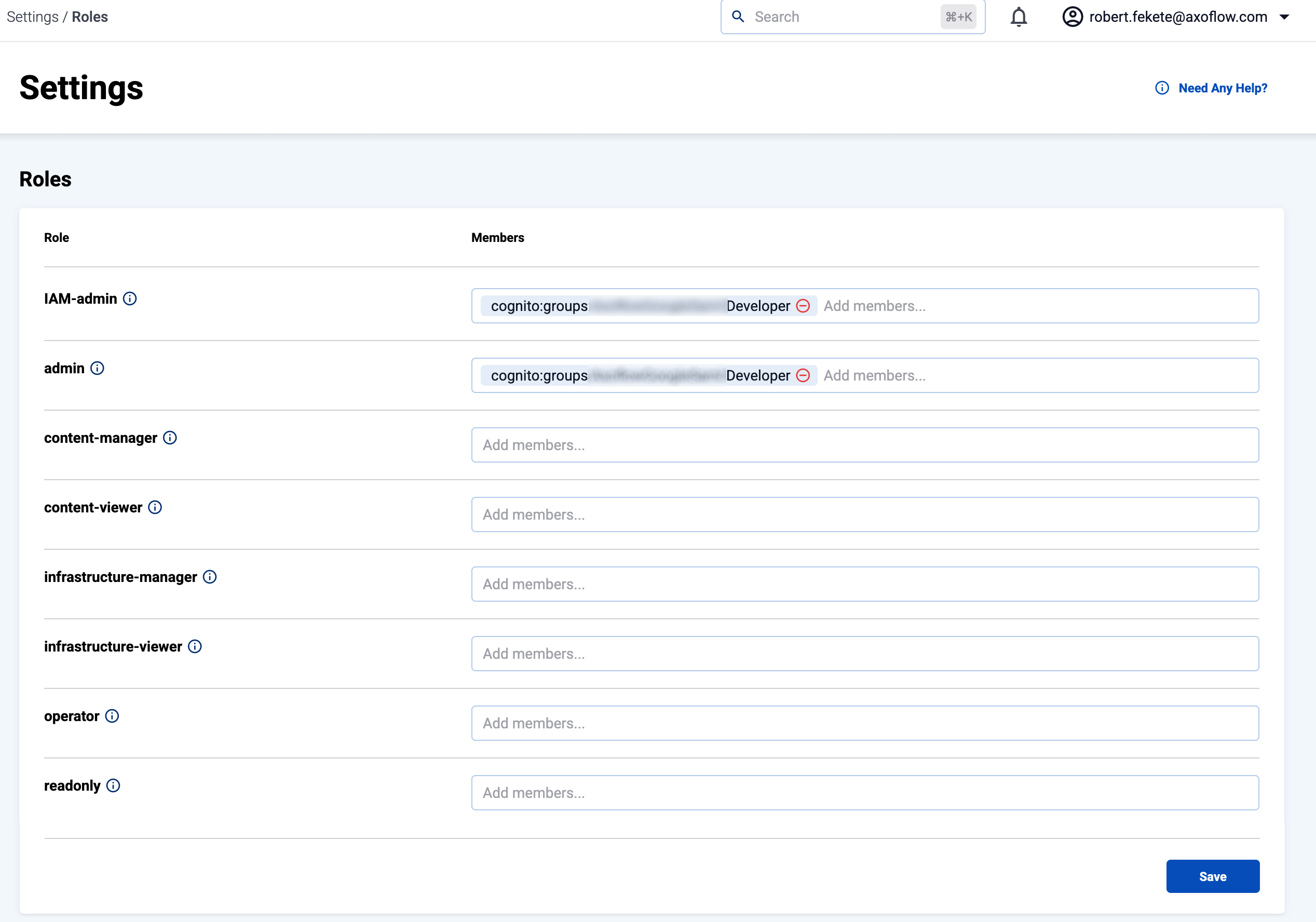
Roles
The following roles are available in AxoConsole by default:
-
IAM-admin: Can manage the roles and permissions to access AxoConsole. Only this role has access to the Settings > Roles page.
-
admin: Has full access to AxoConsole, but has no access to the Settings > Roles page.
-
infrastructure-manager: Can manage the infrastructure (without the permissions to view or tap log contents, or to rehydrate data). Has full access to the following pages: Activity Logs, Alerting, Routers, Sources, Flows, Provisioning, Search Logs. Can tap into service logs.
-
infrastructure-viewer: Similar to infrastructure-manager, but can only view the pages. Can tap into service logs.
-
content-manager: Can view log content and manage content related details like flows (without the permissions to manage infrastructure, but including access to view infrastructure details).
- Has full access to the Rehydration page.
- Can view and modify Flows, but can’t create or delete them.
- Can view Routers, Sources, Search Logs, Analytics.
- Can tap into logs.
-
content-viewer: Can view content like analytics, log search, log tapping (without the permissions to manage or view infrastructure details).
- Can view Search Logs, Analytics.
- Can tap into logs.
If you need other roles, contact the Axoflow support team. Composing other roles is possible as part of a custom integration.
Manage access
To add new members to a role, complete the following steps. Note that you need IAM-admin privileges to manage the roles.
-
Navigate to Settings > Roles.
-
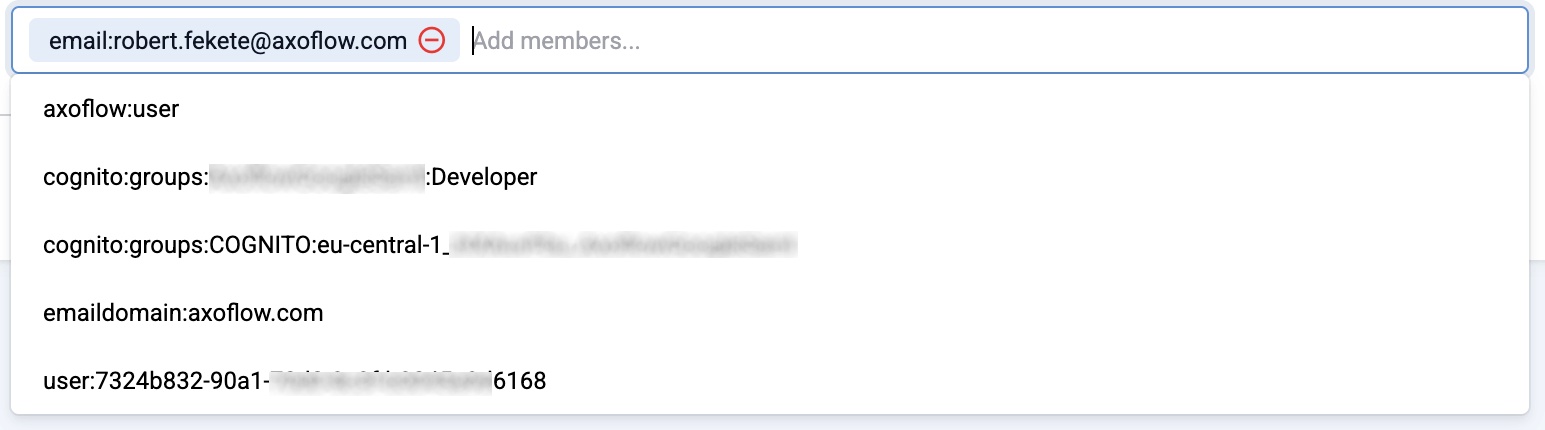
Add an item to the related role. You can add:
-
A specific email address, for example,
username@example.comNote- The user must be able to authenticate to AxoConsole using this email address, so authentication must be properly set up.
- Multiple identity providers may allow authentication with the same email address, possibly with different level of ownership validation.
-
An entire email domain, for example,
emaildomain:example.com. Any user who authenticates with an email address belonging to this email domain will have access to the role. -
A user group. The format of the group depends on the OID provider.
- If you’re using AxoConsole as a SaaS, groups usually can be specified in the following format:
cognito:groups:<tenant-authentication-provider>:<groupname>, for example,cognito:groups:ExampleGoogleSaml:Operator. - If you’re using an on-prem AxoConsole deployment, specify the group in the following format:
groups:<groupname>for example,groups:operator.
- If you’re using AxoConsole as a SaaS, groups usually can be specified in the following format:
-
The unique identifier of an authenticated user as provided by the identity provider, in the following format:
user:<oidc-response-subject>, for example:user:42c4e962-f077-705f-138f-f01ba1220c44.
-
Note that there can be fixed groups or items (labeled as Additional system members) that you cannot remove. These were added as part of the integration on the request of your organization or during initial configuration in case of on-premises deployments.