# CloudWatch
CloudWatch: Monitors AWS resources and applications by collecting metrics, logs, and setting alarms.
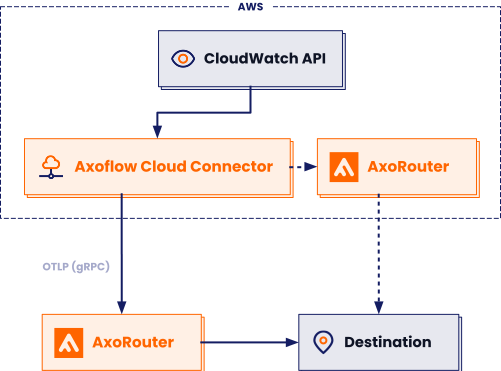
Axoflow can collect data from your [Amazon CloudWatch](). At a high level, the process looks like this:
* Deploy an Axoflow Cloud Connector that will collect the data from your CloudWatch. Axoflow Cloud Connector is a simple container that you can deploy into AWS, another cloud provider, or on-prem.
* The connector forwards the collected data to the [OpenTelemetry connector](../../../../docs/axoflow/data-sources/opentelemetry/index.md) of an AxoRouter instance. This AxoRouter can be deployed within [AWS, another cloud provider, or on-prem](../../../../docs/axoflow/provisioning/axorouter/index.md).
* Configure a [Flow](../../../../docs/axoflow/data-management/index.md) on AxoConsole that processes and routes the collected data to your [destination](../../../../docs/axoflow/destinations/index.md) (for example, Splunk or another SIEM).
## Prerequisites
* An AWS account with an active subscription.
* A virtual machine or Kubernetes node running to deploy Axoflow Cloud Connector on.
* An AxoRouter instance that can receive data from the connector. Verify that it has an [OpenTelemetry Connector](../../../../docs/axoflow/data-sources/opentelemetry/index.md) (it’s enabled by default).
* You know the IP address the AxoRouter. To find it:
1. Open the AxoConsole.
2. Select the **Routers** or the **Topology** page.
3. Select on AxoRouter instance that is going to receive the logs.
4. Check the **Networks > Address** field.
* The Axoflow Cloud Connector must be able to access the AxoRouter on the port the OpenTelemetry Connector is listening on (by default, port 4317). Depending on where the Axoflow Cloud Connector and AxoRouter are deployed, you might need to adjust firewall and ingress/egress rules in your environment.
* Depending on how you want to authenticate Axoflow Cloud Connector, you’ll need an [AWS_PROFILE]() or [AWS access keys]().
## Steps
To collect data from AWS CloudWatch, complete the following steps.
1. Deploy an Axoflow Cloud Connector.
1. Access the Kubernetes node or virtual machine where you want to deploy Axoflow Cloud Connector.
2. Set the following environment variable to the IP address of the AxoRouter where you want to forward the data from CloudWatch. This IP address must be accessible from the connector. You can find the IP address of AxoRouter on the [**Routers > AxoRouter > Overview**](../../../../docs/axoflow/onboard-hosts/hosts/host-overview/index.md) page.
```
export AXOROUTER_ENDPOINT=
```
3. (Optional) By default, the connector stores positional and other persistence-related data in the `/etc/axoflow-otel-collector/storage` directory. In case you want to use a different directory, set the `STORAGE_DIRECTORY` environment variable.
4. Run the following command to generate a UUID for the connector. AxoConsole will use this ID to identify the connector.
```
UUID_FULL=$(uuidgen 2>/dev/null || cat /proc/sys/kernel/random/uuid 2>/dev/null || python3 -c "import uuid; print(uuid.uuid4())")
export AXOCLOUDCONNECTOR_DEVICE_ID=$(echo "$UUID_FULL" | cut -d'-' -f1)
```
5. Set TLS encryption to secure the communication between Axoflow Cloud Connector and AxoRouter.
Configure the TLS-related settings of Axoflow Cloud Connector using the following environment variables.
Variable | Required | Default | Description
---|---|---|---
`AXOROUTER_TLS_INSECURE` | No | `false` | Disables TLS encryption if set to `true`
`AXOROUTER_TLS_INCLUDE_SYSTEM_CA_CERTS_POOL` | No | `false` | Set to `true` to use the system CA certificates
`AXOROUTER_TLS_CA_FILE` | No | - | Path to the CA certificate file used to validate the certificate of AxoRouter
`AXOROUTER_TLS_CA_PEM` | No | - | PEM-encoded CA certificate
`AXOROUTER_TLS_INSECURE_SKIP_VERIFY` | No | `false` | Set to `true` to disable TLS certificate verification of AxoRouter
`AXOROUTER_TLS_CERT_FILE` | No | - | Path to the certificate file of Axoflow Cloud Connector
`AXOROUTER_TLS_CERT_PEM` | No | - | PEM-encoded client certificate
`AXOROUTER_TLS_KEY_FILE` | No | - | Path to the client private key file of Axoflow Cloud Connector
`AXOROUTER_TLS_KEY_PEM` | No | - | PEM-encoded client private key
`AXOROUTER_TLS_MIN_VERSION` | No | `1.2` | Minimum TLS version to use
`AXOROUTER_TLS_MAX_VERSION` | No | - | Maximum TLS version to use
Note You’ll have to include the TLS-related environment variables you set in the docker command used to deploy Axoflow Cloud Connector.
6. Configure the authentication that the Axoflow Cloud Connector will use to access CloudWatch. Set the environment variables for the authentication method you want to use.
* AWS Profile with a configuration file: Set the region and the [AWS_PROFILE]()
```
export AWS_PROFILE=""
export AWS_REGION=""
```
* AWS Credentials: To use [AWS access keys](), set an access key and a matching secret.
```
export AWS_ACCESS_KEY_ID=""
export AWS_SECRET_ACCESS_KEY=""
export AWS_REGION=""
```
* EC2 instance profile:
```
export AWS_REGION=""
```
7. Deploy the Axoflow Cloud Connector. The exact command depends on the authentication method and the TLS settings you want to configure.
* AWS Profile with a configuration file: Set the region and the [AWS_PROFILE](). Also, pass the [TLS-related settings](../../../../docs/axoflow/data-sources/appliances/amazon/cloudwatch/index.md#tls-settings) you’ve set earlier.
```
docker run --rm \
-v "${STORAGE_DIRECTORY}":"${STORAGE_DIRECTORY}" \
-e AWS_PROFILE="${AWS_PROFILE}" \
-e AWS_REGION="${AWS_REGION}" \
-e AWS_SDK_LOAD_CONFIG=1 \
-e AXOROUTER_ENDPOINT="${AXOROUTER_ENDPOINT}" \
-e STORAGE_DIRECTORY="${STORAGE_DIRECTORY}" \
-e AXOCLOUDCONNECTOR_DEVICE_ID="${AXOCLOUDCONNECTOR_DEVICE_ID}" \
-e ="${}" \
-v "${HOME}/.aws:/cloudconnectors/.aws:ro" \
ghcr.io/axoflow/axocloudconnectors:latest
```
* AWS Credentials: To use [AWS access keys](), set an access key and a matching secret. Also, pass the [TLS-related settings](../../../../docs/axoflow/data-sources/appliances/amazon/cloudwatch/index.md#tls-settings) you’ve set earlier.
```
docker run --rm \
-v "${STORAGE_DIRECTORY}":"${STORAGE_DIRECTORY}" \
-e AWS_ACCESS_KEY_ID="${AWS_ACCESS_KEY_ID}" \
-e AWS_SECRET_ACCESS_KEY="${AWS_SECRET_ACCESS_KEY}" \
-e AWS_REGION="${AWS_REGION}" \
-e AXOROUTER_ENDPOINT="${AXOROUTER_ENDPOINT}" \
-e AXOCLOUDCONNECTOR_DEVICE_ID="${AXOCLOUDCONNECTOR_DEVICE_ID}" \
-e ="${}" \
-e STORAGE_DIRECTORY="${STORAGE_DIRECTORY}" \
ghcr.io/axoflow/axocloudconnectors:latest
```
* EC2 instance profile: Also, pass the [TLS-related settings](../../../../docs/axoflow/data-sources/appliances/amazon/cloudwatch/index.md#tls-settings) you’ve set earlier.
```
docker run --rm \
-v "${STORAGE_DIRECTORY}":"${STORAGE_DIRECTORY}" \
-e AWS_REGION="${AWS_REGION}" \
-e AXOROUTER_ENDPOINT="${AXOROUTER_ENDPOINT}" \
-e AXOCLOUDCONNECTOR_DEVICE_ID="${AXOCLOUDCONNECTOR_DEVICE_ID}" \
-e ="${}" \
-e STORAGE_DIRECTORY="${STORAGE_DIRECTORY}" \
ghcr.io/axoflow/axocloudconnectors:latest
```
The Axoflow Cloud Connector starts forwarding logs to the AxoRouter instance.
2. Add the appliance to AxoConsole.
1. Open the AxoConsole and select **Topology**.
2. Select **Add Item > Source**.
3. Select **AWS CloudWatch**.
4. Enter the **IP address** and the **FQDN** of the Axoflow Cloud Connector instance.
5. Select **Add**.
3. [Create a Flow](../../../../docs/axoflow/data-management/flows/index.md) to route the data from the AxoRouter instance to a destination. You can use the [Labels](../../../../docs/axoflow/data-sources/appliances/amazon/cloudwatch/index.md#labels) of this source to select messages from this source.
## Labels
Axoflow automatically adds the following labels to data collected from this source:
Analytics label | Message field | value
---|---|---
`vendor` | [`meta.vendor`](../../../../docs/axoflow/reference/message-schema/reference/index.md#meta.vendor) | `amazon`
`product` | [`meta.product`](../../../../docs/axoflow/reference/message-schema/reference/index.md#meta.product) | `aws-cloudwatch`
You can use the labels as:
* **Filter labels** on the [Analytics page](../../../../docs/axoflow/metrics/analytics/index.md),
* in the **Filter By Label** field during [log tapping](../../../../docs/axoflow/onboard-hosts/log-tapping/index.md).
You can use the message fields
* in [Flow Processing steps](../../../../docs/axoflow/data-management/processing/index.md), for example, in the **Query** field of **Select Messages** steps,
* in AQL expressions in the search bars.
## Sending data to Splunk
When sending the data collected from this source to Splunk, Axoflow uses the following sourcetype and index settings:
sourcetype | index
---|---
`aws:cloudwatchlogs` | `aws-activity`
If the Axoflow classification doesn’t set the source field for the message automatically, and you haven’t set it in a [flow processing step](../../../../docs/axoflow/data-management/processing/index.md#set-fields) manually (by setting the `meta.destination.splunk.source` field), AxoRouter automatically sets the source to the [name of the AxoRouter connector](../../../../docs/axoflow/reference/message-schema/reference/index.md#meta.connector.name) that received the message (for example, `axorouter-syslog-tcp-514`).
## Sending data to Google SecOps
When sending the data collected from this source to a [_dynamic_ Google SecOps destination](../../../../docs/axoflow/destinations/google/secops/index.md), Axoflow sets the following log type: `AWS_CLOUDWATCH`.
## Sending data to Microsoft Sentinel
When sending the data collected from this source to a [Microsoft Sentinel destination](../../../../docs/axoflow/destinations/microsoft/sentinel/index.md), Axoflow normalizes the data and sends it to the following table: `Syslog`.