Instead of editing hosts one by one, you can manage your inventory in bulk: export the host list to a CSV file, edit it offline in a spreadsheet or text editor, then import the updated file. Axoflow compares the file against your current inventory and applies the changes.
Using this workflow, you can:
- Update the description and labels of existing hosts.
- Add new hosts.
- Delete hosts.
The Export/Import CSV option is available on the Routers page (for AxoRouters) and on the Sources page (for source and edge hosts).
Export the inventory list
-
Open the Routers or the Sources page.
-
(Optional) Filter or search the list to narrow down the hosts you want to work with.
Note The exported file contains exactly the hosts shown in the list, so any active filter or search also applies to the export. -
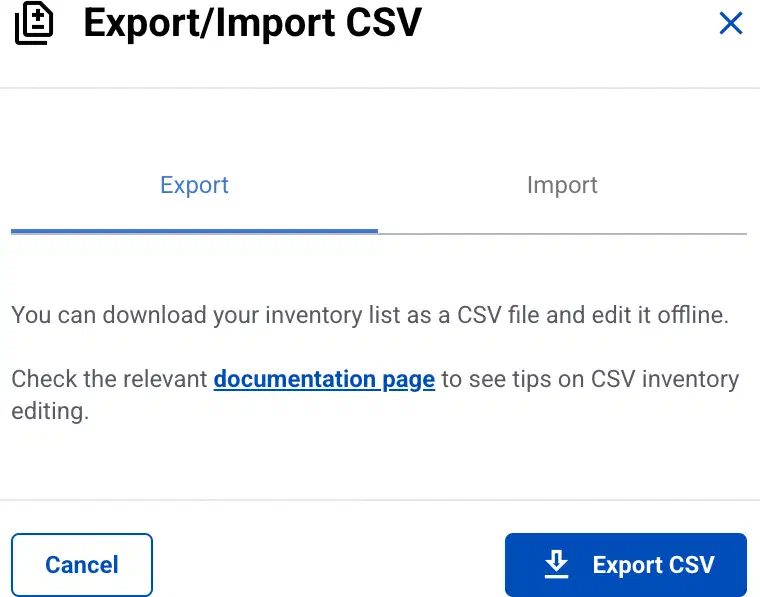
Select Export/Import CSV, then on the Export tab select Export CSV.
The current list is downloaded as a CSV file.
Edit the CSV file
The exported file has one row per host and the following columns, for example:
name,type,description,label.app,label.building,label.discovered,label.hostGroup,label.location,label.os,label.platform,label.product,label.rack,label.targetSample,label.team,label.vendor,fqdn,ip
arbor-edge-ppa,APPLIANCE,,,,,,,,,arbor-edge,,,,netscout,arbor-edge-ppa,192.168.9.99
azure-us-east-2-eventhub,APPLIANCE,,,2,,8,us-east-2,,,azure-event-hub,A,,windows,microsoft,azure-us-east-2-eventhub,10.192.23.63
name: The unique name of the host. This is what identifies the host, so keep it unchanged for hosts you want to update. The name must be a valid hostname and must be unique within the file. Required.type: The type of the host:APPLIANCE,EDGE, orROUTER. You can’t change the type of an existing host. To delete a host, set this column toDELETED.description: A free-text description of the host.label.<key>: Each label is a separate column named after its key, for examplelabel.location. The cell holds the label value. To add a new label to every host, add a newlabel.<key>column. To add a label to a single host, fill in its cell and leave the others empty. Label keys follow the same rules as labels added in the UI.fqdn,ip: The fully qualified domain name and IP address of the host. You can only set these forAPPLIANCEhosts. For other host types, these values are reported by the agent and can’t be changed, so leave them as exported.
When editing the file, keep the following in mind:
- The file is the desired state. For the fields you can edit (description, labels, and the
fqdnandipof appliances), clearing a cell clears that value on the host. For example, emptying alabel.<key>cell removes that label from the host. - Adding a host: Add a new row. You can only add type
APPLIANCEhosts, and each new host needs at least anfqdnor anip. To add a ROUTER or an EDGE host, provision an AxoRouter or an Axoflow agent. - Deleting a host: Set the
typecolumn of the row toDELETED. - Hosts you leave out are untouched. Only the rows in the file are processed. Removing a row from the file does not delete the host — use
DELETEDfor that.
Import the edited CSV file
-
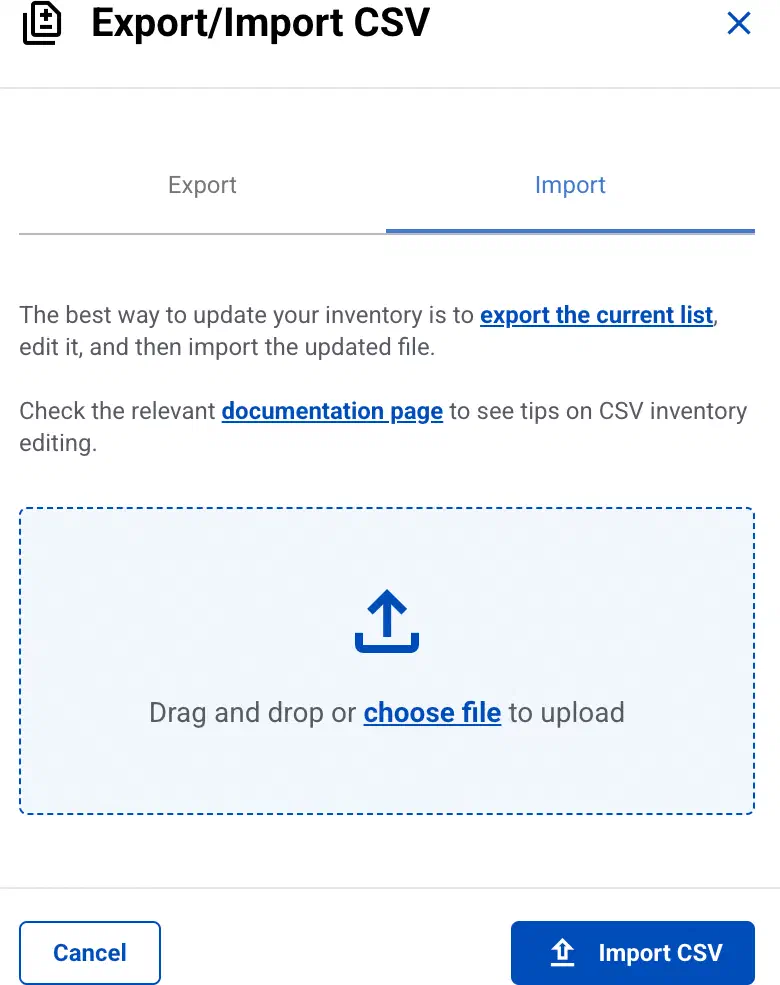
On the Routers or the Sources page, select Export/Import CSV, then open the Import tab.
-
Upload the edited CSV file.
AxoConsole compares the file against the current inventory and shows a summary of the changes to be made: how many hosts will be added, updated, and removed.
If the file contains errors, they’re listed per row and column so you can correct them and upload the file again.
-
Review the summary.
Note Changes are applied one by one, and are listed one-by-one in the Activity Logs. To stop an import that’s in progress, close the dialog. Changes that have already been applied stay in place.CAUTION:
Deleting hosts (
DELETED) and clearing values can’t be undone. Review the change summary carefully before importing.Select Import CSV to apply the changes.